
Two-Factor Authentication for OpenSSH and OpenVPN
Authentication using username and password still represents the standard procedure for most applications to authenticate to a service. However, the use of a second factor is becoming increasingly widespread and is even recommended by the BSI, the German Federal Office for Information Security. While not mandatory, various web services at least offer the option to enable two-factor authentication (2FA) for a user account.
However, not only the security of web services can be enhanced using 2FA—classic services such as SSH also allow the use of a second factor alongside the usual authentication methods such as passwords or certificates.
Methods
The most widely used method for one-time passwords as a second factor is probably TOTP, the Time-Based One-Time Password. The method is standardized in RFC6238 and is sometimes also known as Google Authenticator.
With TOTP, a numeric one-time password (OTP) valid for a short period is calculated from the current time and the shared secret, a secret known to both the service and the user.
Typically—and fixed in the case of Google Authenticator—the password consists of 6 digits and has a validity period of 30 seconds. However, the standard also provides for other lengths and time periods.
For calculating the OTP, there are CLI applications such as oathtool as well as GUI applications such as KeePassXC or smartphone apps such as AndOTP.
Setup
PAM (Pluggable Authentication Modules) is a collection of libraries that allows applications and services to delegate user authentication instead of having to implement it themselves. For this purpose, the messages exchanged during authentication between PAM and the user are forwarded through the application to the respective recipient.
During this conversation, PAM processes the modules configured in the application’s service file, in which the respective authentication methods are implemented. PAM ultimately reports only success or failure of the authentication to the application itself.
To use one-time passwords under Linux, the PAM module pam_oath is recommended. All services that use PAM to authenticate their users can thus be easily extended with two-factor authentication functionality. These include not only system internals such as login, su, or sudo, but also network-accessible services such as SSH or OpenVPN.
Depending on the distribution used, the PAM module is located in the package libpam-oath (Debian etc.) or pam_oath (CentOS etc.) and can be installed from the official sources.
PAM
To set up TOTP for SSH, the corresponding PAM service file must be modified. This is located at /etc/pam.d/sshd.
This file is approximately 50 lines long and describes, among other things, how a user’s identity can be verified when logging in via SSH and what environment is created before calling their login shell.
The exact function of the individual entries would exceed the scope of this article. The only line of interest for setting up TOTP is
@include common-auth
This adopts the default system behavior defined in the service file /etc/pam.d/common-auth: using the module pam_unix, the user’s password is compared with that in /etc/shadow.
To require verification of an OTP using pam_oath, the following line is added directly below the above @include directive:
auth required pam_oath.so usersfile=/etc/users.oath digits=6 window=2
The parameter usersfile refers to a file in which the users’ shared secrets are stored, digits=6 sets the length of the OTP to 6 digits.
Using window=2 enlarges the window of allowed OTPs. With a window size of 2, in addition to the currently valid OTP, the passwords from the previous and next time period are also valid. While a window size of 0 only allows the current OTP, an increasing number allows one more future and one more past password respectively. Additional parameters can be found in the module’s documentation.
The structure of the usersfile follows the *NIX tradition: each line represents an entry containing multiple fields separated by one or more spaces. While an entry can contain up to nine fields, only the first four are relevant when setting up a new user. They contain, in order: the method used, the username, an optional PIN, and in the last field the shared secret.
The RFC recommends a 160-bit (i.e., 20-byte) random number as the shared secret. This can easily be created using the openssl program:
$ openssl rand -hex 20
The output is the 40-character Base16-encoded representation of the randomly generated string, for example e2e36e1f3010bba83fed4118244f85be1cbb23fd.
To append an entry for the user alice using the TOTP method with a validity period of 30 seconds to the usersfile, the following command line can be used. The call to openssl contained in $() is replaced by its output, the 20-byte shared secret.
$ echo "HOTP/T30 alice - $(openssl rand -hex 20)" | tee -a /etc/users.oath
The program tee outputs the generated entry including the shared secret on the command line and also appends it as an additional line to the usersfile /etc/users.oath:
$ echo "HOTP/T30 alice - $(openssl rand -hex 20)" | tee -a /etc/users.oath
HOTP/T30 alice - e2e36e1f3010bba83fed4118244f85be1cbb23fd
SSH
An OpenSSH configured with default settings authenticates users using the built-in PasswordAuthentication. To use PAM, this must be disabled and ChallengeResponseAuthentication enabled instead. Authentication via PAM is then activated using the parameter UsePAM.
The configuration file /etc/ssh/sshd_config must therefore contain the following lines:
PasswordAuthentication no
ChallengeResponseAuthentication yes
UsePAM yes
Demo
Due to the changes to the OpenSSH configuration, the prompt that requests password entry during connection establishment has changed.
The PasswordAuthentication built into OpenSSH displayed the username and hostname used for the connection in the prompt.
alice@local$ ssh alice@192.0.2.1
alice@192.0.2.1's password:
alice@remote$
After switching to PAM using ChallengeResponseAuthentication, the input prompt of the respective PAM module is displayed: first pam_unix, then pam_oath.
alice@local$ ssh alice@192.0.2.1
Password:
One-time password (OATH) for `alice':
alice@remote$
OpenVPN
OpenVPN classically authenticates users via certificates validated by a trusted, often local, CA. However, during the connection establishment process, it is also possible to query a username and associated password on the client side and verify them on the server side.
To add 2FA to an existing OpenVPN installation, only a few changes to the configuration files are required.
To enable OpenVPN to delegate authentication of the username and password to PAM, the PAM plugin included in the standard installation is entered in the server’s OpenVPN configuration:
plugin /usr/lib/openvpn/openvpn-plugin-auth-pam.so openvpn
The parameter openvpn corresponds to the name of the PAM service file in /etc/pam.d/, which must be newly created:
auth required pam_oath.so usersfile=/etc/users.oath digits=6 window=2
@include common-account
If there are no user accounts on the machine running the OpenVPN service, their existence check can be skipped with a modified service file:
auth required pam_oath.so usersfile=/etc/users.oath digits=6 window=2
account required pam_permit.so
The module pam_permit always returns success. Since it is the only specified module of type auth, only its result is evaluated.
On the client side, only the following line needs to be added to the configuration so that the user is prompted for their username and (one-time) password during connection establishment:
auth-user-pass
If the connection is configured on the client side via a GUI such as NetworkManager, under Connection type, instead of the usual setting Certificates (TLS), the entry Password with certificates (TLS) must be selected. Under Username, the username to be used is entered, but the Password field remains empty; the option Ask for this password every time must be selected there.
Demo
After adjusting the configuration on the client, the user is prompted to enter a username and the associated OTP during the TLS negotiation of the connection establishment, immediately after certificate verification.
# openvpn client.conf
...
Enter Auth Username: alice
Enter Auth Password: ******
...
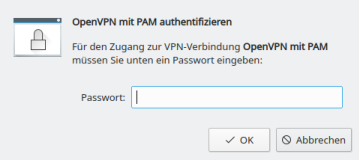
Even when using NetworkManager, the user is prompted for the current one-time password during connection establishment.
Calculate OTP
The shared secret, or shared secret, must—as the name suggests—be known to both sides. On the server side, it is located in the usersfile; on the client side, there are various ways for the user to store the shared secret in order to calculate an OTP.
The shared secret required for calculation was generated with the openssl call listed above and output in hexadecimal representation or Base16-encoded. In addition to Base16, representation in Base32 is also common, so care must be taken as to which encoding a program expects when entering the shared secret. Both mentioned methods are described and standardized in RFC 4648.
While the tools base32 and base64 for Base32 and Base64 respectively are already included in the package coreutils, another tool must be installed for converting from Base16, for example basez. In addition to the main application basez, several symbolic links to it are also created, including base16, which can be used like base32 and base64.
To convert the shared secret generated above for alice from Base16 to Base32, the following call is sufficient. The option -d when calling base16 stands for decode, since the conversion is from Base16.
$ echo e2e36e1f3010bba83fed4118244f85be1cbb23fd | base16 -d | base32
4LRW4HZQCC52QP7NIEMCIT4FXYOLWI75
In Base32 encoding, the shared secret is 4LRW4HZQCC52QP7NIEMCIT4FXYOLWI75.
As expected, there are also numerous web-based tools online for converting between the various encodings. However, transmission to websites is not recommended: even a shared secret is a secret and should not be disclosed to third parties!
The situation is similar when using QR codes, which will be covered in a separate article. Although widely used, their use is not without risks that should be analyzed and minimized beforehand.
CLI
The program oathtool enables the calculation of OTP on the command line. To calculate TOTP, it is passed the argument --totp and the shared secret in Base16 encoding when called:
$ oathtool --totp e2e36e1f3010bba83fed4118244f85be1cbb23fd
oathtool assumes an OTP length of 6 digits and a window of 0. These assumptions can be adjusted with the arguments -d (Digits) and -w (Window).
If the shared secret is Base32-encoded, the argument -b must be prepended:
$ oathtool --totp -b 4LRW4HZQCC52QP7NIEMCIT4FXYOLWI75
GUI
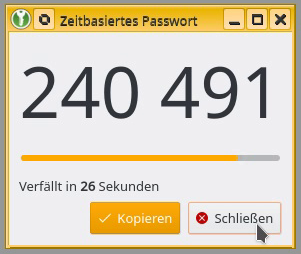
In addition to securely storing static passwords, KeepassXC also offers the ability to generate one-time passwords according to TOTP. For this purpose, the shared secret is stored as an attribute of an entry.
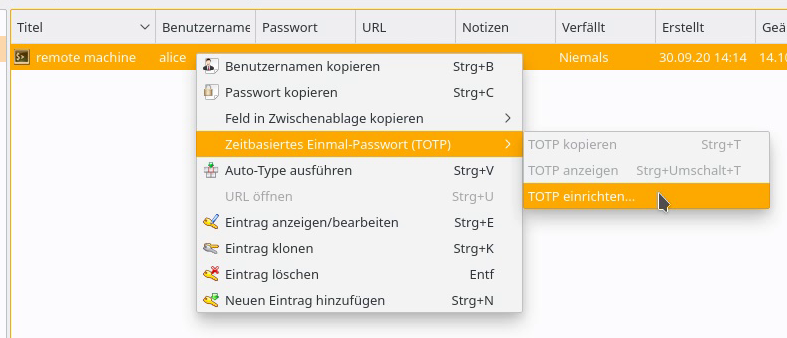
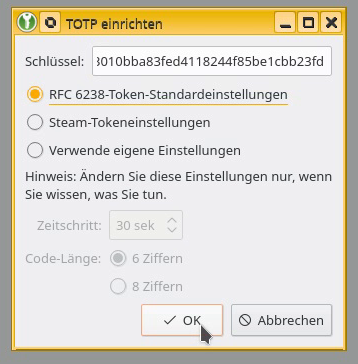
The shared secret can be added to an existing entry as a key by right-clicking and selecting Time-based One-Time Password (TOTP) > Set up TOTP…. RFC 6238 token standard settings assumes a length of 6 digits and a validity of 30 seconds. The Base16-encoded shared secret is expected as the key.
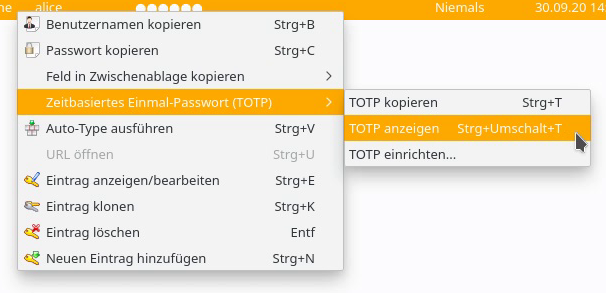
By right-clicking on the entry, the current one-time password can be displayed via Time-based One-Time Password (TOTP) > Show TOTP, or copied to the clipboard via Copy TOTP.
Smartphone App
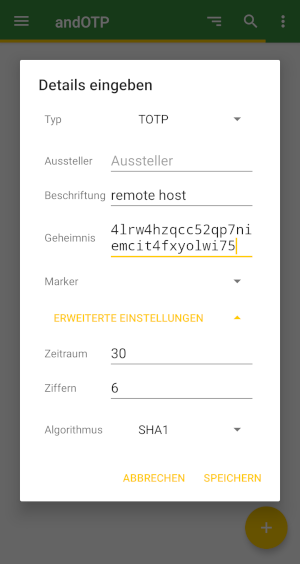
To calculate a TOTP on a smartphone, andOTP is recommended. The app is free software, licensed under the MIT License, and can be easily installed via F-Droid or from the Google Play Store.
A new entry can be created via the plus button in the lower right corner of the screen. In addition to the option to scan a QR code, the shared secret can be entered manually via the menu item Enter details, along with some settings such as time period, length, or hash algorithm.

The possibility of reading the shared secret and settings for calculating a TOTP using a QR code will be covered in an upcoming article.
Conclusion
The examples presented demonstrate how easy it is to extend even existing services with two-factor authentication using TOTP. It is only necessary to configure the connection to PAM and the use of the pam_oath module in the corresponding service file.
The procedure shown is primarily suitable for individual systems with a few user accounts to be secured. More complex installations and other methods for one-time passwords are also possible.
Support
If you require support with the configuration or use of two-factor authentication, our Open Source Support Center is at your disposal – if desired, also 24 hours a day, 365 days a year.
| Categories: | HowTos |
|---|---|
| Tags: | 2FA OpenSSH OpenVPN SSH |

About the author
Jan Bolle
about the person
Jan arbeitet seit 2020 an Projekten des Support–Teams und der Internen IT, nachdem er bereits sein Praktikum im Rahmen seines Informatikstudiums bei credativ absolvierte und auch seine Bachelorarbeit zum Thema Einmalpasswörter, Zwei–Faktor–Authentisierung und OpenVPN bei credativ schrieb. Bereits zu Schulzeiten interessierte er sich für Freie Software, Netzwerke und Telekommunikation und richtete zusammen mit Mitschülern ein Internetcafé ein, auf dessen Server und Clients Debian GNU/Linux seinen Dienst verrichtete.