
Proxmox VE - Page 2 of 2 - credativ®
This weekend, it was time once again for FrOScon 2025. With perfect summer weather – not too hot, not too cold – the event took place at the university in Sankt Augustin, as it does every year. But this year was different: FrOScon celebrated its 20th anniversary. I have a special connection to the conference. Not only is it the largest local open source conference, but I have also been a part of it for many years. I have given countless presentations, organised Debian stands, and run and organised developer tracks. In 2007, I even had the pleasure of being part of the organising team. In a way, FrOScon is like coming home. Everywhere you look, you see familiar faces you've known for many years, former and current colleagues, good friends from the open source scene. The only comparable event is Fosdem in Brussels – which is not surprising, as Fosdem is the great role model for FrOScon.
A journey through time – 20 years of FrOScon

I was already involved in the first FrOScon as an exhibitor for the Debian project, speaker and organiser of the Debian track (together with my colleague Martin Zobel-Helas, who is still involved). I could probably still give the presentation on techniques for combating spam today without changing a word, as the topic has lost none of its relevance. The first FrOScon closed its doors with a very respectable attendance of around 300 visitors. I was so enthusiastic that I got directly involved in the organisation the following year – this was also the year we introduced the famous bouncy castle ;). Over the course of 20 years, FrOScon has developed into one of the largest German OSS community events and now attracts around 1,500 visitors every year. Over the years, the conference has also attracted various prominent keynote speakers, including Andrew Tanenbaum and Richard Stallman, to name but a few. Then as now, I can say that FrOScon is the best conference in the West.
FrOScon 2025
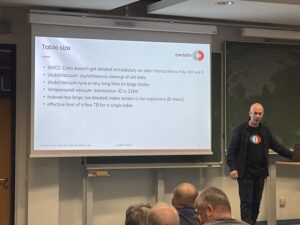
Let's get to the actual content of this blog post – FrOScon 2025. We were represented this year with two presentations and several colleagues as visitors. My colleague Patrick Lauer dedicated one of the rooms to the topic of "Postgres with many data". Thanks to c3voc, the presentation is also available as a stream for anyone who was unable to attend, so everyone can fill this knowledge gap at a later date.
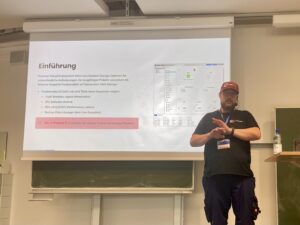
I also gave a presentation again this year. The topic was Proxmox VE and external block devices. I talked about the different types of block devices, such as ISCSI, Fibre Channel and NVMEoF, and how to use them. This presentation is also available in the c3voc video archive.
Conclusion
This FrOScon was once again a successful event for community members and interested professionals. It's a bit like a class reunion: you see lots of familiar faces and are excited to find out what everyone has been up to since you last met. Even if I'm hopefully retired by then, I would be delighted to give a presentation at FrOScon #40 ;).

The release of Proxmox Virtual Environment 9.0 marks a significant step forward for the popular open-source virtualisation platform. With a range of improvements in performance, flexibility and user-friendliness, this version stands out from its predecessors and is increasingly geared towards the requirements of businesses.
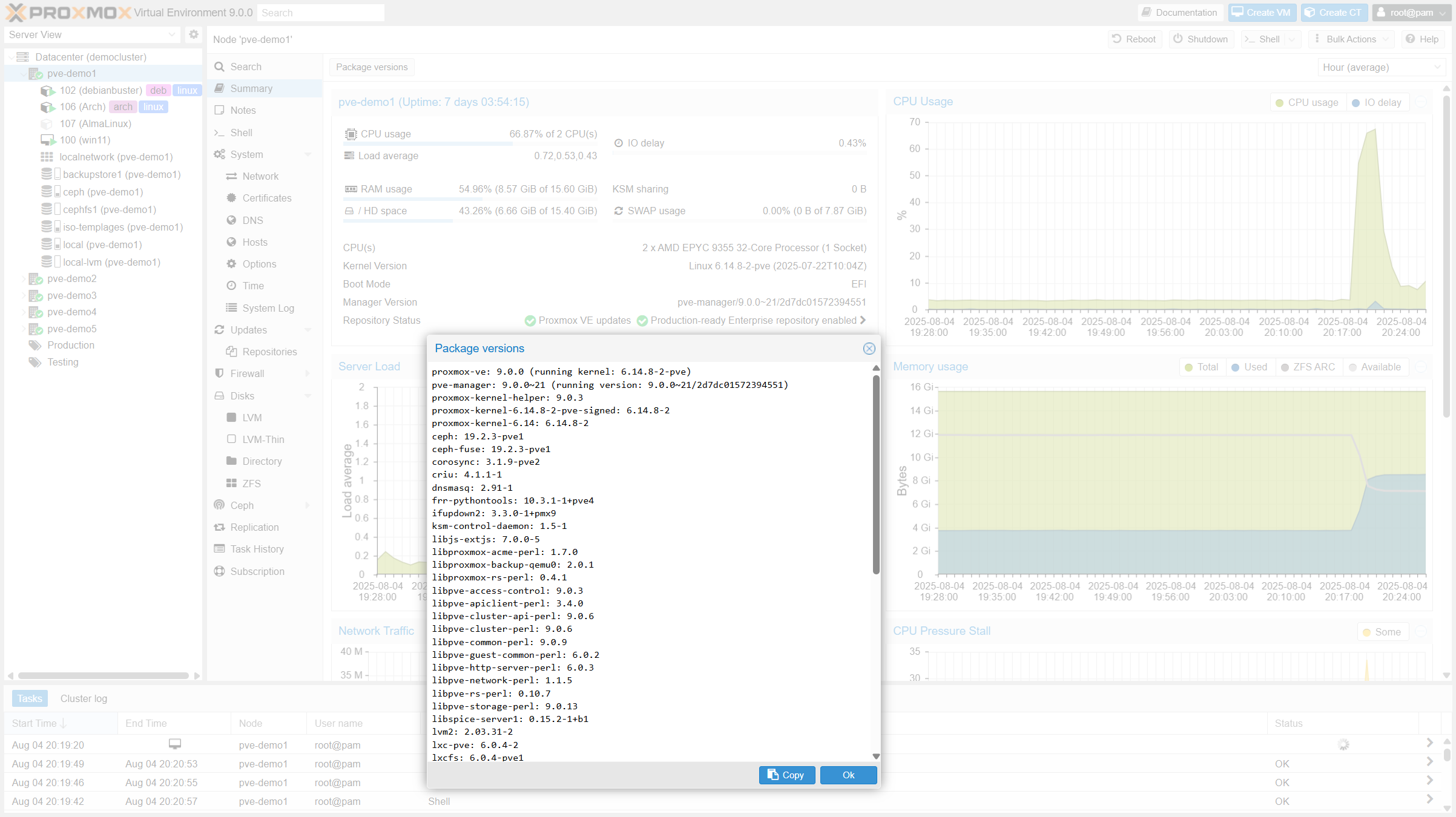
The most important new features at a glance:
- Basis: Debian 13 "Trixie" & Linux Kernel 6.14
The foundation of Proxmox VE 9.0 is the new Debian 13 "Trixie". In combination with the latest Linux kernel 6.14, users benefit from improved hardware compatibility, increased security and overall better performance. - VM snapshots for LVM shared storage
One of the most anticipated features is native snapshot support for LVM Shared Storage. This is particularly important for environments that use iSCSI or Fibre Channel SANs, as it is now possible to create snapshots as so-called "volume chains". This enables flexible and hardware-independent backup solutions. The snapshot functionality is based on QCow2 and is also available for other storage types. - SDN stack with "fabrics"
The software-defined networking (SDN) stack has been expanded to include the new concept of "fabrics". This makes it easier to create and manage complex, fault-tolerant and scalable network topologies. The new version also supports the OpenFabric and OSPF routing protocols, which simplifies the setup of EVPN networks. - High availability (HA) with affinity rules
New affinity rules make managing high-availability clusters more flexible. Administrators can now define whether VMs or containers should remain on the same node (positive affinity) or be distributed across different nodes (negative affinity) to increase reliability. However, for behaviour familiar from VMware DRS, we still recommend ProxLB as the tool of choice. - Modern and responsive mobile user interface
The mobile web interface has been completely redesigned in Rust using the Yew framework. It offers significantly improved usability, faster loading times and allows basic maintenance tasks to be performed on the go. - Improvements to ZFS
There is also good news for users who use ZFS storage pools: Version 9.0 now allows new hard disks to be added to existing RAIDZ pools with minimal downtime. - Expansion of metrics
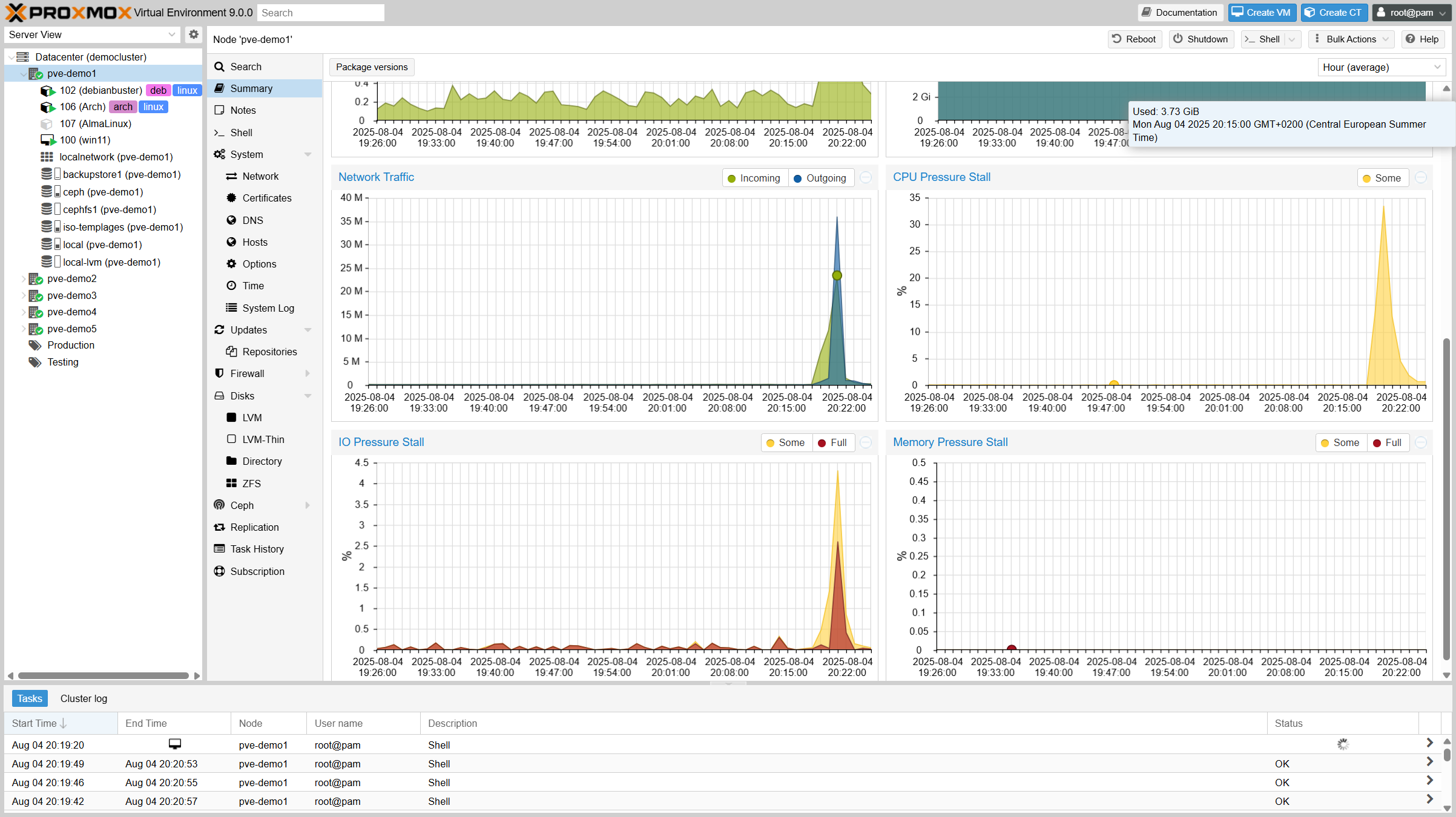
In the new version, the host metrics have been revised and expanded.
In summary, Proxmox VE 9.0 represents a solid further development of the platform. The new features and modern foundation make it an even more powerful and reliable solution for businesses and home users who value open source technology.
Further information on upgrading to the new version can also be found here: https://pve.proxmox.com/wiki/Upgrade_from_8_to_9
Our team will also be happy to assist you with upgrading your nodes.
credativ is an authorised reseller for Proxmox VE and will be happy to assist you. In particular, we can help you with the design, setup and operation of automated cluster environments. Migration from existing commercial solutions is high on our list of priorities. We also offer our customers 24/7 support for Proxmox VE.
The two screenshots and the Proxmox logo are from https://www.proxmox.com/de/ueber-uns/details-unternehmen/medienkit.
Automated Proxmox Subscription Handling with Ansible
When deploying Proxmox VE in enterprise environments, whether for new locations, expanding existing clusters, or migrating from platforms like VMware, automation becomes essential. These scenarios typically involve rolling out dozens or even hundreds of nodes across multiple sites. Manually activating subscriptions through the Proxmox web interface is not practical at this scale.
To ensure consistency and efficiency, every part of the deployment process should be automated from the beginning. This includes not just the installation and configuration of nodes, automated cluster creation, but also the activation of the Proxmox subscription. In the past, this step often required manual interaction, which slowed down provisioning and introduced unnecessary complexity.
Now there is a clean solution to this. With the introduction of the new Ansible module proxmox_node, the subscription management is fully integrated. This module allows you to handle subscription activation as part of your Ansible playbooks, making it possible to automate the entire process without ever needing to open the web interface.
This improvement is particularly valuable for mass deployments, where reliability and repeatability matter most. Every node can now be automatically configured, licensed, and production-ready right after boot. It is a great example of how Proxmox VE continues to evolve into a more enterprise-friendly platform, while still embracing the flexibility and openness that sets it apart.
Ansible Module: proxmox_node
With automation becoming more critical in modern IT operations, managing Proxmox VE infrastructure through standardized tools like Ansible has become a common practice. Until now, while there were various community modules available to interact with Proxmox resources, node-level management often required custom workarounds or direct SSH access. That gap has now been closed with the introduction of the new proxmox_node module.
This module was developed by our team at credativ GmbH, specifically by our colleague known in the community under the handle gyptazy. It has been contributed upstream and is already part of the official Ansible Community Proxmox collection, available to anyone using the collection via Ansible Galaxy or automation controller integrations.
The proxmox_node module focuses on tasks directly related to the lifecycle and configuration of a Proxmox VE node. What makes this module particularly powerful is that it interacts directly with the Proxmox API, without requiring any SSH access to the node. This enables a cleaner, more secure, and API-driven approach to automation.
The module currently supports several key features that are essential in real-world operations:
- Managing Subscription Licenses
One of the standout features is the ability to automatically upload and activate a Proxmox VE subscription key. This is incredibly helpful for enterprises rolling out clusters at scale, where licensing should be handled consistently and automatically as part of the provisioning workflow. - Controlling Power States
Power management of nodes can now be handled via Ansible, making it easy to start (via Wake-on-Lan) or shutdown nodes as part of playbook-driven maintenance tasks or during automated cluster operations.
- Managing DNS Configuration
DNS settings such as resolvers and search domains can be modified declaratively, ensuring all nodes follow the same configuration policies without manual intervention.
- Handling X509 Certificates
The module also allows you to manage TLS certificates used by the node. Whether you’re deploying internal PKI-signed certificates or using externally issued ones, theproxmox_nodemodule lets you upload and apply them through automation in a clean and repeatable way.
By bringing all of this functionality into a single, API-driven Ansible module, the process of managing Proxmox nodes becomes much more reliable and maintainable. You no longer need to script around pveproxy with shell commands or use SSH just to manage node settings.
Subscription Integration Example
Adding a subscription to a Proxmox VE node is as simple as the following task. While this shows the easiest way for a single node, this can also be used in a loop over a dictionary holding the related subscriptions for each node.
- name: Place a subscription license on a Proxmox VE Node
  community.proxmox.node:
    api_host: proxmoxhost
    api_user: gyptazy@pam
    api_password: password123
    validate_certs: false
    node_name: de-cgn01-virt01
    subscription:
        state: present
        key: ABCD-EFGH-IJKL-MNOP-QRST-UVWX-YZ0123456789
Conclusion
For us at credativ, this module fills a real gap in the automation landscape around Proxmox and demonstrates how missing features in open-source projects can be addressed effectively by contributing upstream. It also reinforces the broader movement of managing infrastructure declaratively, where configuration is versioned, documented, and easily reproducible.
In combination with other modules from the community Proxmox collection like our recent proxmox_cluster module, proxmox_node helps complete the picture of a fully automated Proxmox VE environment — from cluster creation and VM provisioning to node configuration and licensing. If you’re looking for help or assistance for creating Proxmox VE based virtualization infrastructures, automation or custom development to fit your needs, we’re always happy to help! Feel free to contact us at any time.
ProxLB – Version 1.1.0 of the Advanced Loadbalancer for Proxmox Clusters is Ready!
Finally, it’s here – and it’s no April Fool’s joke! The long-awaited version 1.1.0 of ProxLB has been officially released! This new version features a complete code refactoring, making maintenance easier and laying the groundwork for future expansions. Additionally, numerous bugs have been fixed, and more features have been implemented. ProxLB is the result of the dedication of our employee Florian Paul Azim Hoberg, better known as gyptazy, who has applied his knowledge and passion to create a powerful open-source solution for Proxmox clusters. We – as credativ GmbH – believe in the power of open-source software and support him by spending time to this project during the business time.
Closing the gap
 ProxLB fills the gap left by the absence of a Dynamic Resource Scheduler (DRS) in Proxmox. As a powerful load balancer, it intelligently migrates workloads or virtual machines (VMs) across all nodes in the cluster, ensuring optimal resource utilization. ProxLB takes CPU, memory, and disk usage into account to prevent over-provisioning and maximize performance.
Automatic maintenance mode handling
One of the standout features of ProxLB is its maintenance mode. When one or more nodes are placed in maintenance mode, all VMs and containers running on them are automatically moved to other nodes, ensuring the best possible resource utilization across the cluster. This allows for seamless updates, reboots, or hardware maintenance without disrupting ongoing operations.
Custom affinity rules
Furthermore, ProxLB offers extensive customization options through affinity and anti-affinity rules. Administrators can specify whether certain VMs should run together on the same node or be deliberately separated. This is particularly useful for high-availability applications or specialized workloads. Another practical feature is the ability to identify the optimal node for new guests. This function can be easily integrated into CI/CD pipelines using tools like Ansible or Terraform to automate deployments and further enhance cluster efficiency. You can see how this works with ProxLB and Terraform in this example.
ProxLB also stands out with its deep integration into the Proxmox API. It fully supports the Access Control List (ACL), eliminating the need for additional SSH access. This not only enhances security but also simplifies management.
Whether used as a one-time operation or in daemon mode, ProxLB is a flexible, transparent, and efficient cluster management solution. Thanks to its open-source license, users can customize the software to meet their specific needs and contribute to its further development.
Download
ProxLB can be installed in many different ways where it can operate and run inside of an dedicated VM (even inside the Proxmox cluster), on bare-metal, on a Proxmox node itself or on containers like LXC or Docker. The project also provides ready to use container images that can directly be used in Docker or Podman. The project’s docs provide you a more detailed overview of the different types and ways to install and use ProxLB, which can simply be found right here. While you can find below resources for a quick-start you should think about switching to the project’s Debian based repository for long-term usage.
| Typ | Download |
| Debian Package | proxlb_1.1.0_all.deb |
| Container Image | cr.gyptazy.com/proxlb/proxlb:latest |
Conclusion
With version 1.1.0, ProxLB lives up to its reputation as an indispensable tool for Proxmox administrators, especially for those transitioning from VMware. Try out the new version and experience how easy and efficient load balancing can be in your cluster! We are also happy to support you with the integration and operation of ProxLB in your cluster, as well as with all other Proxmox-related topics, including planning a migration from other hypervisor technologies to Proxmox!
Introduction
Proxmox Virtual Environment (VE) is a powerful open-source platform for enterprise virtualization. It supports advanced Dynamic Memory Management features, including Kernel Samepage Merging (KSM) and Memory Ballooning, which can optimize memory usage and improve performance. This blog post evaluates the effectiveness of KSM and Memory Ballooning features in Proxmox VE using Linux virtual machines (VMs). We will set up a VM with Proxmox VE for a test environment, perform tests, and analyze the results to understand how these features can benefit virtualized environments. Additionally, we will have a look at the security concerns of enabling KSM and the risks associated with using ballooning, especially in database environments.
What’s KSM?
Kernel Samepage Merging (KSM), is a memory deduplication feature in Linux kernel that scans for identical memory pages in different processes and merge them into a single page to reduce the memory usage. It is particularly useful in virtualized environments where multiple VMs may have similar or identical data in memory, such as when running the same operating system or applications.
KSM was introduced long ago since the Linux kernel version 2.6.32 in 2009. However, it does not stop the developers to introduced new features for KSM as shown by the 6.x kernel. There are new changes introduced that you can find here: Breakdown of changes to Kernel Samepage Merging (KSM) by Kernel Version. As you can see, the kernel developers are constantly adding new features for KSM to the Linux Kernel to further improve its functionality.
The current Linux Kernel used in Proxmox VE is 6.8.x for example. It supports the newly added „Smart Scan“ feature which we going to test together in this blog post.
What’s Memory Ballooning?
Memory Ballooning is a technique used in virtualized environments to dynamically adjust the memory allocation of VMs based on their current needs. A “balloon driver” within the guest VM allocates unused memory into a pool of memory (the “balloon”), allowing the hypervisor to reallocate memory resources to other VMs as needed. This helps optimizing memory usage across the host system, ensuring that memory is efficiently utilized and not wasted on idle VMs.
Tests Setup
To evaluate KSM and ballooning features in Proxmox VE, we set up a test cluster consisting of one node which we operate within a VM that offers 16GB of RAM. That sample cluster will then run multiple Linux Guest VMs on top of it to demonstrate the KSM and Memory Ballooning features.
The following picture shows an overview of our test VM setup:
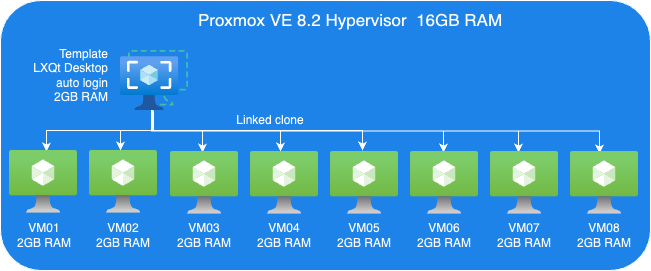
Proxmox VE Host:
- A VM to install Proxmox VE 8.2.
- 8 Cores vCPU
- 16GB RAM
- 200GB Virtio storage
Linux Guest VM Template:
- Linux Guest
- 2GB RAM
- Install Debian LXQt desktop
- 16GB Virtio storage
Linux Guest VMs:
- 8 VMs, Linked-Clone from template
Perform tests
We perform two sets of tests. First, we just evaluate KSM. Then, we perform another tests set to testing Memory ballooning without KSM.
Guest VMs Setup for KSM Tests:
- We cloned 8 VMs out of our VM template with 2GB RAM each, as you can see in the picture below.
Each VM configured with 2GB RAM without ballooning enabled.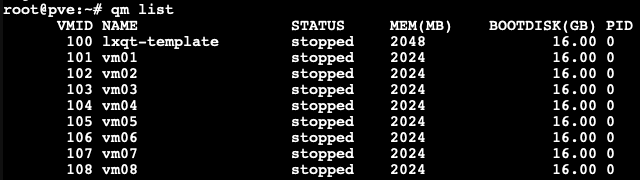
Next, we boot those 8 VMs up and start them with LXQt desktop auto-login without triggering KSM. Here, we want to check how much memory each of those VMs consumes before applying any kind of reducing mechanism.
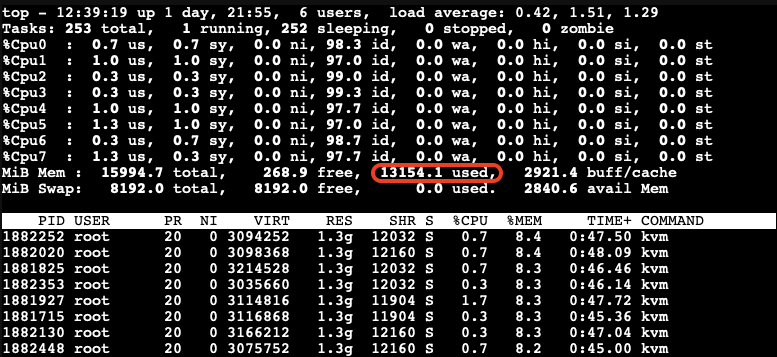
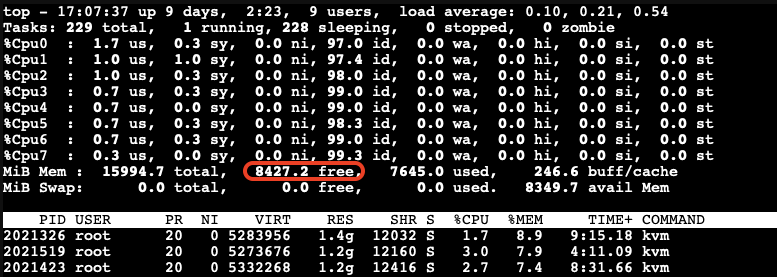
As you can see, all 8 VMs consume 13154.1MB in total. The screenshot above has been captured on our Proxmox VE host.
- Enable KSM Smart Scan by the command on host:
# echo "scan-time" > /sys/kernel/mm/ksm/advisor_mode
- Enable KSM run:
# echo 1 > /sys/kernel/mm/ksm/run
Observations on KSM Smart Scan
The KSM Smart Scan feature appears to be more efficient compared to the classic ksmtuned method, as it comes with optimizations for page scanning that skip pages if de-duplication was not successful in previous attempts. This reduces the CPU time required for scanning pages significantly, which is especially helpful when the system has reached a “steady state“. During our tests, we did not observe ksmd occupying significant system resources, resulting that KSM Smart Scan can optimize memory usage with minimal overhead.
Test Results
- After a while as the KSM is scanning and merging pages. The used Mem reduced to 6770.1 Mib.
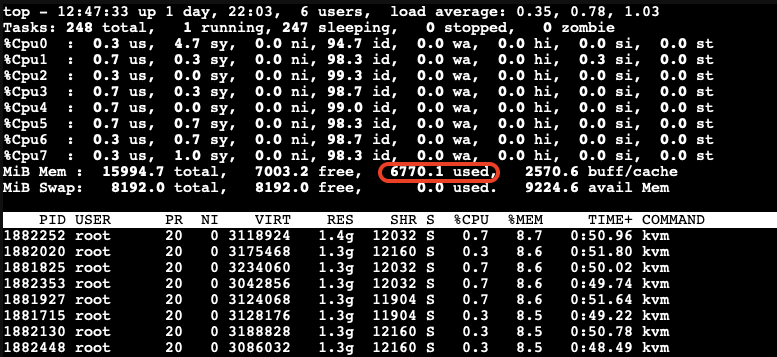
- We also can see the KSM sharing status on Proxmox VE WebUI.
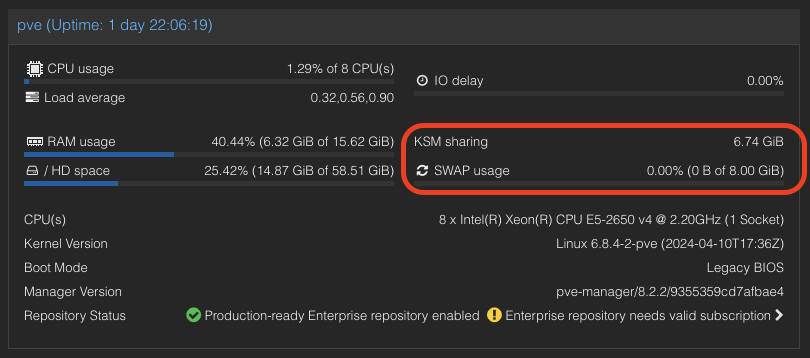
A significant reduction in memory usage was observed. Although there was a slight increase in CPU usage by ksmd during KSM operation, there was no significant degradation in VM performance. This indicates that KSM operates efficiently without imposing a heavy load on the system. The merging of identical pages resulted in better memory utilization, allowing more VMs to run on the same host without additional hardware.
Kernel Samepage Merging (KSM) in Windows VMs
KSM is a native feature in the Linux kernel that works at the hypervisor level, scanning memory pages across all VMs and merging identical pages into a single shared page. This process reduces the overall memory footprint of the VMs.
For Windows VMs, the hypervisor treats their memory similarly to Linux VMs, identifying and merging identical pages. This means that the benefits of KSM can also extend to Windows VMs running on Proxmox VE due to the fact that Proxmox itself runs Linux and therefore utilizes the KSM kernel feature no matter what OS the guests VMs on top of Proxmox VE are running.
Guest VMs Setup for Ballooning Tests:
Next, let’s have a look at Memory Balloning in another test. In order to evaluate the balloning features in Proxmox VE. To evaluate the ballooning features in Proxmox VE, we will repurpose the Proxmox VE environment used for KSM tests with the following adjustments:
- Retain three VMs and remove the others.
- Enable Ballooning in each VM.
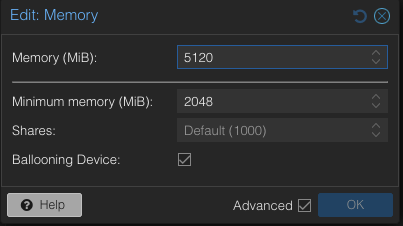
- Set the minimum memory to 2048MB and the maximum memory to 5120MB in each VM
.
Disable the KSM:
To disable KSM manually, execute the following command:
# echo 2 > /sys/kernel/mm/ksm/run
The following picture shows an overview of our Ballooning test VMs setup:
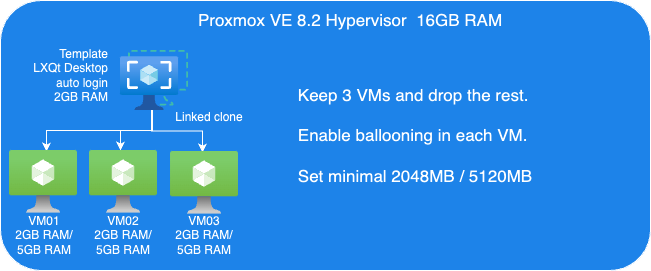
Due to memory ballooning, we should now have more memory available for each VM. Let’s test this by using stress-ng to allocate 4GB of memory on each guest VM, and hold the allocated memory in seconds you may specify:
$ stress-ng --vm-bytes 4G -m 1 –vm-hang <seconds>
The –vm-hang <seconds> option specify how many seconds that VM hangs before unmapping memory.
OOM-Killer!
We observed the OOM-killer being triggered on the Proxmox VE host.

Having the OOM-killer triggered on the host is problematic. Allocating 5GB of memory to each VM resulted in excessive overcommitment, causing the OOM-killer to activate due to insufficient memory to handle the host’s workload.
OOM-killer triggered are always problematic, but it triggered on the host are even worse compared to triggered within guest VMs since you never know what VM gets terminated and killed or at least it’s really hard to forecast.
One of the basic purpose of Memory ballooning is to ovoid OOM-killer triggered on the host system since they can cause „more“ damage than a OOM-killer triggered within a specific VM.
Reduce Maximum Memory Configuration in VMs for Ballooning Tests
To address the overcommitment issue, let’s reduce the maximum memory configuration in each VM to 4GB.
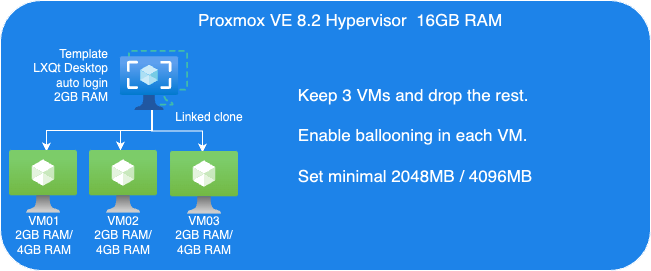
- Adjust the maximum memory setting for each VM to 4GB.
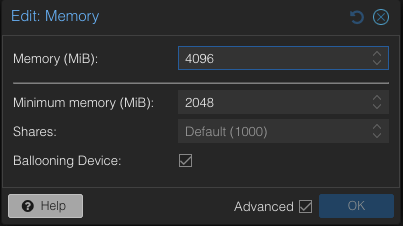
- Boot up three VMs.
Next, we’ll use stress-ng in the guest VM to allocate 3GB of memory and then hang for a specified duration without CPU usage on each guest VM:
$ stress-ng--vm-bytes 3G -m 1 --vm-hang <seconds>
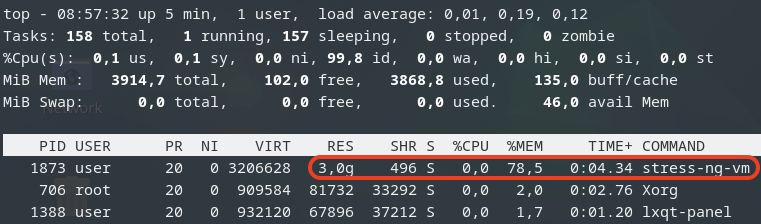 This is top command in the guest VM.
Check Memory Usage on the Host
After running the stress-ng test, we check the memory usage on the host:
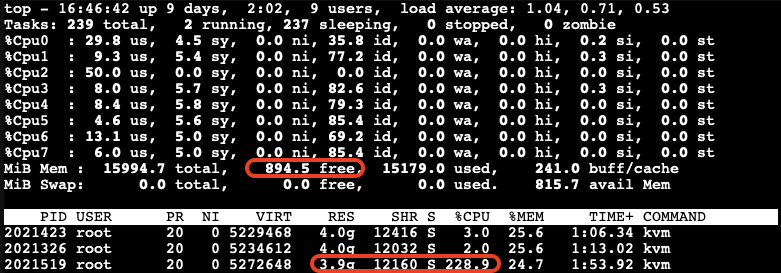
The free memory on the host is now low. The third VM, which is trying to allocate memory, experiences very high CPU usage due to the limited resources available on the host.
After a while, we can observe the ballooning driver starting to reclaim memory from the guest VMs on the host. Each VM’s RES (occupied physical memory) got reduced:
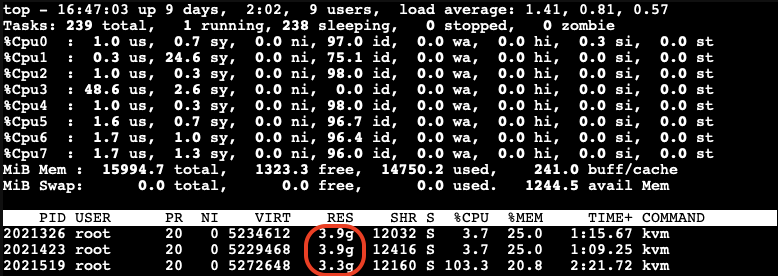
The ballooning driver is now reclaiming memory from each guest VM to increase the available free memory on the host. This action helps to maintain the host’s workload but causes all other guest VMs to slow down due to reduced memory allocation.

Impact of Ballooning on Guest VMs
The slowed down VMs eventually do not have enough available free memory to maintain their workloads. As a result, the OOM-killer is triggered inside the guest VMs:

All the VMs hang for a while, and then the OOM-killer triggers to terminate the stress-ng process. After this, the VMs return to their normal state, and there is sufficient available free memory on the host:
When Does Memory Stealing Get Triggered?
To determine when memory stealing gets triggered, let’s conduct another tests. We will use the same stress-ng command to allocate 3GB of memory on two VMs.
Next, we will gradually allocate memory on the third VM, starting with 512MB and then incrementally adding another 512MB until we observe memory reclaiming being triggered.
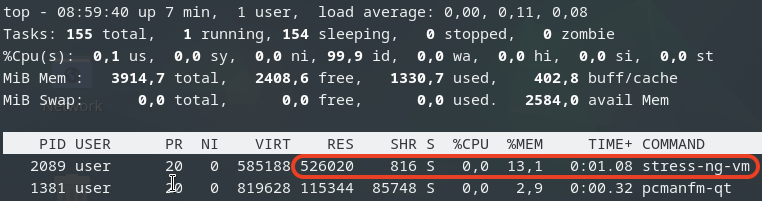
As we gradually increase the memory allocation on the third VM, we monitor the host’s memory usage:
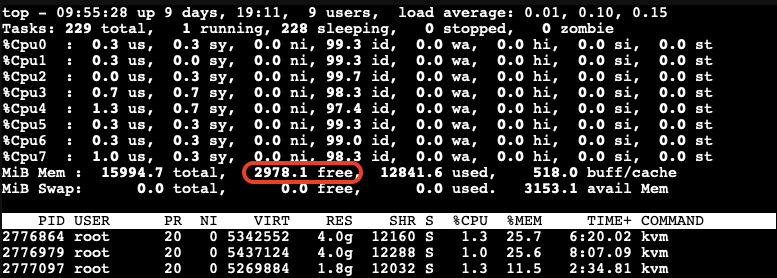
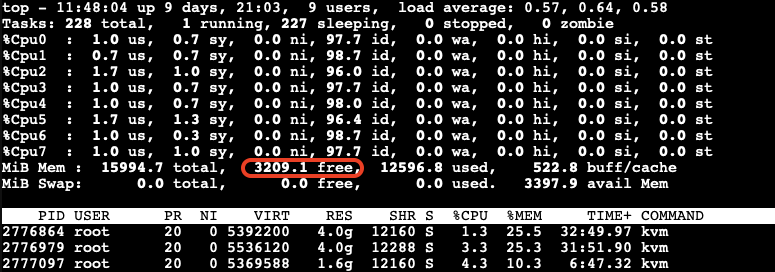
We observe that memory stealing is not yet triggered when the available free memory on the host reaches 2978.1MB (approximately 18.5%) of the total memory.
Let’s allocate a bit more memory on the third VM to further reduce the available free memory on the host. We found that when the available free memory on the host reaches around 15% of the total memory, the ballooning driver triggers to stealing memory from the guest VMs: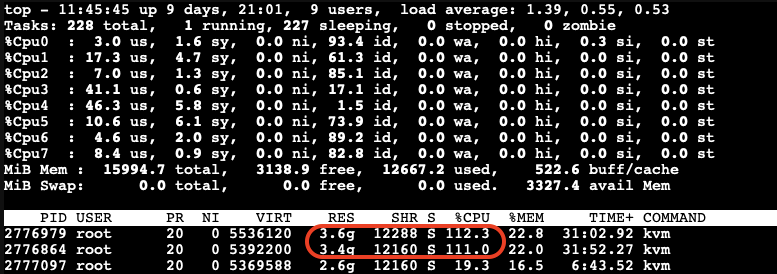
At this point, we can see the memory allocated to the VMs being reduced and the CPU usage increasing significantly.
The memory stealing process continues until the available free memory on the host reaches 20% of the total memory again. After releasing the allocated memory from the third VM, we observe that the reclaiming process stops when the available free memory on the host reaches 20% of the total memory.
Visualizing the Ballooning Tests Results
The following picture below illustrates the observations from our tests:
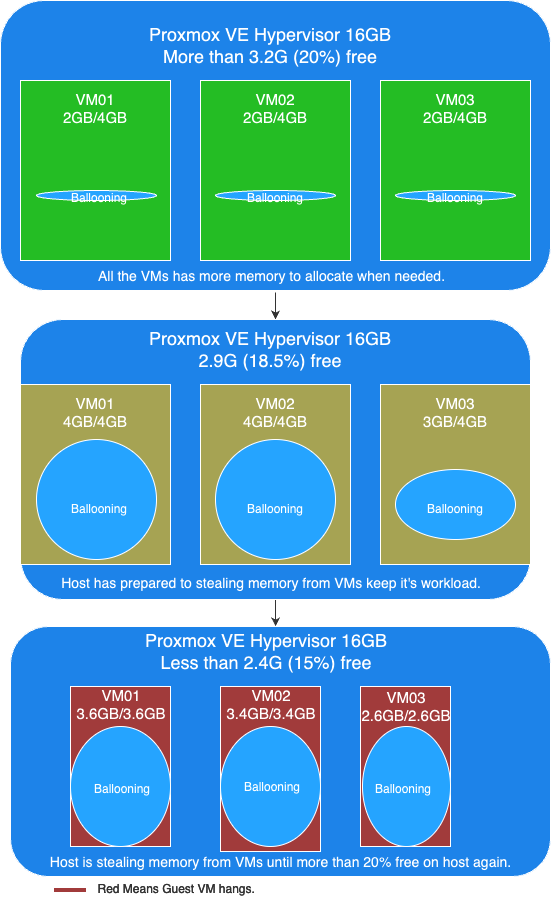
In this picture, you can see the following key points:
- More than 20% free available memory on host: The initial memory allocation to the VMs, where each VM is configured to be able allocated a maximum 4GB of memory.
- Free available memory reached 18.6% on host: The first and second VMs have allocated their maximum of 4GB of memory. The incremental allocation of memory to the third VM begins, starting with 512MB and increasing by 512MB increments.
- Triggering Memory Stealing: The point at which the available free memory on the host drops to around 15% of the total memory, triggering the ballooning driver to reclaim memory from the guest VMs. The red color in guest VMs indicates increased CPU usage as the ballooning driver stealing memory, affecting the performance of the guest VMs.
Memory Ballooning in Windows VMs
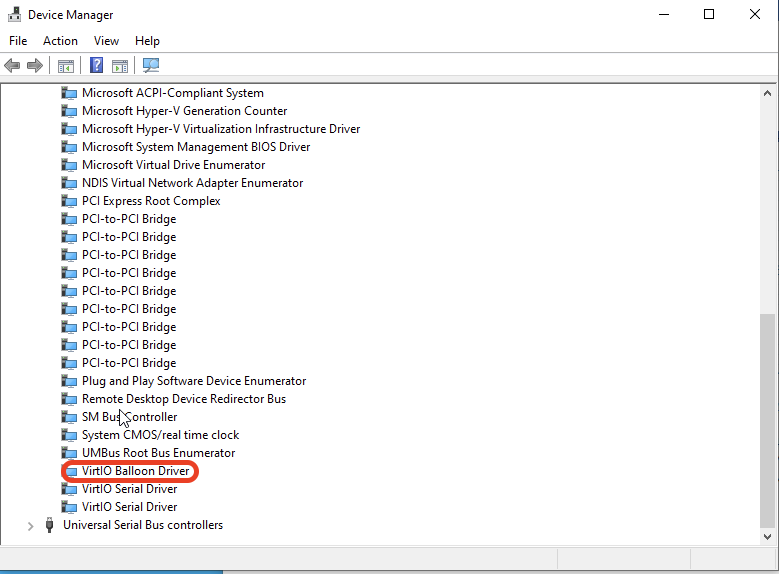
Memory ballooning also works with Windows VMs in Proxmox VE by Windows VirtIO Drivers. You can find the drivers ISO from the Proxmox wiki or download directly from upstream VirtIO drivers ISO.
Compared to Linux VMs
Memory hot plug is supported in Linux VMs, allowing the total amount of memory to change dynamically when the ballooning driver is active. This means that in Linux VMs, you can see the total memory allocation adjust in real-time as the ballooning driver works. Windows does not support memory hot plug in the same way. As a result, you won’t see the total amount of memory adjusted in a Windows VM. Instead, you will observe an increase in the amount of used memory. Despite this difference, the end result is the same: the available free memory is reduced as the ballooning driver reclaims memory.
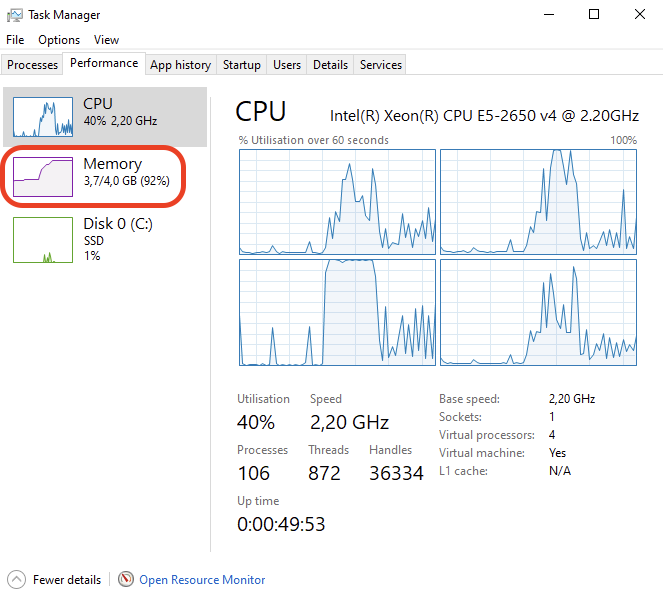
This screenshot shows you will observe the used memory increased when ballooning is active to stealing memory inside Windows VM.
Results
Memory ballooning in Proxmox VE is a powerful feature for dynamically managing memory allocation among VMs, optimizing the host’s overall memory usage. However, it’s crucial to understand the thresholds that trigger memory reclaiming to avoid performance degradation. It is recommended to set an appropriate minimum memory limit to ensure that no more memory can be stolen once this minimum threshold is reached, this way to keep the stability of the guest VM and preventing the OOM-killer from terminating processes inside the guest VM. By appropriately setting, carefully monitoring, and adjusting memory allocations, you can ensure a stable and efficient virtual environment.
Security Concerns
Implications of Enabling KSM
According to the Kernel Samepage Merging (KSM) document from Proxmox VE wiki. It mentioned the implications of KSM. There are already some document proof by researchers that “Memory Deduplication as Threat to the Guest OS” , it is possible to perform “Remote Memory-Deduplication Attacks”, and also possible compromising Linux VMs by “New FFS Rowhammer Attack Hijacks Linux VMs”.
In the concern, you should only enable KSM when you have full control of all the VMs. If you are using Proxmox VE to provide hosting services, you better consider disabling KSM to protect your users. Furthermore, you should check your country’s regulations, as disabling KSM may be a legal requirement.
Risks When Using Databases with Ballooning
Memory ballooning dynamically adjusts the memory allocation of VMs based on demand. While this feature is beneficial for optimizing memory usage, it poses certain risks when used with database like PostgreSQL, which rely heavily on available memory for performance. If the balloon driver reclaims too much memory, where overcommitting memory pages can lead to trigger OOM-Killer to kill the process with the highest score until the high memory stress situation is over. And the process with the highest score metrics could be on memory consumption which highly possibility the database itself.
In the concern, you better running database server in VM without Memory Ballooning enabled, or set no overcommit policy in the Linux kernel inside the guest VM if you don’t have such control.
Conclusion
Our tests demonstrate that KSM and memory ballooning are effective features in Proxmox VE for optimizing memory usage in virtualized environments. KSM can significantly reduce memory usage by merging identical pages across VMs, while memory ballooning allows dynamic adjustment of memory allocation based on demand.
Memory ballooning in Proxmox VE is a powerful feature for dynamically managing memory allocation among VMs, optimizing the host’s overall memory usage. However, it’s crucial to understand the thresholds that trigger memory reclaiming to avoid performance degradation. By carefully monitoring and adjusting memory allocations, you can ensure a stable and efficient virtual environment.
Together, these features can enhance the efficiency and performance of virtualized workloads, making Proxmox VE a robust solution for enterprise virtualization.
By leveraging KSM and memory ballooning, organizations can achieve better resource utilization and potentially reduce hardware costs. If you have full control of the host and all the VMs, consider enabling these features in Proxmox VE to explore these potential benefits.
This article was written originally bei Andrew Lee.
ONTAP snapshots for Proxmox VE
In modern IT infrastructure, virtualization is the key to efficient resource management. With virtualization, memory, cpu, network and storage resources can easily be assigned to and shared between virtual machines (VM). Virtualization also comes with the advantage of being able to easily change the resources assigned to virtual machines or to clone virtual machines as needed. Since the virtual machines hard disk is just a file, it can easily be resized, copied and backuped.
Motivation
One of the many advantages of virtualization is the ability to easily create snapshots of the virtual machine disk images.
Proxmox VE offers this ability for the qcow2 disk image format, but not for the raw format on NFS based storage. When creating a VM disk snapshot with Proxmox VE on the local filesystem, Proxmox VE uses the features of the underlying filesystem to create snapshots. In cases, in which the VM disk is placed on a NFS storage, it is not possible for Proxmox VE to use any filesystem features to create a snapshot and therefore has to fallback to file based snapshots.
Since NetApp ONTAP offers snapshot features on file level and on volume level using its own filesystem features, it could be an advantage to use this features over the Proxmox VE file based snapshots.
The common way to connect Proxmox VE with NetApp ONTAP would be NFS. NetApp ONTAP also supports iSCSI, but that is out of scope, as an iSCSI connected storage offers full access to the filesystem and therefore Proxmox VE could use the filesystem features.
ONTAP snapshots
A FileClone is a copy of a file, that points to the same blocks as the original file, only changes are written to new blocks. Therefore creating a FileClone happens instantly and writing to a FileClone does not create any overhead as a file based snapshot in Proxmox VE does. Also deleting or better merging the snapshot back into the virtual disk image is not necessary, as a FileClone is a full copy of the original virtual disk. Just delete the original virtual disk and continue using the FileClone or switch back to the original virtual disk image and delete the clone if a roll-back is necessary.
A VolumeClone works the same way as the FileClone, but on volume level. A VolumeClone creates an instant copy of a complete volume, a Snapshot. The Snapshot references the same blocks as the original volume and changes on the original volume are written to new blocks. It is also possible to access the Snapshot by creating a new volume from it, this is called a FlexClone volume.
This can be used to create a snapshot of a Proxmox VE storage with all its virtual machine disk images instead of creating snapshots of single virtual machine disk images. With the FlexClone volume functionality it is easy to access the data in the clone.
Since Proxmox VE does not support ONTAP features directly, there is a small Python script that uses the ONTAP Rest API and the Proxmox VE API to make this features easily accessible. The script is able to create a FileClone of a virtual machine disk image, it can create the clone from a running VM, but is also able to suspend or stop a VM before creating the clone and then start the VM again.
The script also gives easy access to the VolumeClone and FlexClone features, it is able to create, manage, mount, unmount and delete clones of a volume. When mounting a clone of a volume, it will also automatically be attached as an additional storage to Proxmox VE.
NFS features
In Linux kernel 5.3 the NFS mount option `nconnect` was introduced. By default a NFS client will use one TCP connection to the server, this can be a bottleneck in the case of high NFS work loads. With the nconnect option the number of TCP connections per server can be increased up to 16 connections.
nconnect is supported by Proxmox VE since version 6.2 and by ONTAP 9 and can be easily used by adding the nconnect=<value> to the mount options for the NFS share on the client side.
The other interesting NFS mount option is max_connect. max_connect sets the maximum number of connections to different server IPs belonging to the same NFSv4.1+ server. This is called trunking and is a multipath functionality. The difference to nconnect is, that nconnect sets the number of TCP connections to one server IP, while max_connect sets the number of TCP connections to the same server over multiple IPs. This is supported by ONTAP since version 9.14.1.
Combining the options is possible, but might not lead to the desired result.
More
To further optimize the resource usage, data deduplication on storage systems is an important feature, since especially virtual machine disk images share the same (operating system) data between each other. Deduplication is reducing the used space in this use case very effective. ONTAP supports deduplication.
Veeam & Proxmox VE
Veeam has made a strategic move by integrating the open-source virtualization solution Proxmox VE (Virtual Environment) into its portfolio. Signaling its commitment into the evolving needs of the open-source community and the open-source virtualization market, this integration positions Veeam as a forward-thinking player in the industry, ready to support the rising tide of open-source solutions. The combination of Veeam’s data protection solutions with the flexibility of Proxmox VE’s platform offers enterprises a compelling alternative that promises cost savings and enhanced data security.
With the Proxmox VE, now also one of the most important and often requested open-source solution and hypervisor is being natively supported – and it could definitely make a turn in the virtualization market!
Opportunities for Open-Source Virtualization
In many enterprises, a major hypervisor platform is already in place, accompanied by a robust backup solution – often Veeam. However, until recently, Veeam lacked direct support for Proxmox VE, leaving a gap for those who have embraced or are considering this open-source virtualization platform. The latest version of Veeam changes the game by introducing the capability to create and manage backups and restores directly within Proxmox VE environments, without the need for agents inside the VMs.
This advancement means that entire VMs can now be backed up and restored across any hypervisor, providing unparalleled flexibility. Moreover, enterprises can seamlessly integrate a new Proxmox VE-based cluster into their existing Veeam setup, managing everything from a single, central point. This integration simplifies operations, reduces complexity, and enhances the overall efficiency of data protection strategies in environments that include multiple hypervisors by simply having a one-fits-all solution in place.
Also, an heavily underestimated benefit, offers the possibilities to easily migrate, copy, backup and restore entire VMs even independent of their underlying hypervisor – also known as cross platform recovery. As a result, operators are now able to shift VMs from VMware ESXi nodes / vSphere, or Hyper-V to Proxmox VE nodes. This provides a great solution to introduce and evaluate a new virtualization platform without taking any risks. For organizations looking to unify their virtualization and backup infrastructure, this update offers a significant leap forward.
Integration into Veeam
Integrating a new Proxmox cluster into an existing Veeam setup is a testament to the simplicity and user-centric design of both systems. Those familiar with Veeam will find the process to be intuitive and minimally disruptive, allowing for a seamless extension of their virtualization environment. This ease of integration means that your new Proxmox VE cluster can be swiftly brought under the protective umbrella of Veeam’s robust backup and replication services.
Despite the general ease of the process, it’s important to recognize that unique configurations and specific environments may present their own set of challenges. These corner cases, while not common, are worth noting as they can require special attention to ensure a smooth integration. Rest assured, however, that these are merely nuances in an otherwise straightforward procedure, and with a little extra care, even these can be managed effectively.
Overview
Starting with version 12.2, the Proxmox VE support is enabled and integrated by a plugin which gets installed on the Veeam Backup server. Veeam Backup for Proxmox incorporates a distributed architecture that necessitates the deployment of worker nodes. These nodes function analogously to data movers, facilitating the transfer of virtual machine payloads from the Proxmox VE hosts to the designated Backup Repository. The workers operate on a Linux platform and are seamlessly instantiated via the Veeam Backup Server console. Their role is critical and akin to that of proxy components in analogous systems such as AHV or VMware backup solutions.
Such a worker is needed at least once in a cluster. For improved performance, one worker for each Proxmox VE node might be considered. Each worker requires 6 vCPU, 6 GB memory and 100 GB disk space which should be kept in mind.
Requirements
This blog post assumes that an already present installation of Veeam Backup & Replication in version 12.2 or later is already in place and fully configured for another environment such like VMware. It also assumes that the Proxmox VE cluster is already present and a credential with the needed roles to perform the backup/restore actions is given.
Configuration
The integration and configuration of a Proxmox VE cluster can be fully done within the Veeam Backup & Replication Console application and does not require any additional commands on any cli to be executed. The previously mentioned worker nodes can be installed fully automated.
Adding a Proxmox Server
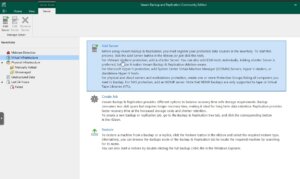 To integrate a new Proxmox Server into the Veeam Backup & Replication environment, one must initiate the process by accessing the Veeam console. Subsequently, navigate through the designated sections to complete the addition:
Virtual Infrastructure -> Add Server
This procedure is consistent with the established protocol for incorporating nodes from other virtualization platforms that are compatible with Veeam.
Afterwards, Veeam shows you a selection of possible and supported Hypervisors:
- VM vSphere
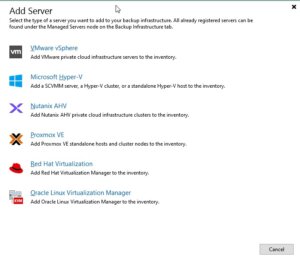
- Microsoft Hyper-V
- Nutanix AHV
- RedHat Virtualization
- Oracle Virtualization Manager
- Proxmox VE
In this case we simply choose Proxmox VE and proceed the setup wizard.
During the next steps in the setup wizard, the authentication details, the hostname or IP address of the target Proxmox VE server and also a snapshot storage of the Proxmox VE server must be defined.
Hint: When it comes to the authentication details, take care to use functional credentials for the SSH service on the Proxmox VE server. If you usually use the root@pam credentials for the web interface, you simply need to prompt root to Veeam. Veeam will initiate a connection to the system over the ssh protocol.
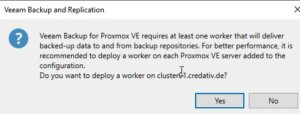 In one of the last surveys of the setup wizard, Veeam offers to automatically install the required worker node. Such a worker node is a small sized VM that is running inside the cluster on the targeted Proxmox VE server. In general, a single worker node for a cluster in enough but to enhance the overall performance, one worker for each node is recommended.
Usage
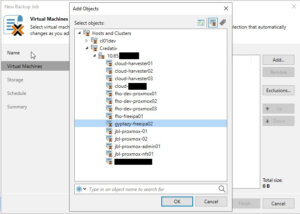 Once the Proxmox VE server has been successfully integrated into the Veeam inventory, it can be managed as effortlessly as any other supported hypervisor, such as VMware vSphere or Microsoft Hyper-V. A significant advantage, as shown in the screenshot, is the capability to centrally administrate various hypervisors and servers in clusters. This eliminates the necessity for a separate Veeam instance for each cluster, streamlining operations. Nonetheless, there may be specific scenarios where individual setups for each cluster are preferable.
As a result, this does not only simplify the operator’s work when working with different servers and clusters but also provides finally the opportunity for cross-hypervisor-recoveries.
Creating Backup Jobs
Creating a new backup job for a single VM or even multiple VMs in a Proxmox environment is as simple and exactly the same way, like you already know for other hypervisors. However, let us have a quick summary about the needed tasks:
Open the Veeam Backup & Replication console on your backup server or management workstation. To start creating a backup job, navigate to the Home tab and click on Backup Job, then select Virtual machine from the drop-down menu.
When the New Backup Job wizard opens, you will need to enter a name and a description for the backup job. Click Next to proceed to the next step. Now, you will need to select the VMs that you want to back up. Click Add in the Virtual Machines step and choose the individual VMs or containers like folders, clusters, or entire hosts that you want to include in the backup. Once you have made your selection, click Next.
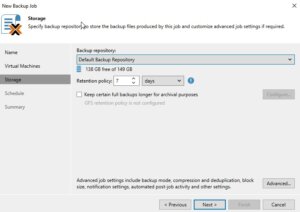 The next step is to specify where you want to store the backup files. In the Storage step, select the backup repository and decide on the retention policy that dictates how long you want to keep the backup data. After setting this up, click Next.
If you have configured multiple backup proxies, the next step allows you to specify which one to use. If you are not sure or if you prefer, you can let Veeam Backup & Replication automatically select the best proxy for the job. Click Next after making your choice.
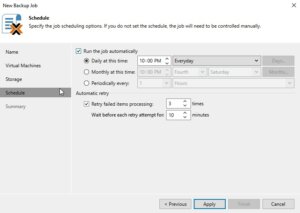 Now it is time to schedule when the backup job should run. In the Schedule step, you can set up the job to run automatically at specific times or in response to certain events. After configuring the schedule, click Next.
Review all the settings on the summary page to ensure they are correct. If everything looks good, click Finish to create the backup job.
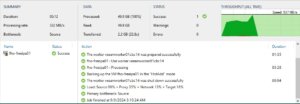
If you want to run the backup job immediately for ensuring everything works as expected, you can do so by right-clicking on the job and selecting Start. Alternatively, you can wait for the scheduled time to trigger the job automatically.
Restoring an entire VM
The restore and replication process for a full VM restore remains to the standard procedures. However, it now includes the significant feature of cross-hypervisor restore. This functionality allows for the migration of VMs between different hypervisor types without compatibility issues. For example, when introducing Proxmox VE into a corporate setting, operators can effortlessly migrate VMs from an existing hypervisor to the Proxmox VE cluster. Should any issues arise during the testing phase, the process also supports the reverse migration back to the original hypervisor. Let us have a look at the details.
Open the Veeam Backup & Replication console on your backup server or management workstation. To start creating a backup job, navigate to the Home tab and click on Backup Job, then select Virtual machine from the Disk menu.
Choose the Entire VM restore option, which will launch the wizard for restoring a full virtual machine. The first step in the wizard will ask you to select a backup from which you want to restore. You will see a list of available backups; select the one that contains the VM you wish to restore and proceed to the next step by clicking Next.
Now, you must decide on the restore point. Typically, this will be the most recent backup, but you may choose an earlier point if necessary. After selecting the restore point, continue to the next step.
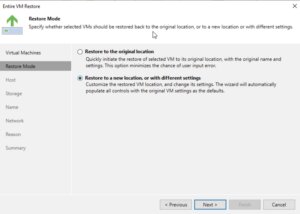 The wizard will then prompt you to specify the destination for the VM. This is the very handy point for cross-hypervisor-restore where this could be the original location or a new location if you are performing a migration or don’t want to overwrite the existing VM. Configure the network settings as required, ensuring that the restored VM will have the appropriate network access.
In the next step, you will have options regarding the power state of the VM after the restoration. You can choose to power on the VM automatically or leave it turned off, depending on your needs.
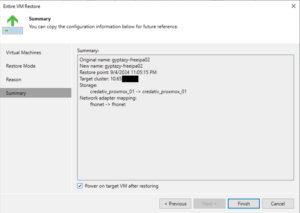 Before finalizing the restore process, review all the settings to make sure they align with your intended outcome. This is your chance to go back and make any necessary adjustments. Once you’re satisfied with the configuration, proceed to restore the VM by clicking Finish.
The restoration process will begin, and its progress can be monitored within the Veeam Backup & Replication console. Depending on the size of the VM and the performance of your backup storage and network, the restoration can take some time.
File-Level-Restore
Open the Veeam Backup & Replication console on your backup server or management workstation. To start creating a backup job, navigate to the Home tab and click on Backup Job, then select Virtual machine from the Disk menu.
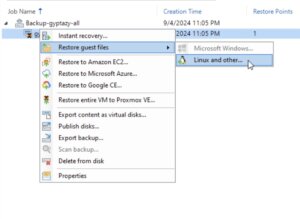 Select Restore guest files. The wizard for file-level recovery will start, guiding you through the necessary steps. The first step involves choosing the VM backup from which you want to restore files. Browse through the list of available backups, select the appropriate one, and then click Next to proceed.
Choose the restore point that you want to use for the file-level restore. This is typically the most recent backup, but you can select an earlier one if needed. After picking the restore point, click Next to continue.
At this stage, you may need to choose the operating system of the VM that you are restoring files from. This is particularly important if the backup is of a different OS than the one on the Veeam Backup & Replication server because it will determine the type of helper appliance required for the restore.
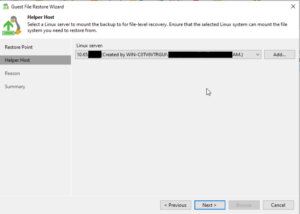 Veeam Backup & Replication will prompt you to deploy a helper appliance if the backup is from an OS that is not natively supported by the Windows-based Veeam Backup & Replication server. Follow the on-screen instructions to deploy the helper appliance, which will facilitate the file-level restore process.
Once the helper appliance is ready, you will be able to browse the file system of the backup. Navigate through the backup to locate the files or folders you wish to restore.
After selecting the files or folders for restoration, you will be prompted to choose the destination where you want to restore the data. You can restore to the original location or specify a new location, depending on your requirements.
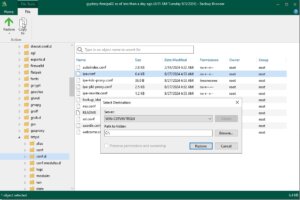 Review your selections to confirm that the correct files are being restored and to the right destination. If everything is in order, proceed with the restoration by clicking Finish.
The file-level restore process will start, and you can monitor the progress within the Veeam Backup & Replication console. The time it takes to complete the restore will depend on the size and number of files being restored, as well as the performance of your backup storage and network.
Conclusion
Summarising all the things, the latest update to Veeam introduces a very important and welcomed integration with Proxmox VE, filling a significant gap for enterprises that have adopted this open-source virtualization platform. By enabling direct backups and restores of entire VMs across different hypervisors without the need for in-VM agents, Veeam now offers unparalleled flexibility and simplicity in managing mixed environments. This advancement not only streamlines operations and enhances data protection strategies but also empowers organizations to easily migrate and evaluate new open-source virtualization platforms like Proxmox VE with minimal risk. It is great to see that more and more companies are putting efforts into supporting open-source solutions which underlines the ongoing importance of open-source based products in enterprises.
Additionally, for those starting fresh with Proxmox, the Proxmox Backup Server remains a viable open-source alternative and you can find our blog post about configuring the Proxmox Backup Server right here. Overall, this update represents a significant step forward in unifying virtualization and backup infrastructures, offering both versatility and ease of integration.
We are always here to help and assist you with further consulting, planning, and integration needs. Whether you are exploring new virtualization platforms, optimizing your current infrastructure, or looking for expert guidance on your backup strategies, our team is dedicated to ensuring your success every step of the way. Do not hesitate to reach out to us for personalized support and tailored solutions to meet your unique requirements in virtualization- or backup environments.