
Integrating Proxmox Backup Server into Proxmox Clusters
Proxmox Backup Server
In today’s digital landscape, where data reigns supreme, ensuring its security and integrity is paramount for businesses of all sizes. Enter Proxmox Backup Server, a robust solution poised to revolutionize data protection strategies with its unparalleled features and open-source nature.
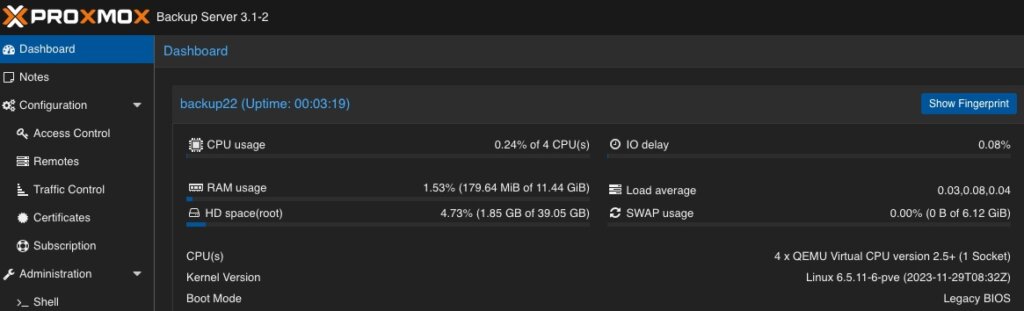
At its core, Proxmox Backup Server is a comprehensive backup solution designed to safeguard critical data and applications effortlessly in virtualized environments based on Proxmox VE. Unlike traditional backup methods, Proxmox Backup Server offers a streamlined approach, simplifying the complexities associated with data backup and recovery.
One of the standout features of Proxmox Backup Server is its seamless integration with Proxmox Virtual Environment (PVE), creating a cohesive ecosystem for managing virtualized environments. This integration allows for efficient backup and restoration of Linux containers and virtual machines, ensuring minimal downtime and maximum productivity. Without the need of any backup clients on each container or virtual machine, this solution still offers the back up and restore the entire system but also single files directly from the filesystem.
Proxmox Backup Server provides a user friendly interface, making it accessible to both seasoned IT professionals and newcomers alike. With its intuitive design, users can easily configure backup tasks, monitor progress, and retrieve data with just a few clicks, eliminating the need for extensive training or technical expertise.
Data security is a top priority for businesses across industries and Proxmox Backup Server delivers on this front. Bundled with solutions like ZFS it also brings in all the enterprise filesystem features like encryption at rest, encryption at transition, checksums, snapshots, deduplication and compression but also integrating iSCSI or NFS storage from enterprise storage solutions like from NetApp can be used.
Another notable aspect of Proxmox Backup Server is its cost effectiveness. As an open-source solution, it eliminates the financial barriers (also in addition with the Proxmox VE solutions) associated with proprietary backup software.
Integrating Proxmox Backup Server into Proxmox Clusters
General
This guide expects you to have already at least one Proxmox VE system up and running and also a system where a basic installation of Proxmox Backup Server has been performed. Within this example, the Proxmox Backup Server is installed on a single disk, where the datastore gets attached to an additional block device holding the backups. Proxmox VE and Proxmox Backup Server instances must not be in the same network but must be reachable for each other. The integration requires administrative access to the datacenter of the Proxmox VE instance(s) and the Backup Server.
Prerequisites
- Proxmox VE (including the datacenter).
- Proxmox Backup Server (basic installation).
- Administrative access to all systems.
- Network reachability.
- Storage device holding the backups (in this case a dedicated block storage device).
Administration: Proxmox Backup Server
Like the Proxmox VE environment, the Proxmox Backup Server comes along with a very intuitive web frontend. Unlike the web frontend of Proxmox VE, which runs on tcp/8006, the Proxmox Backup Server can be reached on tcp/8007. Therefore, all next tasks will be done on https://<IP-PROXMOX-BACKUP-SERVER>:8007.
After logging in to the web frontend, the dashboard overview welcomes the user.
Adding Datastore / Managing Storage
The initial and major tasks relies in managing the storage and adding a usable datastore for the virtualization environment holding the backup data. Therefore, we switch to the Administration chapter and click on Storage / Disks. This provides an overview of the available Devices on the Proxmox Backup Server. 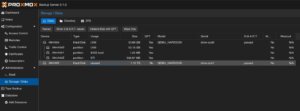 As already being said, this example uses a dedicated block storage device which will be used with ZFS to benefit from checksums, deduplication, compression which of course can also be used in addition with multiple disks (so called raidz-levels) or with other solutions like folder or NFS shares. Coming back to our example, we can see the empty /dev/sdb device which will be used to store all backup files.
By clicking on ZFS in the top menu bar, a ZFS trunk can be created as a datastore. Within this survey, a name, the raid level, compression and the devices to use must be defined. 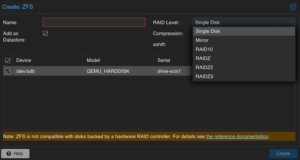 As already mentioned, we can attach multiple disks and define a desired raid level. The given example only consists of a single disk, which will be defined here. Compression is optional, but using LZ4 as a compression is recommended. As a lossless data compression algorithm, LZ4 aims to provide a good trade off between speed and compression ratio which is very transparent on today’s system.
Ensure to check Add as Datastore option (default) will create the given name directly as a usable datastore. In our example this will be backup01.
Keep in mind, that this part is not needed when using a NFS share. Also do not use this in addition with hardware RAID controllers.
Adding User for Backup
In a next step, a dedicated user will be created that will be used for the datastore permissions and for the Proxmox VE instances for authentication and authorization. This allows even complex setups with different datastores, different users including different access levels (e.g., reading, writing, auditing,…) on different clusters and instances. To keep it simple for demonstrations, just a single user for everything will be used.
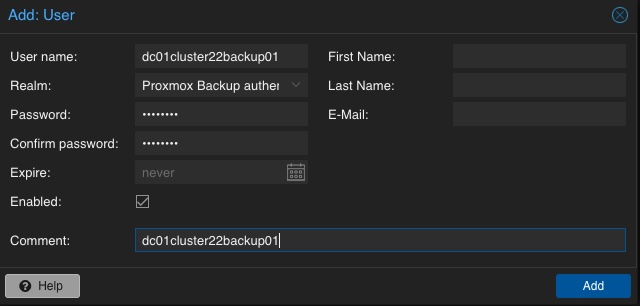 A new user is configured by selecting Configuration, Access Control and User Management in the left menu. There, a new user can be created by simply defining a name and a password. The default realm should stay on the default for the Proxmox Backup authentication provider. Depending on the complexity of the used name schema, you may also create reasonable users. In the given example, the user is called dc01cluster22backup01.
Adding Permission of User for Datastore
Mentioning already the possibility to create complex setups regarding authentication and authorization, the datastore must be linked to at least a single user that can access it. Therefore, we go back to the Datastore and select the previously created backup01 datastore. In the top menu bar, the permissions can be created and adjusted in the Permissions chapter. Initially, a new one will be created now. Within the following survey the datastore or path, the user and the role must be defined:
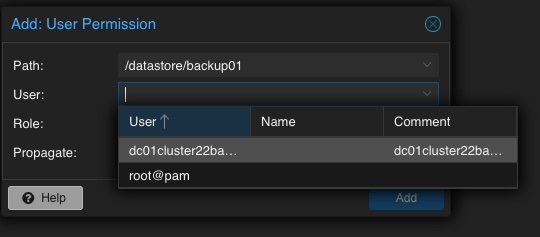
Path: /datastore/backup01
User: dc01cluster22backup01@pbs
Role: DatastoreAdmin
Propagate: True
To provide a short overview of the possible roles, this will be shortly mentioned without any further explanation: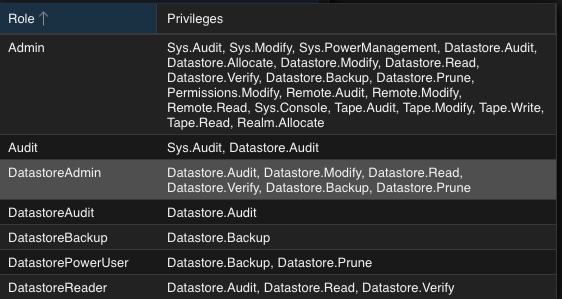
- Admin
- Audit
- DatastoreAdmin
- DatastoreAudit
- DatastoreBackup
- DatastorePowerUser
- DatastoreReader
Administration: Proxmox VE
The integration of the backup datastore will be performed from the Proxmox VE instances via the Datacenter. As a result, the Proxmox VE web frontend will now be used for further administrative actions. The Proxmox VE web frontend runs on tcp/8006, Therefore, all next tasks will be done on https://<IP-PROXMOX-VE-SERVER>:8006.
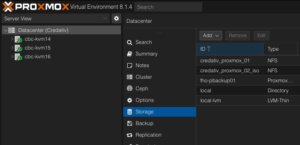
Adding Storage
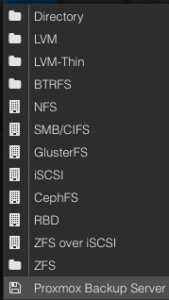 Integrating the Proxmox Backup Server works the same way like managing and adding a shared storage to a Proxmox datacenter.
In the left menu we choose the active datacenter and select the Storage options. There, we can find all natively support storage options like (NFS, SMB/CIFS, iSCSI, ZFS, GlusterFS,…) of Proxmox and finally select the Proxmox Backup Server as a dedicated item.
Afterwards, the details for adding this datastore to the datacenter must be inserted. The following options need to be defined:
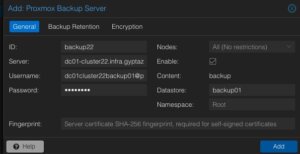 ID: backup22
Server: <FQDN-OR-IP-OF-BACKUP-SERVER>
Username: dc01cluster22backup01@pbs
Password: <THE-PASSWORD-OF-THE-USER>
Enable: True
Datastore: backup01
Fingerprint: <SYSTEM-FINGERPRINT-OF-BACKUP-SERVER>
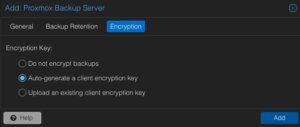 Optionally, also the Backup Retention and Encryption can be configured before adding the new backup datastore. While the backup retention can also be configured on the Proxmox Backup Server (which is recommended), enabling the encryption should be considered. Selecting an d activating the encryption is easily done by simply setting it to Auto-generate a client encryption key. Depending on your previous setup, also an already present key can be uploaded and used.
After adding this backup datastore to the datacenter, this can immediately be used for backup and the integration is finalized.
Conclusion
Proxmox provides with the Proxmox Backup Server an enterprise backup solution, for backing up Linux containers and virtual machines. Supporting features like incremental and fully deduplicated backups by using the benefits of different open-source solutions, in addition with strong encryption and data integrity this solution is a prove that open-source software can compete with closed-source enterprise software. Together with Proxmox VE, enterprise like virtualization environments can be created and managed without missing the typical enterprise feature set. Proxmox VE and the Proxmox Backup Server can also be used in addition to storage appliances from vendors like NetApp, by directly use iSCSI or NFS.
Providing this simple example, there are of course much more complex scenarios which can be created and also should be considered. We are happy to provide you more information and to assist you creating such setups. We also provide help for migrating from other products to Proxmox VE setups. Feel free to contact us at any time for more information.
Migrating VMs from VMware ESXi to Proxmox
In response to Broadcom’s recent alterations in VMware’s subscription model, an increasing number of enterprises are reevaluating their virtualization strategies. With heightened concerns over licensing costs and accessibility to features, businesses are turning towards open source solutions for greater flexibility and cost-effectiveness. Proxmox VE, in particular, has garnered significant attention as a viable alternative. Renowned for its robust feature set and open architecture, Proxmox offers a compelling platform for organizations seeking to mitigate the impact of proprietary licensing models while retaining comprehensive virtualization capabilities. This trend underscores a broader industry shift towards embracing open-source technologies as viable alternatives in the virtualization landscape. Just to mention, Proxmox is widely known as a viable alternative to VMware ESXi but there are also other options available, such as bhyve which we also covered in one of our blog posts.
Benefits of Opensource Solutions
In the dynamic landscape of modern business, the choice to adopt open source solutions for virtualization presents a strategic advantage for enterprises. With platforms like KVM, Xen and even LXC containers, organizations can capitalize on the absence of license fees, unlocking significant cost savings and redirecting resources towards innovation and growth. This financial flexibility empowers companies to make strategic investments in their IT infrastructure without the burden of proprietary licensing costs. Moreover, open source virtualization promotes collaboration and transparency, allowing businesses to tailor their environments to suit their unique needs and seamlessly integrate with existing systems. Through community-driven development and robust support networks, enterprises gain access to a wealth of expertise and resources, ensuring the reliability, security, and scalability of their virtualized infrastructure. Embracing open source virtualization not only delivers tangible financial benefits but also equips organizations with the agility and adaptability needed to thrive in an ever-evolving digital landscape.
Migrating a VM
Prerequisites
To ensure a smooth migration process from VMware ESXi to Proxmox, several key steps must be taken. First, SSH access must be enabled on both the VMware ESXi host and the Proxmox host, allowing for remote management and administration. Additionally, it’s crucial to have access to both systems, facilitating the migration process. Furthermore, establishing SSH connectivity between VMware ESXi and Proxmox is essential for seamless communication between the two platforms. This ensures efficient data transfer and management during migration. Moreover, it’s imperative to configure the Proxmox VE system or cluster in a manner similar to the ESXi setup, especially concerning networking configurations. This includes ensuring compatibility with VLANs or VXLANs for more complex setups. Additionally, both systems should either run on local storage or have access to shared storage, such as NFS, to facilitate the transfer of virtual machine data. Lastly, before initiating the migration, it’s essential to verify that the Proxmox system has sufficient available space to accommodate the imported virtual machine, ensuring a successful transition without storage constraints.
Activate SSH on ESXi
The SSH server must be activated in order to copy the content from the ESXi system to the new location on the Proxmox server. The virtual machine will later be copied from the Proxmox server. Therefore, it is necessary that the Proxmox system can establish an SSH connection on tcp/22 to the ESXi system:
- Log in to the VMware ESXi host.
- Navigate to Configuration > Security Profile.
- Enable SSH under Services.
Find Source Information about VM on ESXi

One of the challenging matters in finding the location of the virtual machine holding the virtual machine disk. The path can be found within the web UI of the ESXi system:
- Locate the ESXi node that runs the Virtual Machine that should be migrated
- Identify the virtual machine to be migrated (e.g., pgsql07.gyptazy.ch).
- Obtain the location of the virtual disk (VMDK) associated with the VM from the configuration panel.
- The VM location path should be shown (e.g., /vmfs/volumes/137b4261-68e88bae-0000-000000000000/pgsql07.gyptazy.ch).
- Stop and shutdown the VM.
Create a New Empty VM on Proxmox
- Create a new empty VM in Proxmox.
- Assign the same resources like in the ESXi setup.
- Set the network type to VMware vmxnet3.
- Ensure the needed network resources (e.g., VLAN, VXLAN) are properly configured.
- Set the SCSCI controller for the disk to VMware PVSCSI.
- Do not create a new disk (this will be imported later from the ESXi source).
- Each VM gets an ID assigned by Proxmox (note it down, it will be needed later).
Copy VM from ESXi to Proxmox
The content of the virtual machine (VM) will be transferred from the ESXi to the Proxmox system using the open source tool rsync for efficient synchronization and copying. Therefore, the following commands need to be executed from the Proxmox system, where we create a temporary directory to store the VM’s content:
mkdir /tmp/migration_pgsql07.gyptazy.ch
cd /tmp/migration_pgsql07.gyptazy.ch
rsync -avP root@esx02-test.gyptazy.ch:/vmfs/volumes/137b4261-68e88bae-0000-000000000000/pgsq07.gyptazy.ch/* .
Depending on the file size of them virtual machine and the network connectivity this process may take some time.
Import VM in Proxmox
 Afterwards, the disk is imported using the qm utility, defining the VM ID (which got created during the VM creation process), along with specifying the disk name (which has been copied over) and the destination data storage on the Proxmox system where the VM disk should be stored:
qm disk import 119 pgsql07.gyptazy.ch.vmdk local-lvm
Depending on the creation format of the VM or the exporting format there may be multiple disk files which may also be suffixed by _flat. This procedure needs to be repeated by all available disks.
Starting the VM
In the final step, all settings, resources, definitions and customizations of the system should be thoroughly reviewed. One validated, the VM can be launched, ensuring that all components are correctly configured for operation within the Proxmox environment.
Conclusion
This article only covers one of many possible methods for migrations in simple, standalone setups. In more complex environments involving multiple host nodes and different storage systems like fibre channel or network storage, there are significant differences and additional considerations. Additionally, there may be specific requirements regarding availability and Service Level Agreements (SLAs) to be concern. This may be very specific for each environment. Feel free to contact us for personalized guidance on your specific migration needs at any time. We are also pleased to offer our support in related areas in open source such as virtualization (e.g., OpenStack, VirtualBox) and topics pertaining to cloud migrations.
Addendum
On the 27th of March, Proxmox released their new import wizard (pve-esxi-import-tools) which makes migrations from VMware ESXi instances to a Proxmox environment much easier. Within an upcoming blog post we will provide more information about the new tooling and cases where this might be more useful but also covering the corner cases where the new import wizard cannot be used.
Creating a Virtualization Environment
Everyone is nowadays talking about containerization but there are still many reasons to run virtual machines and it doesn’t always have to be Proxmox VE on Linux systems to create a virtualization environment with open-source tools!

Next to the well known Proxmox, there are also other open-source alternatives when it comes to virtualization. A promising solution is also given by bhyve (pronounced bee-hive) which runs on FreeBSD based systems. It was initially written for FreeBSD but now also runs on a number of illumos based distributions like OpenIndiana. bhyve offers a robust and high-performance virtualization solution where it directly operates on the bare metal, utilizing the hardware virtualization features for enhanced performance and isolation between virtual machines. Known for its performance, stability and security, bhyve is integrated into FreeBSD, benefiting from the reliability of the FreeBSD kernel. Of course it also provides the typical feature set such as snapshotting and cloning of VMs. Especially in such cases it benefits from additional features in FreeBSD like the ZFS filesystem. Unfortunately, bhyve does not offer any web-frontend for its administration. This is where bhyve-webadmin (BVCP) steps in to fill the gap. This blog post we will cover the initial setup and features of bhyve and bhyve-admin to provide a fully usable virtualization environment.
Features
bhyve-webadmin (also known as BVCP) provides an API, CLI and a secure web interface for administrating bhyve and virtual machines. bhyve-webadmin mainly features:
- Modularity
- Backend, Frontend, API and helpers are working independently including separate privileges.
- Multi Node
- Multiple server/instances can be orchestrated by a single interface.
- Security
- Native Application
- Roles
- Providing user management including multiple roles.
Requirements
Some general requirements must be fulfilled to run bhyve bundled with bhyve-webadmin:
- System with a minimal FreeBSD image installed.
- 64-bit CPU
- POPCNT (POPulation Count) processor feature
Additional configuration regarding the underlying storage and network configuration are needed but while these are individual for each setup this is not covered in detail within this guide.
Installation
This guide is based on FreeBSD 14 and bhyve-webadmin v1.9.8p9 to provide a virtualization infrastructure. bhyve-webadmin’s concept relies on working as close as possibly to the FreeBSD system and will not change its configuration. Instead, it will install and maintain everything in dedicated directories, configurations and services. As a result, the whole installation including all further dependencies and configuration can be done in minutes.
Overview
File-Structure
By default, bhyve-webadmin will use the following directories for the content:
- /var/lib/nPulse/BVCP: bhyve-webadmin content
- /var/lib/nPulse/BVCP/bvcp.conf: configuration file
- /vms
- /vms/instances
- /vms/iso-images
- /vms/db
- /vms/logs
- /vms/tmp
- /vms/bootrom
Additional helper tools can be found within these directories. For example, a forgotten password can be resetted by running:
- /var/lib/nPulse/BVCP/Backend/vmm reset_password
Services
As already mentioned before, it consists of multiple and independently working software components that can also be orchestrated.
Frontend:
service bvcp-frontend start / stop / restart
Backend:
service bvcp-backend start / stop / restart
Helper:
service bvcp-helper start / stop / restart
Software Installation
cd /tmp/
fetch https://github.com/DaVieS007/bhyve-webadmin/archive/refs/tags/v1.9.8p9.tar.gz
tar xfvz v1.9.8p9.tar.gz
sha256sum /tmp/bhyve-webadmin-1.9.8p9.tar.gz
$> 758f5900c75a1832c980ed23c74a893f05252aa130e7c803843dac1d2531516f  /tmp/bhyve-webadmin-1.9.8p9.tar.gz
cd bhyve-webadmin-1.9.8p9/
./install.sh
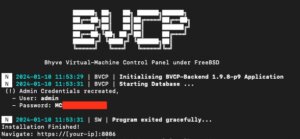
After finishing the installation, all needed directories, configuration and services have been created and the services are already running on the system. On the CLI, the login credentials for the web interface are provided and a login on the web frontend on https://<ip>:8086 is possible. By default, self-signed certificates are generated for the encryption of the web frontend and VNC sessions. The generated self-signed certificates can be later replaced by proper ones (e.g. by using Let’s Encrypt).
Adding ISO-Images
ISO-Images for virtual machines are located in /vms/iso_images. Adding images is simply done by dropping the images within that directory. This can be done on the uploading images via SCP, SFTP or on the system itself by downloading an image from a remote like in the given example:
cd /vms/iso_images/
fetch https://download.freebsd.org/releases/amd64/amd64/ISO-IMAGES/14.0/FreeBSD-14.0-RELEASE-amd64-bootonly.iso
Configuration
An initial first login on the web frontend can now be done. The web frontend can be reached on https://<ip>:8086 and uses self-signed certificates by default. The credentials for the root user login have been printed on the CLI during the setup runtime.
bhyve BVCP Login
After a successful login, the default overview page is being displayed.
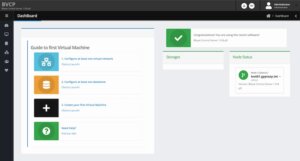
After an initial installation it will guide you through the following three next steps which will be covered in detail:
- Configure Network
- Configure Storage
- Create VM
Configure Network
Networking is one of the most important and complex parts when it comes to virtualized environments. Even more complex setups including VLAN separations etc. are possible but not covered within this guide which primarily focuses on a simple bridged– & NAT– networking setup.
Bridged Network
A simple bridged network can be created by clicking on the first Option 1. Configure at least one virtual network where we can create a new network on our cluster. Creating a new network is simple where just the desired network interface on the cluster must be selected.
Within this guide we select the following options which may vary depending on your personal setup:
Network Gateway to bound: (+) [em0] (mtu: 1500) 10.10.10.77
Unique Network Name: uplink-dev
Descriptive Text: Uplink network for the dev environments
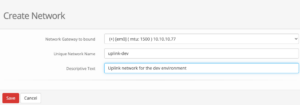
bhyve BVCP – Create Network
In the given drop-down menu all available network cards will be shown with their interface name and assigned ip address(es) which makes it easy to choose the right one. After saving the configuration, the newly created network is directly usable.
NAT Network
NAT is already considered as a more advanced networking setup but often needed when working with RFC 1918 addresses. NAT is not supported by default and needs to be configured manually. Within this guide a NAT networking will be created for the interface em1 by using PF (a FreeBSD integrated firewall).
Therefore, we enable the PF service in the rc.conf file by running the following command, enabling IP forwarding and directly edit the firewall configuration file:
echo 'pf_enable="YES"' >> /etc/rc.conf
echo "net.inet.ip.forwarding=1" >> /etc/sysctl.conf
sysctl -f /etc/sysctl.conf
vi /etc/pf.conf
The firewall configuration for NAT networking on the em1 interface will be extended by the following content:
nat on em1 from {10.10.10.1/24} to any -> (em1)
Optional: Also port forwarding can be defined in this file which would need to add:
# Forward SSH (tcp/22) to NAT destination host 192.168.1.99
rdr on em1 proto tcp from any to em1 port 22 -> 192.168.1.99 port 22
As a last step, a dummy interface must be created, that be selected in the web frontend service. As a result, this will be added to the /etc/rc.conf file by adding:
cloned_interfaces="nat0"
ifconfig_nat0="inet 192.168.1.1 netmask 255.255.255.0 up"
Finally, the required services can be restarted by running:
service netif restart && service routing restart
Configure Storage
In a next step the storage must be configured. Therefore, this can simply be initiated by clicking on 2. Configure at least one data store in the web UI. By default, no one is created and configured:

bhyve BVCP – Storage Overview
By clicking on Create Storage a new storage will be created. Newly created storages must be a mount point.
Create VM
Within the last step, the first virtual machine gets created. This can be finally done by clicking on 3. Create your first Virtual Machine where the options for the VM will be defined.
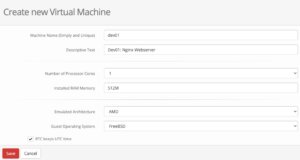
bhyve BVCP – Create VM
Within this menu, a unique name, a description, the hardware resources like number of cores and memory als the underlying hardware architecture must be defined. After saving, the VM object gets created and we can perform additional tasks like defining an ISO-Image that should be booted in the VM.
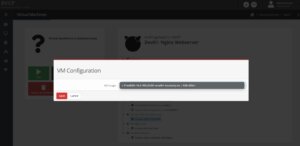
bhyve BVCP – Add ISO Image to VM
As already mentioned before in the File Structure chapter, all available ISO-Images must be located in /vms/iso-images. Placed images can be directly selected from the drop-down menu.
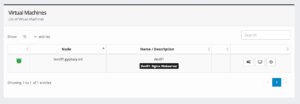
Within the last step, the VM can be started by clicking on the play button. Switching back to the Virtual Machine overview (List of Virtual Machines) the VM will be displayed with a green icon as an indication that this virtual machine is up and running.
The VM can now be accessed by the integrated VNC server by clicking on the monitor icon in the middle of the option menu.
Statistics
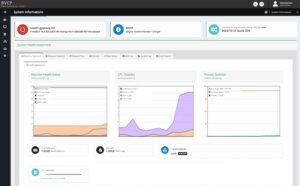
Performance metrics and statistics of the system usage are an important task. BVCP offers many options to validate the machine health status including performance metrics and statistics of the memory-, CPU-, storage-, networking, etc. usage to quickly detect any negative impacts on an overloaded host node. Beside this, it can also help to evaluate the source of any performance problems in the setup or of a single virtual machine instance.
Conclusion
It doesn’t always have to be Proxmox on Linux systems to create a fast and secure virtualization environment with open-source tools. FreeBSD, bhyve and bhyve-webadmin (BVCP) offer a great bundled solution to run a dedicated virtualization infrastructure which does not need any knowledge in FreeBSD, bhyve or any CLI commands for the end user. Given by the included IAM, users are able to login to a graphical web frontend and to manage their virtual machines on their own.
As a specialists for open-source and open-source infrastructure we are also happy to assist you and your business in BSD based systems including their features like ZFS, PF, Jails, bhyve etc.. Since 1999, credativ® has been recognized for providing 24/7 open source support that rivals manufacturer support. We do not just provide technical support, we also provide all other services across the entire lifecycle of open-source landscapes completed by high flexibility.