
Introduction
When it comes to providing extended support for end-of-life (EOL) Linux distributions, the traditional method of building packages from sources may present certain challenges. One of the biggest challenges is the need for individual developers to install build dependencies on their own build environments. This often leads to different build dependencies being installed, resulting in issues related to binary compatibility. Additionally, there are other challenges to consider, such as establishing an isolated and clean build environment for different package builds in parallel, implementing an effective package validation strategy, and managing repository publishing, etc.
To overcome these challenges, it is highly recommended to have a dedicated build infrastructure that enables the building of packages in a consistent and reproducible way. With such an infrastructure, teams can address these issues effectively, and ensures that the necessary packages and dependencies are available, eliminating the need for individual developers to manage their own build environments.
OpenSUSE’s Open Build Service (OBS) provides a widely recognized public build infrastructure that supports RPM-based, Debian-based, and Arch-based package builds. This infrastructure is well-regarded among users who require customized package builds on major Linux distributions. Additionally, OBS can be deployed as a private instance, offering a robust solution for organizations engaged in private software package builds. With its extensive feature set, OBS serves as a comprehensive build infrastructure that meets the requirements of teams to build security-patched package on top of already existing packages in order to extend the support of end-of-life (EOL) Linux distributions, for example.
Facts
On June 30, 2024, two major Linux distributions, Debian 10 “Buster” and CentOS 7, have reached their End-of-Life (EOL) status. These distributions gained widespread adoption in numerous large enterprise environments. However, due to various factors, organizations may face challenges in completing migration processes in a timely manner, requiring temporary extended support for these distributions.
When a distribution reaches its End-of-Life (EOL) support from upstream, mirrors and corresponding infrastructure are typically removed. This creates a significant challenge for organizations still using those distributions and seeking extended support, as they not only require access to a local offline mirror but also need the infrastructure to rebuild packages in such a way that is consistent with their former original upstream builds whenever there is a need to rebuild packages for security reasons.
Goal
To provide utilities that support teams building packages, OBS is able to help them. Thereby, it also helps them to have a build infrastructure that builds all existing source and binary packages along with their security patches in a semi-original build environment, further extending their support of EOL Linux distributions. This is achieved by keeping package builds at a similar level of quality and compatibility to their former original upstream builds.
Requirements
To achieve the goal mentioned above, two essential components are required:
- Local mirror of the EOL Linux distribution
- Private OBS instance.
In order to set up a private OBS instance, you can fetch OBS from the upstream GitHub repository and install as well as build it on your local machine, or alternatively, you can simply download the OBS Appliance Installer to integrate a private OBS instance as a new build infrastructure.
Keep in mind that the local mirror typically doesn’t contain the security patches to properly extend the support of the EOL distribution. Just rebuilding the existing packages won’t automatically extend the support of such distributions. Either those security patches must be maintained by the teams themselves and added to the package update by hand, or they are obtained from an upstream project that provides those patches already.
Nevertheless, once the private OBS instance is successfully installed, it can then be linked with the local offline mirror that the team wants to extend the support for, and be configured as a semi-original build environment. By doing so, the build environment can be configured as close as possible to the original upstream build environment to keep a similar level of quality and compatibility although packages might get built for security update with new patches.
This way, the already ended support of a Linux distribution can be extended because a designated team can not only build packages on their own but also provide patches for packages that are affected by bugs or security vulnerabilities.
Achievement
The OBS build infrastructure provides a semi-original build environment to simplify the package building process, reduce inconsistencies, and achieve reproducibility. By adopting this approach, teams can simplify their development and testing workflows and enhance the overall quality and reliability of the generated packages.
Demonstrates
Allow us to demonstrate how OBS can be utilized as a build infrastructure for teams in order to provide the build and publish infrastructure needed for extending the support of End-of-Life (EOL) Linux distributions. However, please note that the following examples are purely for demonstration purposes and may not precisely reflect the specific approach.
Config OBS
Once your private OBS instance is set up, you can log in to OBS by using its WebUI. You must use the ‘Admin‘ account with its default password ‘opensuse‘. After that, you can create a new project for the EOL Linux distribution as well as add users and groups for teams that are going to work on this project. In addition, you must link your project with a local mirror of the EOL Linux distribution and customize your OBS project to replicate the former upstream build environment.
OBS supports the Download on Demand (DoD) feature that can establish a connection with a local mirror on the OBS instance with the designated project within OBS to fetch build dependencies on-demand during the build process. This simplifies the build workflow and reduces the need for manual intervention.
Note: some configurations are only available with the Admin account, including Manage Users, Groups and Add Download on Demand (DoD) Repository.
Now, let’s dive into the OBS configuration of such a project.
Where to Add DoD Repository
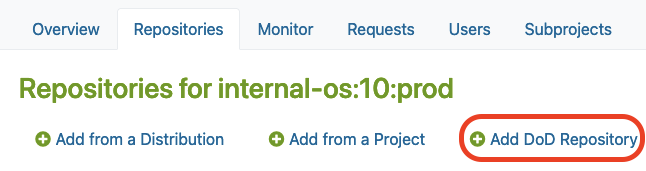
After you created a new project in OBS, you may find the “Add DoD Repository” option in the Repositories tab under the ‘Admin’ account.
There, you must click the Add DoD Repository button as shown below:
Link your local mirror via DoD
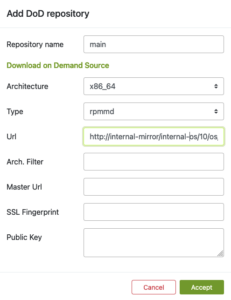
Next, you can provide a URL to link your local mirror via “Add DoD Repository“.
By doing so, you are going to configure the DoD repository. For this, you have to:
- Name the DoD Repo
- Provide a URL that points to the local mirror that is going to be used as a base for building packages in our project
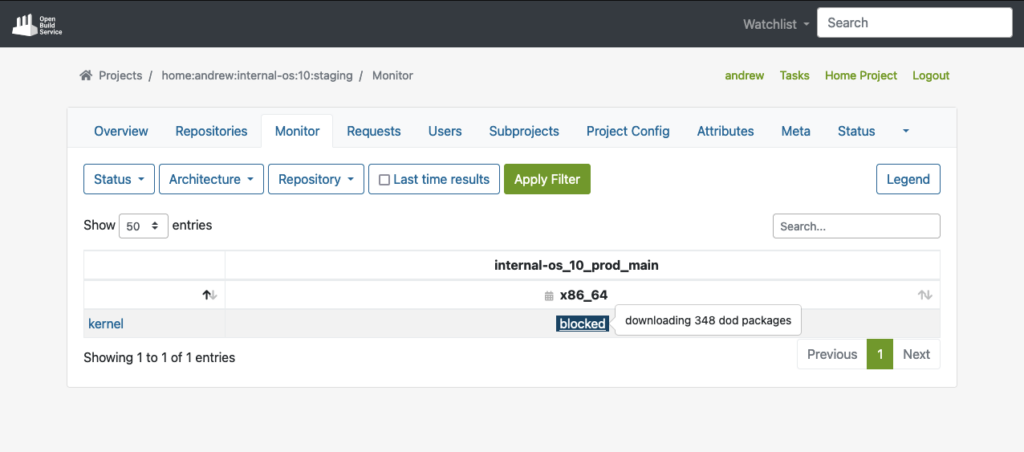
The build dependencies should now be available for OBS to download automatically via the DoD feature.
As you can see in the example below, OBS was able to fetch all the build dependencies for the shown “kernel” package via DoD before it actually started to build the package:
However, after you connected the local mirror with the EOL Linux Distribution, we should also customize the project configuration to re-create the semi-original build environment of the former upstream project in our OBS project.
Project Config
OBS offers a customizable build environment via Project Config, allowing teams to meet specific project requirements.
It allows teams to customize the build environment through the project configuration, enabling them to define macros, packages, flags, and other build-related settings. This helps to adapt their project to all requirements needed to keep the compatibility with the original packages.
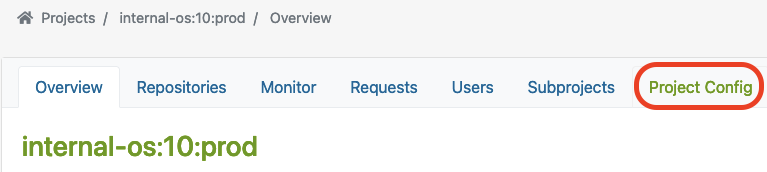
You can find the Project Config here:
Let’s have a closer look at some examples showing how the project configuration could look like for building RPM-based packages or Debian-based packages.
Depending on the actual package type that has been used by the EOL Linux distribution, the project configuration must be adjusted accordingly.
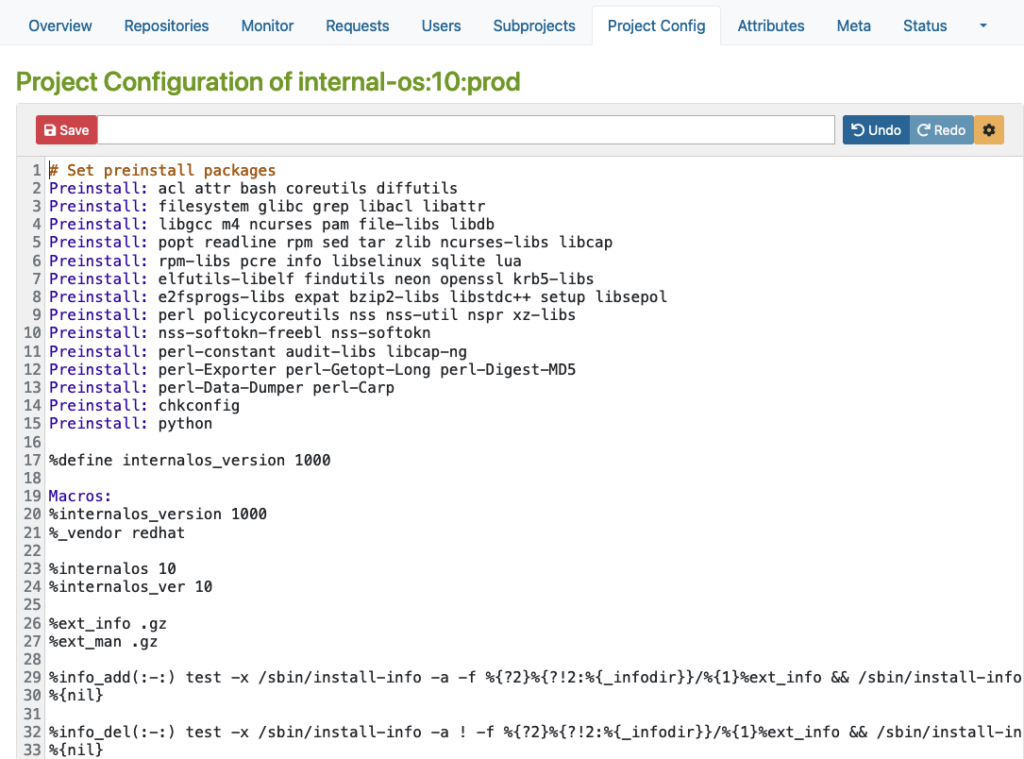
RPM-based config
Here is an example for an RPM-based distribution where you can define macros, packages, flags, and other build-related settings.
Please note that this example is only for demonstration purposes:
Debian based config
Then, there is another example for Debian-based distribution where you can specify Repotype: debian, define preinstalled packages, and build-related settings in the build environment.
Again, please note that this example is for demonstration purposes only:
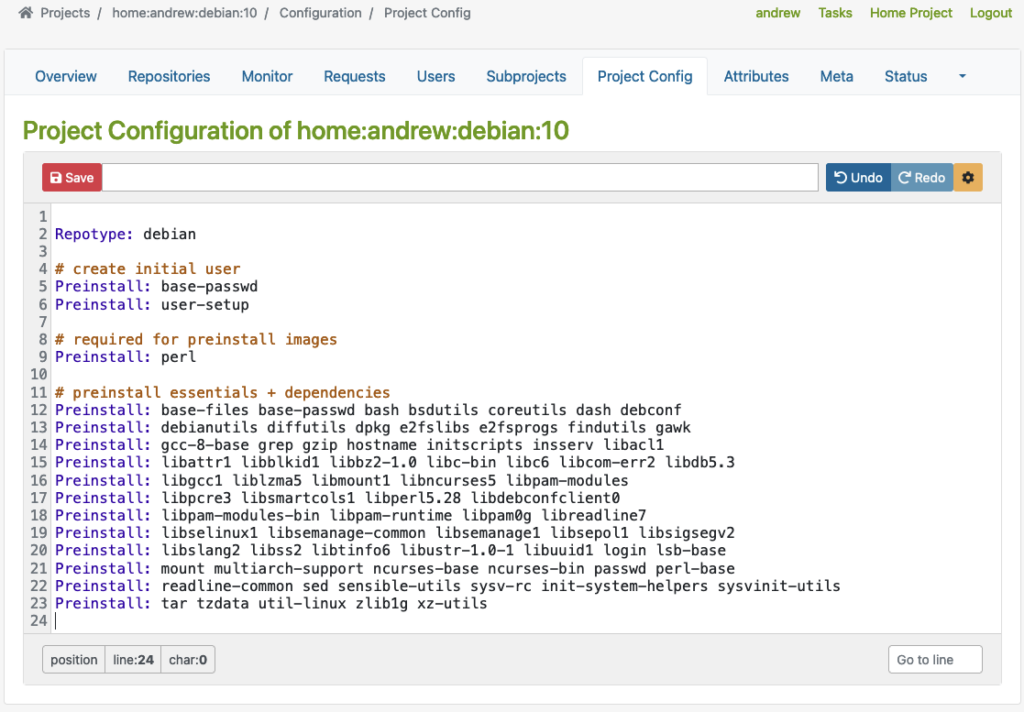
As you can see in the examples above, the Repotype defines the repository format for the published repositories. Preinstall defines packages that should be available in the build environment while building other packages. You may find more details about the syntax in the Build Configuration chapter in the manual provided by OpenSuSE.
With this customizable build environment feature, each build starts in a clean chroot or KVM environment, providing consistency and reproducibility in the build process. Teams may have different build environments in different projects that are isolated and can be built in parallel. The separated projects together, with dedicated chroot or KVM environments for building packages prevent interference or conflicts between builds.
User Management
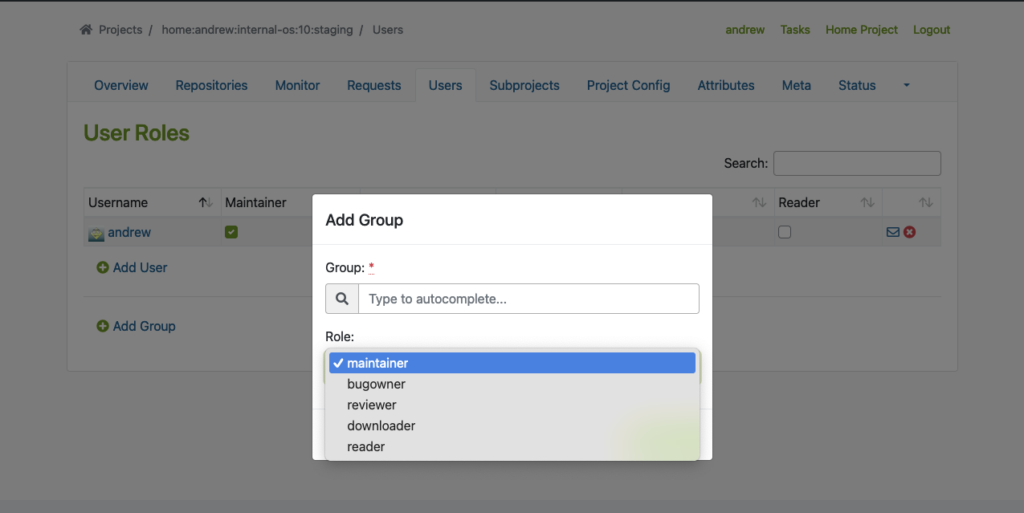
In addition to projects, OBS offers flexible access control, allowing team members to have different roles and permissions for various projects or distributions. This ensures efficient collaboration and streamlined workflow management.
To use this feature properly, we must create Users and Groups by using the Admin account in OBS. You may find the ‘Users‘ tab within the project where you can add users and groups with different roles.
The following example shows how to add users and groups in a given project:
Flexible Project Setup
OBS allows teams to create separate projects for development, staging, and publishing purposes. This controlled workflow ensures thorough testing and validation of packages before they are submitted to the production project for publishing.
Testing Strategy with Projects
Before packages are released and published, proper testing of those packages is crucial. To achieve this, OBS offers repository publish integration that helps to implement a Testing Strategy. Developers may get their packages published in a corresponding Staging repository first before starting the validation process of the packages, so that they can be submitted to the Production project. From there, they will then be published and made available to other systems.
It seamlessly integrates with local repository publishing, ensuring that all packages in the build process are readily available. This eliminates the need for additional configuration on internal or external repositories.
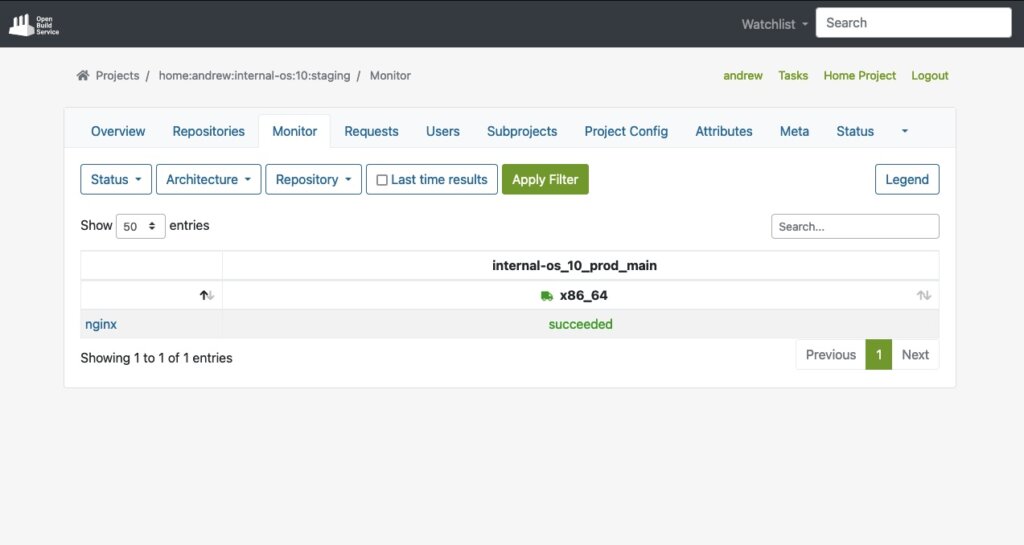
The next example shows a ‘home:andrew:internal-os:10:staging’ project, which is used as a staging purposed repository. There, we import the nginx source package to build and validate it afterward.
Start the Build Process
Once the build dependencies are downloaded via DoD, the build process starts automatically.
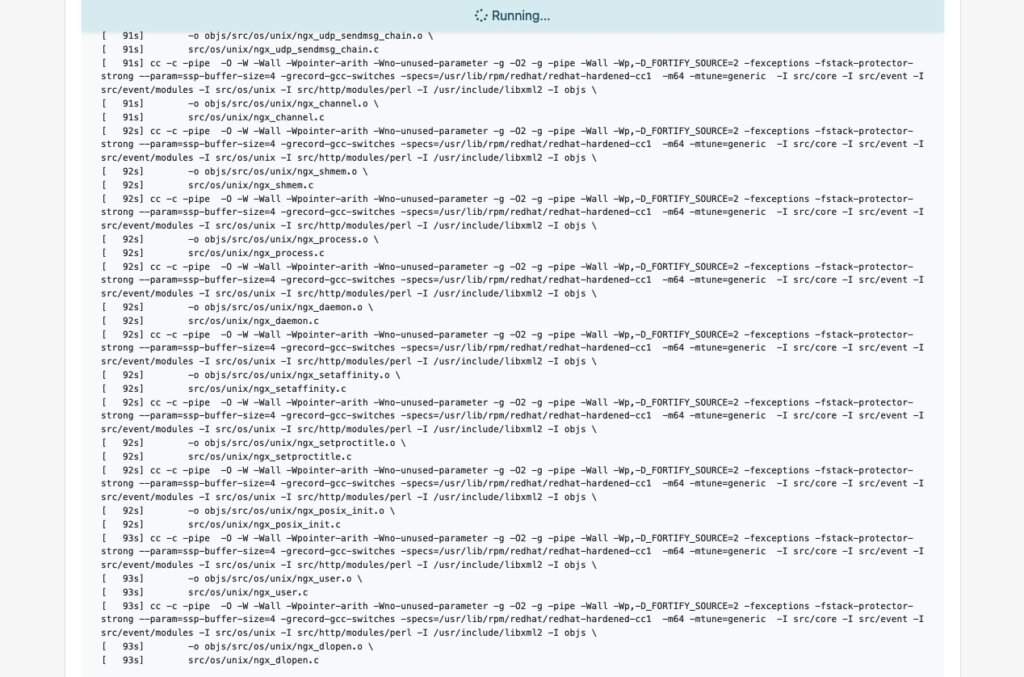
As soon as the build process for a package like ‘nginx’ succeeds, we will also see it in the interface:
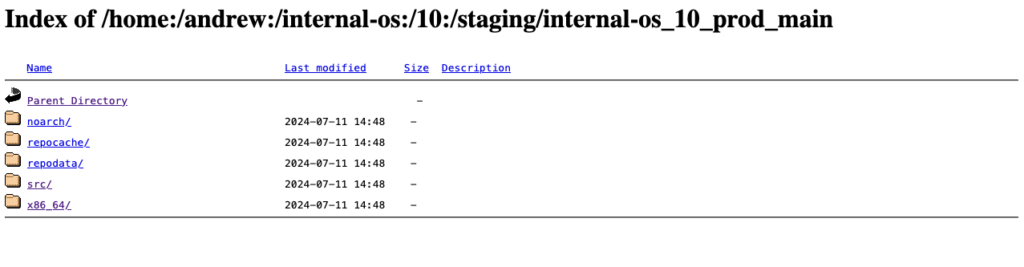
Last but not least, the package will automatically be published into a repository that is ready to be used with package managers like YUM. In our test case, the YUM-ready repository helps us to easily perform validation by conducting tests on VM or actual hardware.
Below, you can see an example of this staging repository (Index of the YUM-ready staging repository):
Please note: To meet the testing strategy in our example, packages should only be submitted to the Prod project once they have successfully passed the validation process in the Staging repository.
Submit to Prod after Validation
As soon as we validate the functionality of a package in the staging project and repository, we can move on by submitting the package to the production project. Underneath the package overview page (e.g., in our case, the ‘nginx’ package), you can find the Submit Package button to start this process:
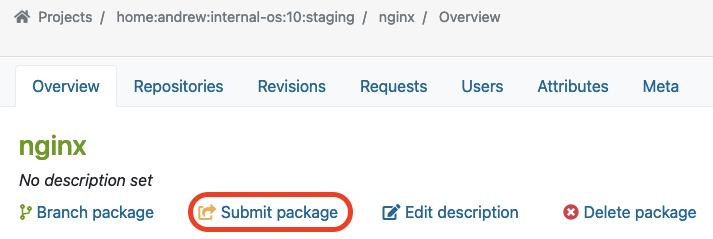
In our example, we use the ‘internal-os:10:prod’ project for the Production repository. Previously, we built and validated the ‘nginx’ package in the Staging repository. Now we want to submit this package into the Production project which we call ‘internal-os:10:prod’.
Once you click “Submit package“, the following dialog should pop up. Here, you can fill out the form to submit the newly built package to production:
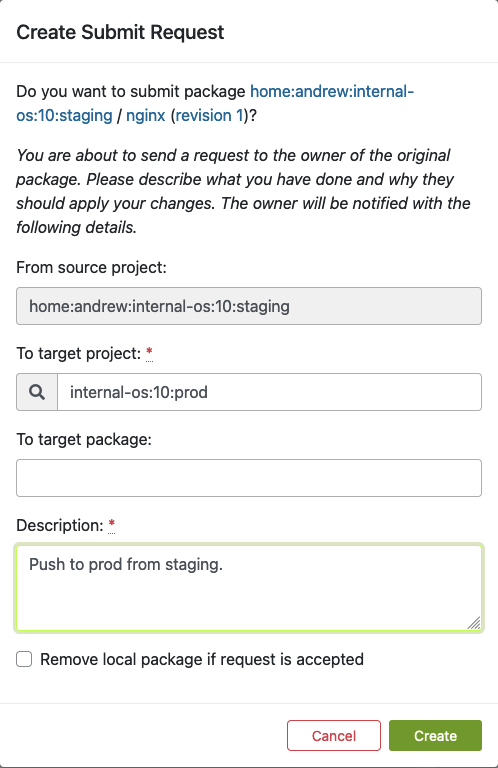
Fill out this form and click ‘Create’ as soon as you are ready to submit the new package to the production project.
Find Requests
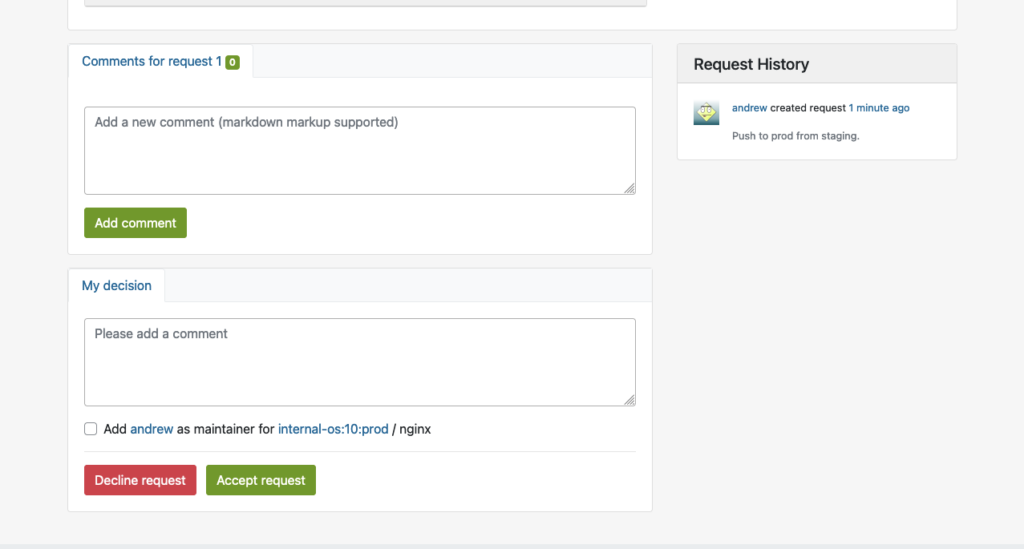
Next to submitting a package, a so-called repository master must approve the newly created requests for the designated project. This master can find a list of all requests in the Requests tab, where he/she can do the Request Review Control.
The master can find ‘Requests‘ in the project overview page like this:
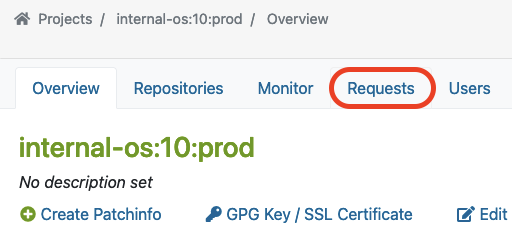
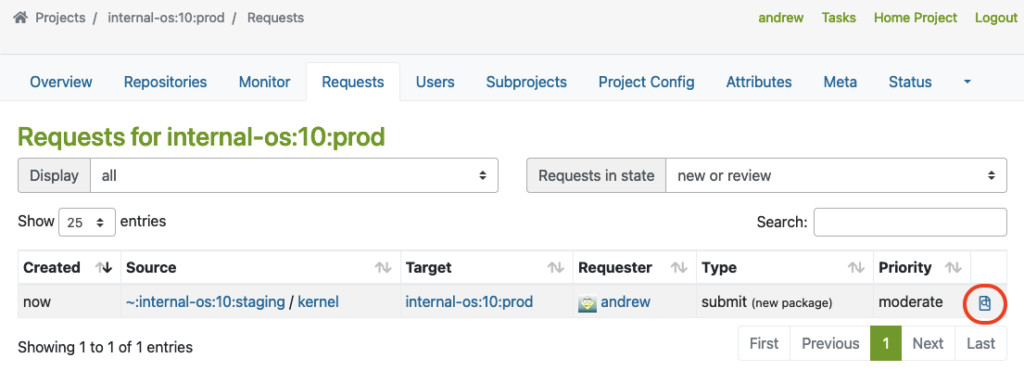
Here, you can see an example of a package that was submitted from Staging to the Prod project.
The master must click on the link marked with a red circle to perform the Request Review Control:
This will bring up the interface for Request Review Control, in which the repository master from the production project may decline or accept the package request:
Reproduce in Prod Project
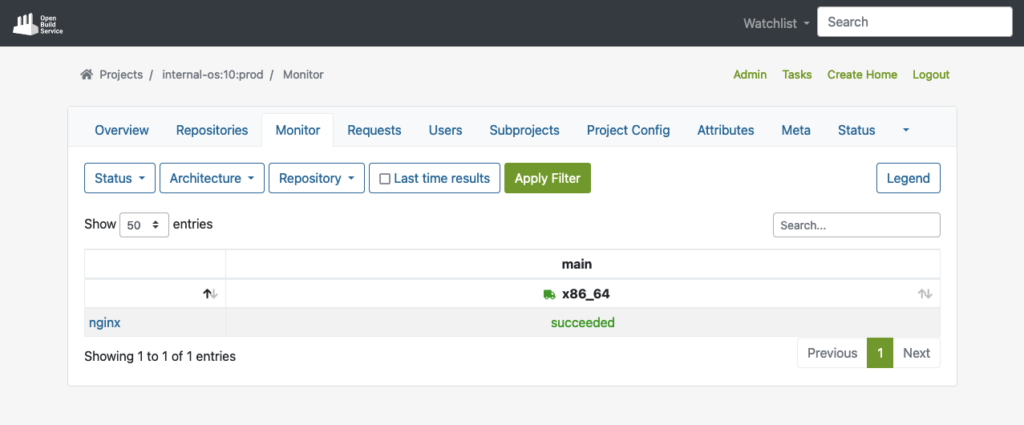
Once the package is accepted into the production project, it will automatically download all required dependencies from DoD, and reproduce the build process.
The example below shows the successfully built package in the production repo after the build process has been completed:
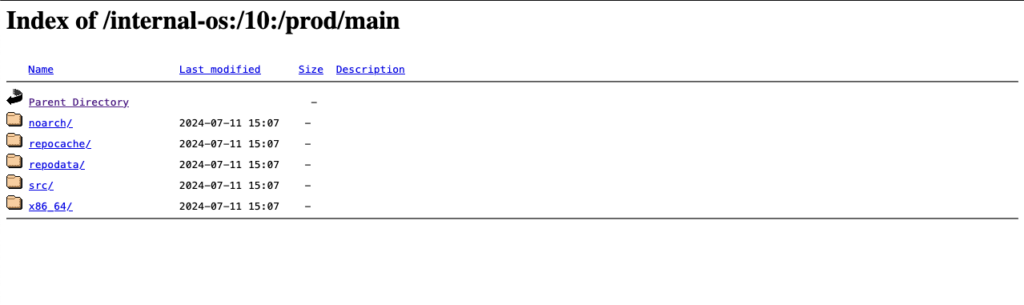
Publish to YUM-ready repository for Prod
Finally, the package will then also be published to the YUM-ready Prod repository as soon as the package has been built successfully. Here, you can see an example of the YUM-ready Prod repository that OBS handles.
(Note: you can name the project and repository name on your preferences):
Extras
In this chapter, we want to have a look at some possible extra customizations for OBS in your build infrastructures.
Automated Build Pipelines
OBS supports automated builds that may seamlessly integrate into delivery pipelines. Teams can set up CI triggers to commit new packages into OBS to initiate builds automatically based on predefined criteria, reducing manual effort and ensuring timely delivery of updated packages.
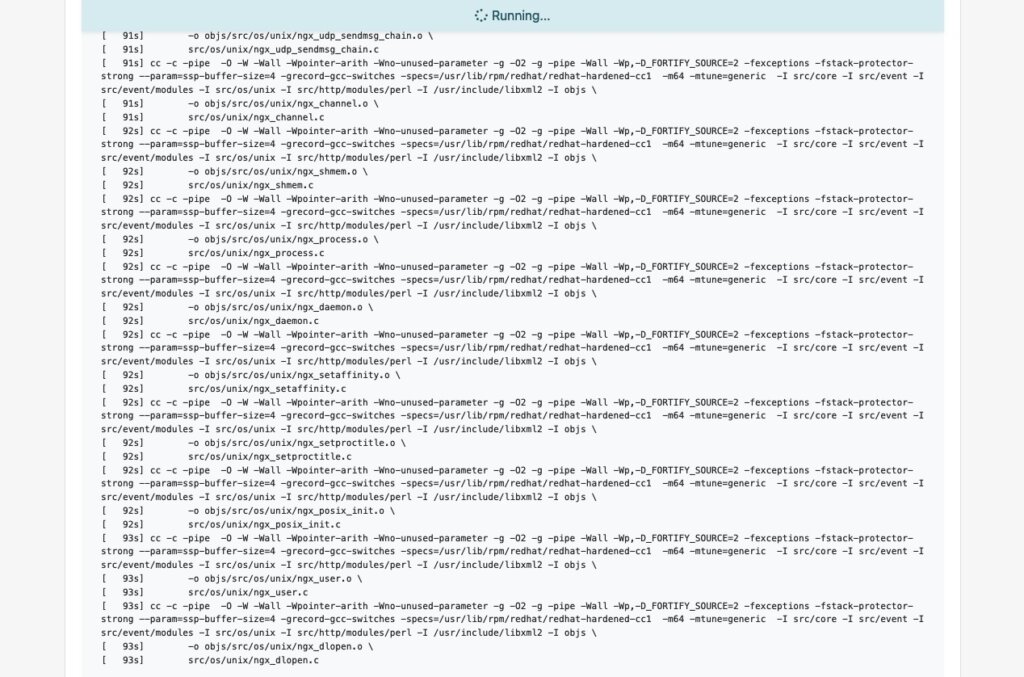
Packages get automated builds when committed into an OBS project, which enables administrators to easily integrate automated builds via pipelines:
OBS Worker
Further, the Open Build Service is capable of configuring multiple workers (builders) in multiple architectures. If you want to build with other architectures, just install the ‘obs-worker’ package on another hardware with a different architecture and then simply edit the /etc/sysconfig/obs-server file.
In that file, you must set at least those parameters on the worker node:
- OBS_SRC_SERVER
- OBS_REPO_SERVERS
- OBS_WORKER_INSTANCES
This method may also be useful if you want to have more workers in the same architecture available in OBS. The OpenSUSE’s public OBS instance has a large-scale setup which is a good example of this.
Emulated Build
In Open Build Service, it is also possible to configure emulated builds for cross-architecture build capabilities via QEMU. By using this feature, almost no changes are needed in package sources. Developers can build on target architectures without the need for other hardware architectures to be available. However, you might encounter problems with bugs or missing support in QEMU, and emulation may slow down the build process significantly. For instance, see how OpenSuSE managed this on RISC-V when they didn’t have the real hardware in the initial porting stage.
Conclusion
Integrating a private OBS instance as the build infrastructure provides teams a robust and comprehensive solution to build security-patched package for extended support of end-of-life (EOL) Linux distributions. By doing so, teams can unify the package building process, reduce inconsistencies, and achieve reproducibility. This approach simplifies the development and testing workflow while enhancing the overall quality and reliability of the generated packages. Additionally, by replicating the semi-original build environment, the resulting packages builds in the similar level of quality and compatibility to upstream builds.
If you are interested in integrating a private build infrastructure, or require extended support for any EOL Linux distribution. Please reach out to us. Our team is equipped with the expertise to assist you in integrating a private OBS instance into your exist infrastructure.
This article was originally written by Andrew Lee.
Artificial Intelligence (AI) is often regarded as a groundbreaking innovation of the modern era, yet its roots extend much further back than many realize. In 1943, neuroscientist Warren McCulloch and logician Walter Pitts proposed the first computational model of a neuron. The term “Artificial Intelligence” was coined in 1956. The subsequent creation of the Perceptron in 1957, the first model of a neural network, and the expert system Dendral designed for chemical analysis demonstrated the potential of computers to process data and apply expert knowledge in specific domains. From the 1970s to the 1990s, expert systems proliferated. A pivotal moment for AI in the public eye came in 1997 when IBM’s chess-playing computer Deep Blue defeated chess world champion Garry Kasparov.
The Evolution of Modern AI: From Spam Filters to LLMs and the Power of Context
The new millennium brought a new era for AI, with the integration of rudimentary AI systems into everyday technology. Spam filters, recommendation systems, and search engines subtly shaped online user experiences. In 2006, deep learning emerged, marking the renaissance of neural networks. The landmark development came in 2017 with the introduction of Transformers, a neural network architecture that became the most important ingredient for the creation of Large Language Models (LLMs). Its key component, the attention mechanism, enables the model to discern relationships between words over long distances within a text. This mechanism assigns varying weights to words depending on their contextual importance, acknowledging that the same word can hold different meanings in different situations. However, modern AI, as we know it, was made possible mainly thanks to the availability of large datasets and powerful computational hardware. Without the vast resources of the internet and electronic libraries worldwide, modern AI would not have enough data to learn and evolve. And without modern performant GPUs, training AI would be a challenging task.
The LLM is a sophisticated, multilayer neural network comprising numerous interconnected nodes. These nodes are the micro-decision-makers that underpin the collective intelligence of the system. During its training phase, an LLM learns to balance myriad small, simple decisions, which, when combined, enable it to handle complex tasks. The intricacies of these internal decisions are typically opaque to us, as we are primarily interested in the model’s output. However, these complex neural networks can only process numbers, not raw text. Text must be tokenized into words or sub-words, standardized, and normalized — converted to lowercase, stripped of punctuation, etc. These tokens are then put into a dictionary and mapped to unique numerical values. Only this numerical representation of the text allows LLMs to learn the complex relationships between words, phrases, and concepts and the likelihood of certain words or phrases following one another. LLMs therefore process texts as huge numerical arrays without truly understanding the content. They lack a mental model of the world and operate solely on mathematical representations of word relationships and their probabilities. This focus on the answer with the highest probability is also the reason why LLMs can “hallucinate” plausible yet incorrect information or get stuck in response loops, regurgitating the same or similar answers repeatedly.
The Art of Conversation: Prompt Engineering and Guiding an LLM’s Semantic Network
Based on the relationships between words learned from texts, LLMs also create vast webs of semantic associations that interconnect words. These associations form the backbone of an LLM’s ability to generate contextually appropriate and meaningful responses. When we provide a prompt to an LLM, we are not merely supplying words; we are activating a complex network of related concepts and ideas. Consider the word “apple”. This simple term can trigger a cascade of associated concepts such as “fruit,” “tree,” “food,” and even “technology” or “computer”. The activated associations depend on the context provided by the prompt and the prevalence of related concepts in the training data. The specificity of a prompt greatly affects the semantic associations an LLM considers. A vague prompt like “tell me about apples” may activate a wide array of diverse associations, ranging from horticultural information about apple trees to the nutritional value of the fruit or even cultural references like the tale of Snow White. An LLM will typically use the association with the highest occurrence in its training data when faced with such a broad prompt. For more targeted and relevant responses, it is crucial to craft focused prompts that incorporate specific technical jargon or references to particular disciplines. By doing so, the user can guide the LLM to activate a more precise subset of semantic associations, thereby narrowing the scope of the response to the desired area of expertise or inquiry.
LLMs have internal parameters that influence their creativity and determinism, such as “temperature”, “top-p”, “max length”, and various penalties. However, these are typically set to balanced defaults, and users should not modify them; otherwise, they could compromise the ability of LLMs to provide meaningful answers. Prompt engineering is therefore the primary method for guiding LLMs toward desired outputs. By crafting specific prompts, users can subtly direct the model’s responses, ensuring relevance and accuracy. The LLM derives a wealth of information from the prompt, determining not only semantic associations for the answer but also estimating its own role and the target audience’s knowledge level. By default, an LLM assumes the role of a helper and assistant, but it can adopt an expert’s voice if prompted. However, to elicit an expert-level response, one must not only set an expert role for the LLM but also specify that the inquirer is an expert as well. Otherwise, an LLM assumes an “average Joe” as the target audience by default. Therefore, even when asked to impersonate an expert role, an LLM may decide to simplify the language for the “average Joe” if the knowledge level of the target audience is not specified, which can result in a disappointing answer.
Ideas & samples
Consider two prompts for addressing a technical issue with PostgreSQL:
1. “Hi, what could cause delayed checkpoints in PostgreSQL?”
2. “Hi, we are both leading PostgreSQL experts investigating delayed checkpoints. The logs show checkpoints occasionally taking 3-5 times longer than expected. Let us analyze this step by step and identify probable causes.”
The depth of the responses will vary significantly, illustrating the importance of prompt specificity. The second prompt employs common prompting techniques, which we will explore in the following paragraphs. However, it is crucial to recognize the limitations of LLMs, particularly when dealing with expert-level knowledge, such as the issue of delayed checkpoints in our example. Depending on the AI model and the quality of its training data, users may receive either helpful or misleading answers. The quality and amount of training data representing the specific topic play a crucial role.
LLM Limitations and the Need for Verification: Overcoming Overfitting and Hallucinations
Highly specialized problems may be underrepresented in the training data, leading to overfitting or hallucinated responses. Overfitting occurs when an LLM focuses too closely on its training data and fails to generalize, providing answers that seem accurate but are contextually incorrect. In our PostgreSQL example, a hallucinated response might borrow facts from other databases (like MySQL or MS SQL) and adjust them to fit PostgreSQL terminology. Thus, the prompt itself is no guarantee of a high-quality answer—any AI-generated information must be carefully verified, which is a task that can be challenging for non-expert users.
With these limitations in mind, let us now delve deeper into prompting techniques. “Zero-shot prompting” is a baseline approach where the LLM operates without additional context or supplemental reference material, relying on its pre-trained knowledge and the prompt’s construction. By carefully activating the right semantic associations and setting the correct scope of attention, the output can be significantly improved. However, LLMs, much like humans, can benefit from examples. By providing reference material within the prompt, the model can learn patterns and structure its output accordingly. This technique is called “few-shot prompting”. The quality of the output is directly related to the quality and relevance of the reference material; hence, the adage “garbage in, garbage out” always applies.
For complex issues, “chain-of-thought” prompting can be particularly effective. This technique can significantly improve the quality of complicated answers because LLMs can struggle with long-distance dependencies in reasoning. Chain-of-thought prompting addresses this by instructing the model to break down the reasoning process into smaller, more manageable parts. It leads to more structured and comprehensible answers by focusing on better-defined sub-problems. In our PostgreSQL example prompt, the phrase “let’s analyze this step by step” instructs the LLM to divide the processing into a chain of smaller sub-problems. An evolution of this technique is the “tree of thoughts” technique. Here, the model not only breaks down the reasoning into parts but also creates a tree structure with parallel paths of reasoning. Each path is processed separately, allowing the model to converge on the most promising solution. This approach is particularly useful for complex problems requiring creative brainstorming. In our PostgreSQL example prompt, the phrase “let’s identify probable causes” instructs the LLM to discuss several possible pathways in the answer.
Plausibility vs. Veracity: The Critical Need to Verify All LLM Outputs
Of course, prompting techniques have their drawbacks. Few-shot prompting is limited by the number of tokens, which restricts the amount of information that can be included. Additionally, the model may ignore parts of excessively long prompts, especially the middle sections. Care must also be taken with the frequency of certain words in the reference material, as overlooked frequency can bias the model’s output. Chain-of-thought prompting can also lead to overfitted or “hallucinated” responses for some sub-problems, compromising the overall result.
Instructing the model to provide deterministic, factual responses is another prompting technique, vital for scientific and technical topics. Formulations like “answer using only reliable sources and cite those sources” or “provide an answer based on peer-reviewed scientific literature and cite the specific studies or articles you reference” can direct the model to base its responses on trustworthy sources. However, as already discussed, even with instructions to focus on factual information, the AI’s output must be verified to avoid falling into the trap of overfitted or hallucinated answers.
In conclusion, effective prompt engineering is a skill that combines creativity with strategic thinking, guiding the AI to deliver the most useful and accurate responses. Whether we are seeking simple explanations or delving into complex technical issues, the way we communicate with the AI always makes a difference in the quality of the response. However, we must always keep in mind that even the best prompt is no guarantee of a quality answer, and we must double-check received facts. The quality and amount of training data are paramount, and this means that some problems with received answers can persist even in future LLMs simply because they would have to use the same limited data for some specific topics.
When the model’s training data is sparse or ambiguous in certain highly focused areas, it can produce responses that are syntactically valid but factually incorrect. One reason AI hallucinations can be particularly problematic is their inherent plausibility. The generated text is usually grammatically correct and stylistically consistent, making it difficult for users to immediately identify inaccuracies without external verification. This highlights a key distinction between plausibility and veracity: just because something sounds right it does not mean it is true.
Conclusion
Whether the response is an insightful solution to a complex problem or completely fabricated nonsense is a distinction that must be made by human users, based on their expertise of the topic at hand. Our clients gained repeatedly exactly this experience with different LLMs. They tried to solve their technical problems using AI, but answers were partially incorrect or did not work at all. This is why human expert knowledge is still the most important factor when it comes to solving difficult technical issues. The inherent limitations of LLMs are unlikely to be fully overcome, at least not with current algorithms. Therefore expert knowledge will remain essential in delivering reliable, high-quality solutions even in the future. As people increasingly use AI tools in the same way they rely on Google — using them as a resource or assistant — true expertise will still be needed to interpret, refine, and implement these tools effectively. On the other hand, AI is emerging as a key driver of innovations. Progressive companies are investing heavily in AI, facing challenges related to security and performance. And this is the area where NetApp can also help. Its cloud AI focused solutions are designed to address exactly these issues.
(Picture generated by my colleague Felix Alipaz-Dicke using ChatGPT-4.)

Mastering Cloud Infrastructure with Pulumi: Introduction
In today’s rapidly changing landscape of cloud computing, managing infrastructure as code (IaC) has become essential for developers and IT professionals. Pulumi, an open-source IaC tool, brings a fresh perspective to the table by enabling infrastructure management using popular programming languages like JavaScript, TypeScript, Python, Go, and C#. This approach offers a unique blend of flexibility and power, allowing developers to leverage their existing coding skills to build, deploy, and manage cloud infrastructure. In this post, we’ll explore the world of Pulumi and see how it pairs with Amazon FSx for NetApp ONTAP—a robust solution for scalable and efficient cloud storage.
Pulumi – The Theory
Why Pulumi?
Pulumi distinguishes itself among IaC tools for several compelling reasons:
- Use Familiar Programming Languages: Unlike traditional IaC tools that rely on domain-specific languages (DSLs), Pulumi allows you to use familiar programming languages. This means no need to learn new syntax, and you can incorporate sophisticated logic, conditionals, and loops directly in your infrastructure code.
- Seamless Integration with Development Workflows: Pulumi integrates effortlessly with existing development workflows and tools, making it a natural fit for modern software projects. Whether you’re managing a simple web app or a complex, multi-cloud architecture, Pulumi provides the flexibility to scale without sacrificing ease of use.
Challenges with Pulumi
Like any tool, Pulumi comes with its own set of challenges:
- Learning Curve: While Pulumi leverages general-purpose languages, developers need to be proficient in the language they choose, such as Python or TypeScript. This can be a hurdle for those unfamiliar with these languages.
- Growing Ecosystem: As a relatively new tool, Pulumi’s ecosystem is still expanding. It might not yet match the extensive plugin libraries of older IaC tools, but its vibrant and rapidly growing community is a promising sign of things to come.
State Management in Pulumi: Ensuring Consistency Across Deployments
Effective infrastructure management hinges on proper state handling. Pulumi excels in this area by tracking the state of your infrastructure, enabling it to manage resources efficiently. This capability ensures that Pulumi knows exactly what needs to be created, updated, or deleted during deployments. Pulumi offers several options for state storage:
- Local State: Stored directly on your local file system. This option is ideal for individual projects or simple setups.
- Remote State: By default, Pulumi stores state remotely on the Pulumi Service (a cloud-hosted platform provided by Pulumi), but it also allows you to configure storage on AWS S3, Azure Blob Storage, or Google Cloud Storage. This is particularly useful in team environments where collaboration is essential.
Managing state effectively is crucial for maintaining consistency across deployments, especially in scenarios where multiple team members are working on the same infrastructure.
Other IaC Tools: Comparing Pulumi to Traditional IaC Tools
When comparing Pulumi to other Infrastructure as Code (IaC) tools, several drawbacks of traditional approaches become evident:
- Domain-Specific Language (DSL) Limitations: Many IaC tools depend on DSLs, such as Terraform’s HCL, requiring users to learn a specialized language specific to the tool.
- YAML/JSON Constraints: Tools that rely on YAML or JSON can be both restrictive and verbose, complicating the management of more complex configurations.
- Steep Learning Curve: The necessity to master DSLs or particular configuration formats adds to the learning curve, especially for newcomers to IaC.
- Limited Logical Capabilities: DSLs often lack support for advanced logic constructs such as loops, conditionals, and reusability. This limitation can lead to repetitive code that is challenging to maintain.
- Narrow Ecosystem: Some IaC tools have a smaller ecosystem, offering fewer plugins, modules, and community-driven resources.
- Challenges with Code Reusability: The inability to reuse code across different projects or components can hinder efficiency and scalability in infrastructure management.
- Testing Complexity: Testing infrastructure configurations written in DSLs can be challenging, making it difficult to ensure the reliability and robustness of the infrastructure code.
Pulumi – In Practice
Introduction
In the this section, we’ll dive into a practical example to better understand Pulumi’s capabilities. We’ll also explore how to set up a project using Pulumi with AWS and automate it using GitHub Actions for CI/CD.
Prerequisites
Before diving into using Pulumi with AWS and automating your infrastructure management through GitHub Actions, ensure you have the following prerequisites in place:
- Pulumi CLI: Begin by installing the Pulumi CLI by following the official installation instructions. After installation, verify that Pulumi is correctly set up and accessible in your system’s PATH by running a quick version check.
- AWS CLI: Install the AWS CLI, which is essential for interacting with AWS services. Configure the AWS CLI with your AWS credentials to ensure you have access to the necessary AWS resources. Ensure your AWS account is equipped with the required permissions, especially for IAM, EC2, S3, and any other AWS services you plan to manage with Pulumi.
- AWS IAM User/Role for GitHub Actions: Create a dedicated IAM user or role in AWS specifically for use in your GitHub Actions workflows. This user or role should have permissions necessary to manage the resources in your Pulumi stack. Store the AWS_ACCESS_KEY_ID and AWS_SECRET_ACCESS_KEY securely as secrets in your GitHub repository.
- Pulumi Account: Set up a Pulumi account if you haven’t already. Generate a Pulumi access token and store it as a secret in your GitHub repository to facilitate secure automation.
- Python and Pip: Install Python (version 3.7 or higher is recommended) along with Pip, which are necessary for Pulumi’s Python SDK. Once Python is installed, proceed to install Pulumi’s Python SDK along with any required AWS packages to enable infrastructure management through Python.
- GitHub Account: Ensure you have an active GitHub account to host your code and manage your repository. Create a GitHub repository where you’ll store your Pulumi project and related automation workflows. Store critical secrets like AWS_ACCESS_KEY_ID, AWS_SECRET_ACCESS_KEY, and your Pulumi access token securely in the GitHub repository’s secrets section.
- GitHub Runners: Utilize GitHub-hosted runners to execute your GitHub Actions workflows, or set up self-hosted runners if your project requires them. Confirm that the runners have all necessary tools installed, including Pulumi, AWS CLI, Python, and any other dependencies your Pulumi project might need.
Project Structure
When working with Infrastructure as Code (IaC) using Pulumi, maintaining an organized project structure is essential. A clear and well-defined directory structure not only streamlines the development process but also improves collaboration and deployment efficiency. In this post, we’ll explore a typical directory structure for a Pulumi project and explain the significance of each component.
Overview of a Typical Pulumi Project Directory
A standard Pulumi project might be organized as follows:
/project-root
├── .github
│ └── workflows
│ └── workflow.yml # GitHub Actions workflow for CI/CD
├── __main__.py # Entry point for the Pulumi program
├── infra.py # Infrastructure code
├── pulumi.dev.yml # Pulumi configuration for the development environment
├── pulumi.prod.yml # Pulumi configuration for the production environment
├── pulumi.yml # Pulumi configuration (common or default settings)
├── requirements.txt # Python dependencies
└── test_infra.py # Tests for infrastructure code
NetApp FSx on AWS
Introduction
Amazon FSx for NetApp ONTAP offers a fully managed, scalable storage solution built on the NetApp ONTAP file system. It provides high-performance, highly available shared storage that seamlessly integrates with your AWS environment. Leveraging the advanced data management capabilities of ONTAP, FSx for NetApp ONTAP is ideal for applications needing robust storage features and compatibility with existing NetApp systems.
Key Features
- High Performance: FSx for ONTAP delivers low-latency storage designed to handle demanding, high-throughput workloads.
- Scalability: Capable of scaling to support petabytes of storage, making it suitable for both small and large-scale applications.
- Advanced Data Management: Leverages ONTAP’s comprehensive data management features, including snapshots, cloning, and disaster recovery.
- Multi-Protocol Access: Supports NFS and SMB protocols, providing flexible access options for a variety of clients.
- Cost-Effectiveness: Implements tiering policies to automatically move less frequently accessed data to lower-cost storage, helping optimize storage expenses.
What It’s About
In the next sections, we’ll walk through the specifics of setting up each component using Pulumi code, illustrating how to create a VPC, configure subnets, set up a security group, and deploy an FSx for NetApp ONTAP file system, all while leveraging the robust features provided by both Pulumi and AWS.
Architecture Overview
A visual representation of the architecture we’ll deploy using Pulumi: Single AZ Deployment with FSx and EC2
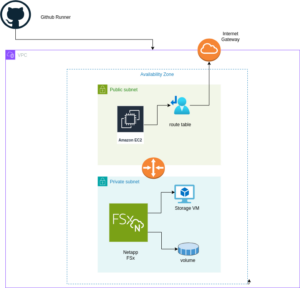
The diagram above illustrates the architecture for deploying an FSx for NetApp ONTAP file system within a single Availability Zone. The setup includes a VPC with public and private subnets, an Internet Gateway for outbound traffic, and a Security Group controlling access to the FSx file system and the EC2 instance. The EC2 instance is configured to mount the FSx volume using NFS, enabling seamless access to storage.
Setting up Pulumi
Follow these steps to set up Pulumi and integrate it with AWS:
Install Pulumi: Begin by installing Pulumi using the following command:
curl -fsSL https://get.pulumi.com | shInstall AWS CLI: If you haven’t installed it yet, install the AWS CLI to manage AWS services:
pip install awscliConfigure AWS CLI: Configure the AWS CLI with your credentials:
aws configureCreate a New Pulumi Project: Initialize a new Pulumi project with AWS and Python:
pulumi new aws-pythonConfigure Your Pulumi Stack: Set the AWS region for your Pulumi stack:
pulumi config set aws:region eu-central-1Deploy Your Stack: Deploy your infrastructure using Pulumi:
pulumi preview ; pulumi upExample: VPC, Subnets, and FSx for NetApp ONTAP
Let’s dive into an example Pulumi project that sets up a Virtual Private Cloud (VPC), subnets, a security group, an Amazon FSx for NetApp ONTAP file system, and an EC2 instance.
Pulumi Code Example: VPC, Subnets, and FSx for NetApp ONTAP
The first step is to define all the parameters required to set up the infrastructure. You can use the following example to configure these parameters as specified in the pulumi.dev.yaml file.
This pulumi.dev.yaml file contains configuration settings for a Pulumi project. It specifies various parameters for the deployment environment, including the AWS region, availability zones, and key name. It also defines CIDR blocks for subnets. These settings are used to configure and deploy cloud infrastructure resources in the specified AWS region.
config:
  aws:region: eu-central-1
  demo:availabilityZone: eu-central-1a
  demo:keyName: XYZ
  demo:subnet1CIDER: 10.0.3.0/24
  demo:subnet2CIDER: 10.0.4.0/24
The following code snippet should be placed in the infra.py file. It details the setup of the VPC, subnets, security group, and FSx for NetApp ONTAP file system. Each step in the code is explained through inline comments.
import pulumi
import pulumi_aws as aws
import pulumi_command as command
import os

# Retrieve configuration values from Pulumi configuration files
aws_config = pulumi.Config("aws")
region = aws_config.require("region")  # The AWS region where resources will be deployed

demo_config = pulumi.Config("demo")
availability_zone = demo_config.require("availabilityZone")  # Availability Zone for the deployment
subnet1_cidr = demo_config.require("subnet1CIDER")  # CIDR block for the public subnet
subnet2_cidr = demo_config.require("subnet2CIDER")  # CIDR block for the private subnet
key_name = demo_config.require("keyName")  # Name of the SSH key pair for EC2 instance access# Create a new VPC with DNS support enabled
vpc = aws.ec2.Vpc(
    "fsxVpc",
    cidr_block="10.0.0.0/16",  # VPC CIDR block
    enable_dns_support=True,    # Enable DNS support in the VPC
    enable_dns_hostnames=True   # Enable DNS hostnames in the VPC
)

# Create an Internet Gateway to allow internet access from the VPC
internet_gateway = aws.ec2.InternetGateway(
    "vpcInternetGateway",
    vpc_id=vpc.id  # Attach the Internet Gateway to the VPC
)

# Create a public route table for routing internet traffic via the Internet Gateway
public_route_table = aws.ec2.RouteTable(
    "publicRouteTable",
    vpc_id=vpc.id,
    routes=[aws.ec2.RouteTableRouteArgs(
        cidr_block="0.0.0.0/0",  # Route all traffic (0.0.0.0/0) to the Internet Gateway
        gateway_id=internet_gateway.id
    )]
)

# Create a single public subnet in the specified Availability Zone
public_subnet = aws.ec2.Subnet(
    "publicSubnet",
    vpc_id=vpc.id,
    cidr_block=subnet1_cidr,  # CIDR block for the public subnet
    availability_zone=availability_zone,  # The specified Availability Zone
    map_public_ip_on_launch=True  # Assign public IPs to instances launched in this subnet
)

# Create a single private subnet in the same Availability Zone
private_subnet = aws.ec2.Subnet(
    "privateSubnet",
    vpc_id=vpc.id,
    cidr_block=subnet2_cidr,  # CIDR block for the private subnet
    availability_zone=availability_zone  # The same Availability Zone
)

# Associate the public subnet with the public route table to enable internet access
public_route_table_association = aws.ec2.RouteTableAssociation(
    "publicRouteTableAssociation",
    subnet_id=public_subnet.id,
    route_table_id=public_route_table.id
)

# Create a security group to control inbound and outbound traffic for the FSx file system
security_group = aws.ec2.SecurityGroup(
    "fsxSecurityGroup",
    vpc_id=vpc.id,
    description="Allow NFS traffic",  # Description of the security group
    ingress=[
        aws.ec2.SecurityGroupIngressArgs(
            protocol="tcp",
            from_port=2049,  # NFS protocol port
            to_port=2049,
            cidr_blocks=["0.0.0.0/0"]  # Allow NFS traffic from anywhere
        ),
        aws.ec2.SecurityGroupIngressArgs(
            protocol="tcp",
            from_port=111,  # RPCBind port for NFS
            to_port=111,
            cidr_blocks=["0.0.0.0/0"]  # Allow RPCBind traffic from anywhere
        ),
        aws.ec2.SecurityGroupIngressArgs(
            protocol="udp",
            from_port=111,  # RPCBind port for NFS over UDP
            to_port=111,
            cidr_blocks=["0.0.0.0/0"]  # Allow RPCBind traffic over UDP from anywhere
        ),
        aws.ec2.SecurityGroupIngressArgs(
            protocol="tcp",
            from_port=22,  # SSH port for EC2 instance access
            to_port=22,
            cidr_blocks=["0.0.0.0/0"]  # Allow SSH traffic from anywhere
        )
    ],
    egress=[
        aws.ec2.SecurityGroupEgressArgs(
            protocol="-1",  # Allow all outbound traffic
            from_port=0,
            to_port=0,
            cidr_blocks=["0.0.0.0/0"]  # Allow all outbound traffic to anywhere
        )
    ]
)

# Create the FSx for NetApp ONTAP file system in the private subnet
file_system = aws.fsx.OntapFileSystem(
    "fsxFileSystem",
    subnet_ids=[private_subnet.id],  # Deploy the FSx file system in the private subnet
    preferred_subnet_id=private_subnet.id,  # Preferred subnet for the FSx file system
    security_group_ids=[security_group.id],  # Attach the security group to the FSx file system
    deployment_type="SINGLE_AZ_1",  # Single Availability Zone deployment
    throughput_capacity=128,  # Throughput capacity in MB/s
    storage_capacity=1024  # Storage capacity in GB
)

# Create a Storage Virtual Machine (SVM) within the FSx file system
storage_virtual_machine = aws.fsx.OntapStorageVirtualMachine(
    "storageVirtualMachine",
    file_system_id=file_system.id,  # Associate the SVM with the FSx file system
    name="svm1",  # Name of the SVM
    root_volume_security_style="UNIX"  # Security style for the root volume
)

# Create a volume within the Storage Virtual Machine (SVM)
volume = aws.fsx.OntapVolume(
    "fsxVolume",
    storage_virtual_machine_id=storage_virtual_machine.id,  # Associate the volume with the SVM
    name="vol1",  # Name of the volume
    junction_path="/vol1",  # Junction path for mounting
    size_in_megabytes=10240,  # Size of the volume in MB
    storage_efficiency_enabled=True,  # Enable storage efficiency features
    tiering_policy=aws.fsx.OntapVolumeTieringPolicyArgs(
        name="SNAPSHOT_ONLY"  # Tiering policy for the volume
    ),
    security_style="UNIX"  # Security style for the volume
)

# Extract the DNS name from the list of SVM endpoints
dns_name = storage_virtual_machine.endpoints.apply(lambda e: e[0]['nfs'][0]['dns_name'])

# Get the latest Amazon Linux 2 AMI for the EC2 instance
ami = aws.ec2.get_ami(
    most_recent=True,
    owners=["amazon"],
    filters=[{"name": "name", "values": ["amzn2-ami-hvm-*-x86_64-gp2"]}]  # Filter for Amazon Linux 2 AMI
)

# Create an EC2 instance in the public subnet
ec2_instance = aws.ec2.Instance(
    "fsxEc2Instance",
    instance_type="t3.micro",  # Instance type for the EC2 instance
    vpc_security_group_ids=[security_group.id],  # Attach the security group to the EC2 instance
    subnet_id=public_subnet.id,  # Deploy the EC2 instance in the public subnet
    ami=ami.id,  # Use the latest Amazon Linux 2 AMI
    key_name=key_name,  # SSH key pair for accessing the EC2 instance
    tags={"Name": "FSx EC2 Instance"}  # Tag for the EC2 instance
)

# User data script to install NFS client and mount the FSx volume on the EC2 instance
user_data_script = dns_name.apply(lambda dns: f"""#!/bin/bash
sudo yum update -y
sudo yum install -y nfs-utils
sudo mkdir -p /mnt/fsx
if ! mountpoint -q /mnt/fsx; then
sudo mount -t nfs {dns}:/vol1 /mnt/fsx
fi
""")

# Retrieve the private key for SSH access from environment variables while running with Github Actions
private_key_content = os.getenv("PRIVATE_KEY")
print(private_key_content)

# Ensure the FSx file system is available before executing the script on the EC2 instance
pulumi.Output.all(file_system.id, ec2_instance.public_ip).apply(lambda args: command.remote.Command(
    "mountFsxFileSystem",
    connection=command.remote.ConnectionArgs(
        host=args[1],
        user="ec2-user",
        private_key=private_key_content
    ),
    create=user_data_script,
    opts=pulumi.ResourceOptions(depends_on=[volume])
))
Pytest with Pulumi
# Importing necessary libraries
import pulumi
import pulumi_aws as aws
from typing import Any, Dict, List

# Setting up configuration values for AWS region and various parameters
pulumi.runtime.set_config('aws:region', 'eu-central-1')
pulumi.runtime.set_config('demo:availabilityZone1', 'eu-central-1a')
pulumi.runtime.set_config('demo:availabilityZone2', 'eu-central-1b')
pulumi.runtime.set_config('demo:subnet1CIDER', '10.0.3.0/24')
pulumi.runtime.set_config('demo:subnet2CIDER', '10.0.4.0/24')
pulumi.runtime.set_config('demo:keyName', 'XYZ') - Change based on your own key

# Creating a class MyMocks to mock Pulumi's resources for testing
class MyMocks(pulumi.runtime.Mocks):
    def new_resource(self, args: pulumi.runtime.MockResourceArgs) -> List[Any]:
        # Initialize outputs with the resource's inputs
        outputs = args.inputs

        # Mocking specific resources based on their type
        if args.typ == "aws:ec2/instance:Instance":
            # Mocking an EC2 instance with some default values
            outputs = {
                **args.inputs,  # Start with the given inputs
                "ami": "ami-0eb1f3cdeeb8eed2a",  # Mock AMI ID
                "availability_zone": "eu-central-1a",  # Mock availability zone
                "publicIp": "203.0.113.12",  # Mock public IP
                "publicDns": "ec2-203-0-113-12.compute-1.amazonaws.com",  # Mock public DNS
                "user_data": "mock user data script",  # Mock user data
                "tags": {"Name": "test"}  # Mock tags
            }
        elif args.typ == "aws:ec2/securityGroup:SecurityGroup":
            # Mocking a Security Group with default ingress rules
            outputs = {
                **args.inputs,
                "ingress": [
                    {"from_port": 80, "cidr_blocks": ["0.0.0.0/0"]},  # Allow HTTP traffic from anywhere
                    {"from_port": 22, "cidr_blocks": ["192.168.0.0/16"]}  # Allow SSH traffic from a specific CIDR block
                ]
            }

        # Returning a mocked resource ID and the output values
        return [args.name + '_id', outputs]

    def call(self, args: pulumi.runtime.MockCallArgs) -> Dict[str, Any]:
        # Mocking a call to get an AMI
        if args.token == "aws:ec2/getAmi:getAmi":
            return {
                "architecture": "x86_64",  # Mock architecture
                "id": "ami-0eb1f3cdeeb8eed2a",  # Mock AMI ID
            }

        # Return an empty dictionary if no specific mock is needed
        return {}

# Setting the custom mocks for Pulumi
pulumi.runtime.set_mocks(MyMocks())

# Import the infrastructure to be tested
import infra

# Define a test function to validate the AMI ID of the EC2 instance
@pulumi.runtime.test
def test_instance_ami():
    def check_ami(ami_id: str) -> None:
        print(f"AMI ID received: {ami_id}")
        # Assertion to ensure the AMI ID is the expected one
        assert ami_id == "ami-0eb1f3cdeeb8eed2a", 'EC2 instance must have the correct AMI ID'

    # Running the test to check the AMI ID
    pulumi.runtime.run_in_stack(lambda: infra.ec2_instance.ami.apply(check_ami))

# Define a test function to validate the availability zone of the EC2 instance
@pulumi.runtime.test
def test_instance_az():
    def check_az(availability_zone: str) -> None:
        print(f"Availability Zone received: {availability_zone}")
        # Assertion to ensure the instance is in the correct availability zone
        assert availability_zone == "eu-central-1a", 'EC2 instance must be in the correct availability zone'

    # Running the test to check the availability zone
    pulumi.runtime.run_in_stack(lambda: infra.ec2_instance.availability_zone.apply(check_az))

# Define a test function to validate the tags of the EC2 instance
@pulumi.runtime.test
def test_instance_tags():
    def check_tags(tags: Dict[str, Any]) -> None:
        print(f"Tags received: {tags}")
        # Assertions to ensure the instance has tags and a 'Name' tag
        assert tags, 'EC2 instance must have tags'
        assert 'Name' in tags, 'EC2 instance must have a Name tag'

    # Running the test to check the tags
    pulumi.runtime.run_in_stack(lambda: infra.ec2_instance.tags.apply(check_tags))

# Define a test function to validate the user data script of the EC2 instance
@pulumi.runtime.test
def test_instance_userdata():
    def check_user_data(user_data_script: str) -> None:
        print(f"User data received: {user_data_script}")
        # Assertion to ensure the instance has user data configured
        assert user_data_script is not None, 'EC2 instance must have user_data_script configured'

    # Running the test to check the user data script
    pulumi.runtime.run_in_stack(lambda: infra.ec2_instance.user_data.apply(check_user_data))
Github Actions
Introduction
GitHub Actions is a powerful automation tool integrated within GitHub, enabling developers to automate their workflows, including testing, building, and deploying code. Pulumi, on the other hand, is an Infrastructure as Code (IaC) tool that allows you to manage cloud resources using familiar programming languages. In this post, we’ll explore why you should use GitHub Actions and its specific purpose when combined with Pulumi.
Why Use GitHub Actions and Its Importance
GitHub Actions is a powerful tool for automating workflows within your GitHub repository, offering several key benefits, especially when combined with Pulumi:
- Integrated CI/CD: GitHub Actions seamlessly integrates Continuous Integration and Continuous Deployment (CI/CD) directly into your GitHub repository. This automation enhances consistency in testing, building, and deploying code, reducing the risk of manual errors.
- Custom Workflows: It allows you to create custom workflows for different stages of your software development lifecycle, such as code linting, running unit tests, or managing complex deployment processes. This flexibility ensures your automation aligns with your specific needs.
- Event-Driven Automation: You can trigger GitHub Actions with events like pushes, pull requests, or issue creation. This event-driven approach ensures that tasks are automated precisely when needed, streamlining your workflow.
- Reusable Code: GitHub Actions supports reusable “actions” that can be shared across multiple workflows or repositories. This promotes code reuse and maintains consistency in automation processes.
- Built-in Marketplace: The GitHub Marketplace offers a wide range of pre-built actions from the community, making it easy to integrate third-party services or implement common tasks without writing custom code.
- Enhanced Collaboration: By using GitHub’s pull request and review workflows, teams can discuss and approve changes before deployment. This process reduces risks and improves collaboration on infrastructure changes.
- Automated Deployment: GitHub Actions automates the deployment of infrastructure code, using Pulumi to apply changes. This automation reduces the risk of manual errors and ensures a consistent deployment process.
- Testing: Running tests before deploying with GitHub Actions helps confirm that your infrastructure code works correctly, catching potential issues early and ensuring stability.
- Configuration Management: It manages and sets up necessary configurations for Pulumi and AWS, ensuring your environment is correctly configured for deployments.
- Preview and Apply Changes: GitHub Actions allows you to preview changes before applying them, helping you understand the impact of modifications and minimizing the risk of unintended changes.
- Cleanup: You can optionally destroy the stack after testing or deployment, helping control costs and maintain a clean environment.
Execution
To execute the GitHub Actions workflow:
- Placement: Save the workflow YAML file in your repository’s .github/workflows directory. This setup ensures that GitHub Actions will automatically detect and execute the workflow whenever there’s a push to the main branch of your repository.
- Workflow Actions: The workflow file performs several critical actions:
- Environment Setup: Configures the necessary environment for running the workflow.
- Dependency Installation: Installs the required dependencies, including Pulumi CLI and other Python packages.
- Testing: Runs your tests to verify that your infrastructure code functions as expected.
- Preview and Apply Changes: Uses Pulumi to preview and apply any changes to your infrastructure.
- Cleanup: Optionally destroys the stack after tests or deployment to manage costs and maintain a clean environment.
By incorporating this workflow, you ensure that your Pulumi infrastructure is continuously integrated and deployed with proper validation, significantly improving the reliability and efficiency of your infrastructure management process.
Example: Deploy infrastructure with Pulumi
name: Pulumi Deployment

on:
  push:
    branches:
      - main

env:
  # Environment variables for AWS credentials and private key.
  AWS_ACCESS_KEY_ID: ${{ secrets.AWS_ACCESS_KEY_ID }}
  AWS_SECRET_ACCESS_KEY: ${{ secrets.AWS_SECRET_ACCESS_KEY }}
  AWS_DEFAULT_REGION: ${{ secrets.AWS_DEFAULT_REGION }}
  PRIVATE_KEY: ${{ secrets.PRIVATE_KEY }}

jobs:
  pulumi-deploy:
    runs-on: ubuntu-latest
    environment: dev

    steps:
      - name: Checkout code
        uses: actions/checkout@v3
        # Check out the repository code to the runner.

      - name: Configure AWS credentials
        uses: aws-actions/configure-aws-credentials@v3
        with:
          aws-access-key-id: ${{ secrets.AWS_ACCESS_KEY_ID }}
          aws-secret-access-key: ${{ secrets.AWS_SECRET_ACCESS_KEY }}
          aws-region: eu-central-1
        # Set up AWS credentials for use in subsequent actions.

      - name: Set up SSH key
        run: |
          mkdir -p ~/.ssh
          echo "${{ secrets.SSH_PRIVATE_KEY }}" > ~/.ssh/XYZ.pem
          chmod 600 ~/.ssh/XYZ.pem
        # Create an SSH directory, add the private SSH key, and set permissions.

      - name: Set up Python
        uses: actions/setup-python@v4
        with:
          python-version: '3.9'
        # Set up Python 3.9 environment for running Python-based tasks.

      - name: Set up Node.js
        uses: actions/setup-node@v3
        with:
          node-version: '14'
        # Set up Node.js 14 environment for running Node.js-based tasks.

      - name: Install project dependencies
        run: npm install
        working-directory: .
        # Install Node.js project dependencies specified in `package.json`.

      - name: Install Pulumi
        run: npm install -g pulumi
        # Install the Pulumi CLI globally.

      - name: Install dependencies
        run: |
          python -m pip install --upgrade pip
          pip install -r requirements.txt
        working-directory: .
        # Upgrade pip and install Python dependencies from `requirements.txt`.

      - name: Login to Pulumi
        run: pulumi login
        env:
          PULUMI_ACCESS_TOKEN: ${{ secrets.PULUMI_ACCESS_TOKEN }}
        # Log in to Pulumi using the access token stored in secrets.

      - name: Set Pulumi configuration for tests
        run: pulumi config set aws:region eu-central-1 --stack dev
        # Set Pulumi configuration to specify AWS region for the `dev` stack.

      - name: Pulumi stack select
        run: pulumi stack select dev
        working-directory: .
        # Select the `dev` stack for Pulumi operations.

      - name: Run tests
        run: |
          pulumi config set aws:region eu-central-1
          pytest
        working-directory: .
        # Set AWS region configuration and run tests using pytest.

      - name: Preview Pulumi changes
        run: pulumi preview --stack dev
        working-directory: .
        # Preview the changes that Pulumi will apply to the `dev` stack.

      - name: Update Pulumi stack
        run: pulumi up --yes --stack dev
        working-directory: .
        # Apply the changes to the `dev` stack with Pulumi.

      - name: Pulumi stack output
        run: pulumi stack output
        working-directory: .
        # Retrieve and display outputs from the Pulumi stack.

      - name: Cleanup Pulumi stack
        run: pulumi destroy --yes --stack dev
        working-directory: .
        # Destroy the `dev` stack to clean up resources.

      - name: Pulumi stack output (after destroy)
        run: pulumi stack output
        working-directory: .
        # Retrieve and display outputs from the Pulumi stack after destruction.

      - name: Logout from Pulumi
        run: pulumi logout
        # Log out from the Pulumi session.
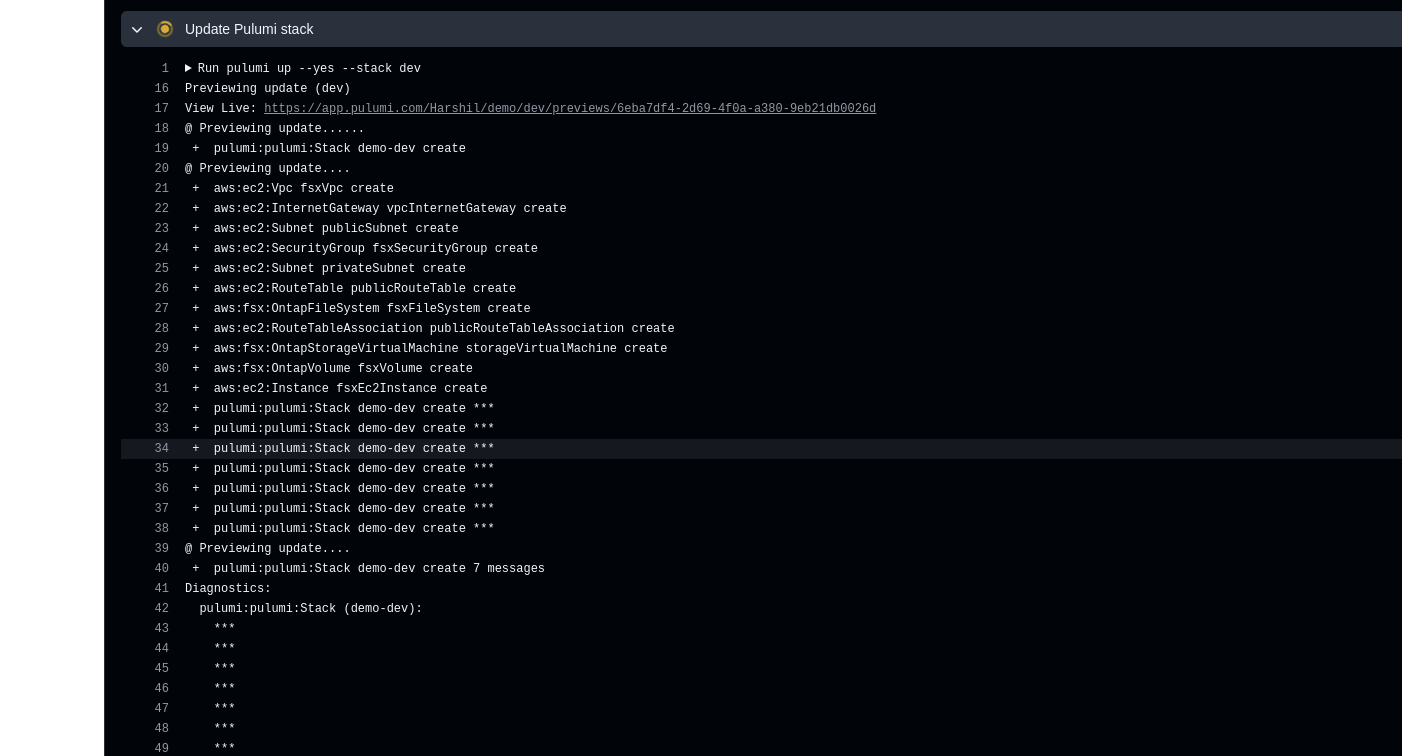
Output:
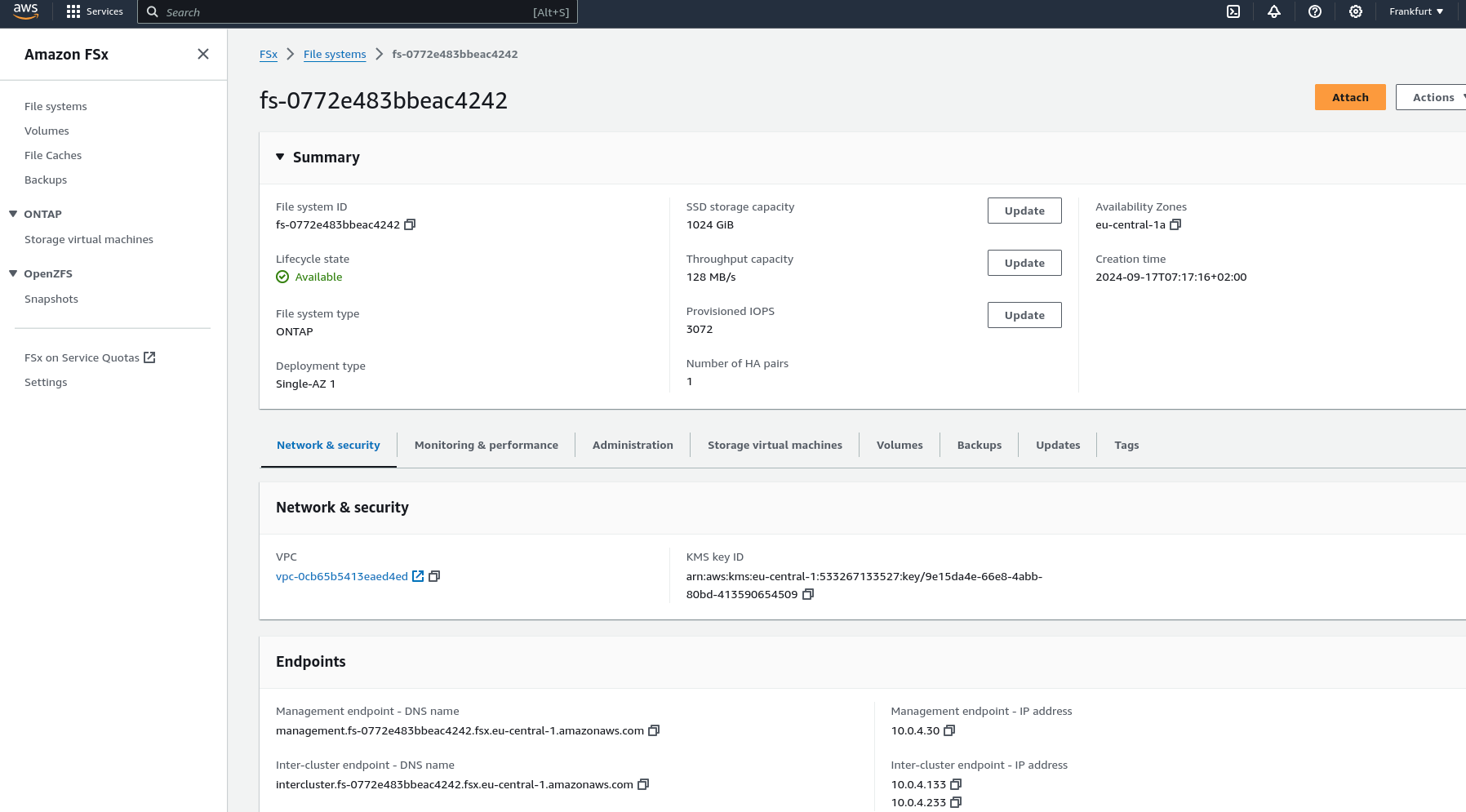
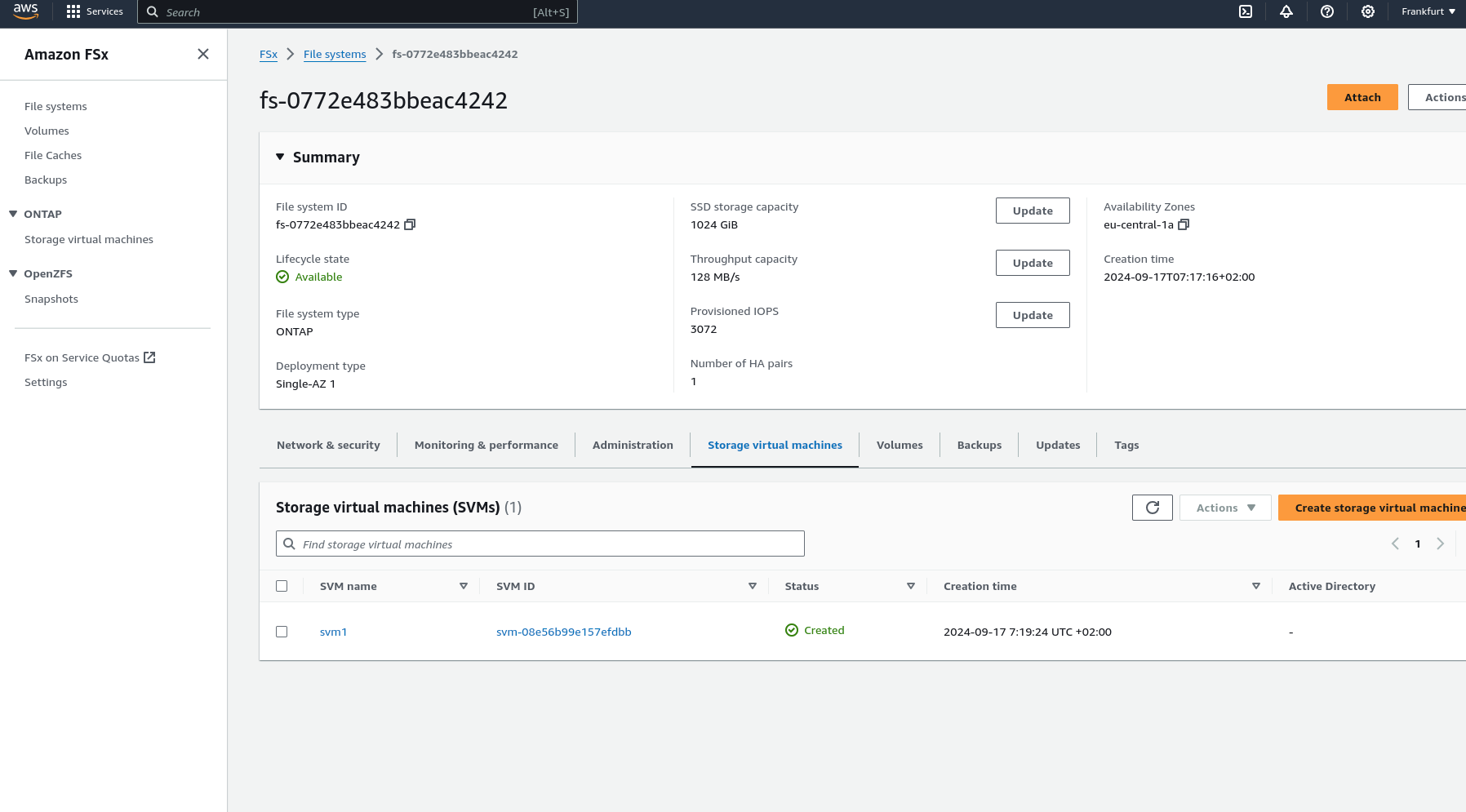
DebConf 2024 from 28. July to 4. Aug 2024 https://debconf24.debconf.org/
Last week the annual Debian Community Conference DebConf happend in Busan, South Korea. Four NetApp employees (Michael, Andrew, Christop and Noël) participated the whole week at the Pukyong National University. The camp takes place before the conference, where the infrastructure is set up and the first collaborations take place. The camp is described in a separate article: https://www.credativ.de/en/blog/credativ-inside/debcamp-bootstrap-for-debconf24/
There was a heat wave with high humidity in Korea at the time but the venue and accommodation at the University are air conditioned so collaboration work, talks and BoF were possible under the circumstances.
Around 400 Debian enthusiasts from all over the world were onsite and additional people attended remotly with the video streaming and the Matrix online chat #debconf:matrix.debian.social
The content team created a schedule with different aspects of Debian; technical, social, political,….
https://debconf24.debconf.org/schedule/
There were two bigger announcements during DebConf24:
- the new distribution eLxr https://elxr.org/ based on Debian initiated by Windriver
https://debconf24.debconf.org/talks/138-a-unified-approach-for-intelligent-deployments-at-the-edge/
Two takeaway points I understood from this talk is Windriver wants to exchange CentOS and preferes a binary distribution. - The Debian package management system will get a new solver https://debconf24.debconf.org/talks/8-the-new-apt-solver/
The list of interesting talks is much longer from a full conference week. Most talks and BoF were streamed live and the recordings can be found in the video archive:
https://meetings-archive.debian.net/pub/debian-meetings/2024/DebConf24/
It is a tradtion to have a Daytrip for socializing and get a more interesting view of the city and the country. https://wiki.debian.org/DebConf/24/DayTrip/ (sorry the details of the three Daytrip are on the website for participants).
For the annual conference group photo we have to go outsite into the heat with high humidity but I hope you will not see us sweeting.
The Debian Conference 2025 will be in July in Brest, France: https://wiki.debian.org/DebConf/25/ and we will be there.:) Maybe it will be a chance for you to join us.
See also Debian News: DebConf24 closes in Busan and DebConf25 dates announced
DebConf24 https://debconf24.debconf.org/ took place from 2024-07-28 to 2024-08–04 in Busan, Korea.
Four employees (three Debian developers) from NetApp had the opportunity to participate in the annual event, which is the most important conference in the Debian world: Christoph Senkel, Andrew Lee, Michael Meskes and Noël Köthe.
DebCamp
What is DebCamp? DebCamp usually takes place a week before DebConf begins. For participants, DebCamp is a hacking session that takes place just before DebConf. It’s a week dedicated to Debian contributors focusing on their Debian-related projects, tasks, or problems without interruptions.
DebCamps are largely self-organized since it’s a time for people to work. Some prefer to work individually, while others participate in or organize sprints. Both approaches are encouraged, although it’s recommended to plan your DebCamp week in advance.
During this DebCamp, there are the following public sprints:
- Python Team Sprint: QA work on the Python Team’s packages
- l10n-pt-br Team Sprint: pt-br translation
- Security Tools Packaging Team Sprint: QA work on the pkg-security Team’s packages
- Ruby Team Sprint: Work on the transition to Ruby 3.3
- Go Team Sprint: Get newer versions of docker.io, containerd, and podman into unstable/testing
- Ftpmaster Team Sprint: discuss potential changes in ftpmaster team, workflow and communication
- DebConf24 Boot Camp: guide people new to debian with a focus on debian packaging
- LXQt Team Sprint: Workshop for new commers and work on the latest upstream release based on Qt6 and wayland support.
Scheduled workshops include:
GPG Workshop for Newcomers:
Asymmetric cryptography is a daily tool in Debian operations, used to establish trust and secure communications through email encryption, package signing, and more. This workshop participants will learn to create a PGP key and perform essential tasks such as file encryption/decryption, content signing, and sending encrypted emails. Post-creation, the key will be uploaded to public keyservers, enabling attendees to participate in our Continuous Keysigning Party.
Creating Web Galleries with Geo-Tagged Photos:
Learn how to create a web gallery with integrated maps from a geo-tagged photo collection. The session will cover the use of fgallery, openlayers, and a custom Python script, all orchestrated by a Makefile. This method, used for a South Korea gallery in 2018, will be taught hands-on, empowering others to showcase their photo collections similarly.
Introduction to Creating .deb Files (Debian Packaging):
This session will delve into the basics of Debian packaging and the Debian release cycle, including stable, unstable, and testing branches. Attendees will set up a Debian unstable system, build existing packages from source, and learn to create a Debian package from scratch. Discussions will extend online at #debconf24-bootcamp on irc.oftc.net.
In addition to the organizational part, our colleague Andrew is part of the orga team this year. He suported to arrange Cheese and Wine party and proposed an idea to organize a “Coffee Lab” where people can bring their coffee equipments and beans from their country and share each other during the conference. Andrew successfully set up the Coffee Lab in the social space with support from the “Local Team” and contributors Kitt, Clement, and Steven. They provided a diverse selection of beans and teas from countries such as Colombia, Ethiopia, India, Peru, Taiwan, Thailand, and Guatemala. Additionally, they shared various coffee-making tools, including the “Mr. Clever Dripper,” AeroPress, and AerSpeed grinder.
It also allows the DebConf committee to work together with the local team to prepare additional details for the conference. During DebCamp, the organization team typically handles the following tasks:
Setting up the Frontdesk: This involves providing conference badges (with maps and additional information) and distributing SWAG such as food vouchers, conference t-shirts, conference cups, usb-powered fan, and sponsor gifts.
Setting up the network: This includes configuring the network in conference rooms, hack labs, and video team equipment for live streaming during the event.
Accommodation arrangements: Assigning rooms for participants to check in to on-site accommodations.
Food arrangements: Catering to various dietary requirements, including regular, vegetarian, vegan, and accommodating special religious and allergy-related needs.
Setting up a spcial space: Providing a relaxed environment for participants to socialize and get to know each other.
Writing daily announcements: Keeping participants informed about ongoing activities.
Arranging childcare service.
Organizing day trip options.
Arranging parties.
In addition to the organizational part, our colleague Andrew also attended and arranged private sprints during DebCamp and contiune through DebConf via his LXQt team BoF and LXQt team newcommer private workshop. Where the team received contribution from new commers. The youngest one is only 13 years old who created his first GPG key during the GPG key workshop and attended LXQt team workshop where he managed to fix a few bugs in Debian during the workshop session.
Young kids in DebCamp
At DebCamp, two young attendees, aged 13 and 10, participated in a GPG workshop for newcomers and created their own GPG keys. The older child hastily signed another new attendee’s key without proper verification, not fully grasping that Debian’s security relies on the trustworthiness of GPG keys. This prompted a lesson from his Debian Developer father, who explained the importance of trust by comparing it to entrusting someone with the keys to one’s home. Realizing his mistake, the child considered how to rectify the situation since he had already signed and uploaded the key. He concluded that he could revoke the old key and create a new one after DebConf, which he did, securing his new GPG and SSH keys with a Yubikey.
This article was initially written by Andrew Lee.
How and when to use Software-Defined Networks in Proxmox VE
 What is Software-Defined Networking?
How to configure a SDN
Knowing the basics and possibilities of Software-Defined Networking (SDN) now, it gets interesting to set up such a network within a Proxmox cluster.
Proxmox comes with support for software-defined networking (SDN), allowing users to integrate various types of network configurations to suit their specific networking needs. With Proxmox, you have the flexibility to select from several SDN types, including “Simple”, which is likely aimed at straightforward networking setups without the need for advanced features. For environments requiring network segmentation, VLAN support is available, providing the means to isolate and manage traffic within distinct virtual LANs. More complex scenarios might benefit from QinQ support, which allows multiple VLAN tags on a single interface. Also and very interesting for data centers, Proxmox also includes VxLAN support, which extends layer 2 networking over a layer 3 infrastructure which significantly increases the number of possible VLANs which would else be limited to 4096 VLANs. Lastly to mention is the EVPN support which is also part of Proxmox’s SDN offerings, facilitating advanced layer 2 and layer 3 virtualization and providing a scalable control plane with BGP (Border Gateway Protocol) for multi-tenancy environments.
In this guide, we’ll walk through the process of setting up a streamlined Software-Defined Network (SDN) within a Proxmox Cluster environment. The primary goal is to establish a new network, including its own network configuration that is automatically propagated across all nodes within the cluster. This newly created network will created by its own IP space where virtual machines (VMs) receiving their IP addresses dynamically via DHCP. This setup eliminates the need for manual IP forwarding or Network Address Translation (NAT) on the host machines. An additional advantage of this configuration is the consistency it offers; the gateway for the VMs will always remain constant regardless of the specific host node they are operating on.
Configuration
The configuration of Software-Defined Networking (SDN) got very easy within the latest Proxmox VE versions where the whole process can be done in the Proxmox web UI. Therefore, we just connect to the Proxmox management web interface which typically reachable at:
- https://HOSTNAME:8006
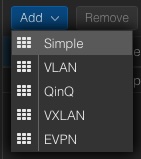 The SDN options are integrated within the datacenter chapter, in the sub chapter SDN. All further work will only be done within this chapter. Therefore, we navigate to:
–> Datacenter
—-> SDN
——–> Zones
The menu on the right site offers to add a new zone where the new zone of the type Simple will be selected. A new windows pops up where we directly activate the advanced options at the bottom. Afterwards, further required details will be provided.
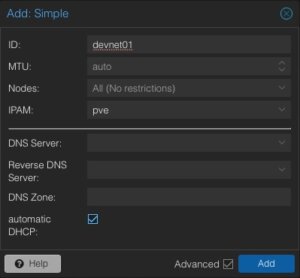
ID: devnet01
MTU: Auto
Nodes: All
IPAM: pve
Automatic DHCP: Activate
The ID represents the unique identifier of this zone. It might make sense to give it a recognisable name. Usually, we do not need to adjust the MTU size for this kind of default setups. However, there may always be some corner cases. In the node sections, this zone can be assigned to specific nodes or simply to all ones. There may also be scenarios where zones might only be limited to specific nodes. According to our advanced options, further details like DNS server and also the forward- & reverse zones can be defined. For this basic setup, this will not be used but the automatic DHCP option must be activated.
Now, the next steps will be done in the chapter VNets where the previously created zone will be linked to a virtual network. In the same step we will also provide additional network information like the network range etc.
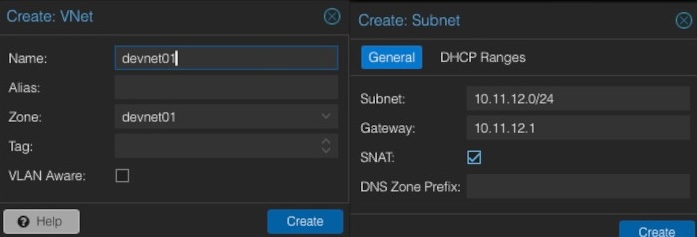
When creating a new VNet, an identifier or name must be given. It often makes sense to align the virtual network name to the previously generated zone name. In this example, the same names will be used. Optionally, an alias can be defined. The important part is to select the desired zone that should be used (e.g., devnet01). After creating the new VNet, we have the possibility to create a new subnet in the same window by clicking on the Create Subnet button.
Within this dialog, some basic network information will be entered. In general, we need to provide the desired subnet in CIDR notation (e.g., 10.11.12.0/24). Defining the IP address for the gateway is also possible. In this example the gateway will be placed on the IP address 10.11.12.1. Important is to activate the option SNAT. SNAT (Source Network Address Translation) is a technique to modify the source IP address of outgoing network traffic to appear as though it originates from a different IP address, which is usually the IP address of the router or firewall. This method is commonly employed to allow multiple devices on a private network to access external networks.
After creating and linking the zone, VNet and the subnet, the configuration can simply be applied on the web interface by clicking on the apply button. The configuration will now be synced to the desired nodes (in our example all ones).
Usage
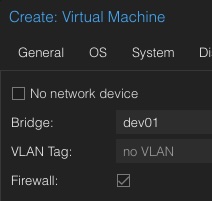 After applying the configuration on the nodes within the cluster, virtual machines must still be assigned to this network. Luckily, this can easily be done by using the regular Proxmox web interface which now also provides the newly created network devnet01 in the networking chapter of the VM. But also already present virtual machines can be assigned to this network.
When it comes to DevOps and automation, this is also available in the API where virtual machines can be assigned to the new network. Such a task could look like in the following example in Ansible:
 - name: Create Container in Custom Network
 community.general.proxmox:
 vmid: 100
 node: de01-dus01-node03
 api_user: root@pam
 api_password: {{ api_password }}
 api_host: de01-dus01-node01
 password: {{ container_password }}
 hostname: {{ container_fqdn }}
 ostemplate: 'local:vztmpl/debian-12-x86_64.tar.gz'
 netif: '{"net0":"name=eth0,ip=dhcp,ip6=dhcp,bridge=devnet01"}'
Virtual machines assigned to this network will immediately get IP addresses within our previously defined network 10.11.12.0/24 and can access the internet without any further needs. VMs may also moved across nodes in the cluster without any needs to adjust the gateway, even a node get shut down or rebooted for maintenances.
Conclusion
In conclusion, the integration of Software-Defined Networking (SDN) into Proxmox VE represents a huge benefit from a technical, but also from a user perspective where this feature is also usable from the Proxmox’s web ui. This ease of configuration empowers even those with limited networking experience to set up and manage even more complex network setups as well.
Proxmox makes it also easier with simple SDNs to create basic networks that let virtual machines connect to the internet. You don’t have to deal with complicated settings or gateways on the main nodes. This makes it quicker to get virtual setups up and running and lowers the chance of making mistakes that could lead to security problems.
For people just starting out, Proxmox has a user friendly website that makes it easy to set up and control networks. This is really helpful because it means they don’t have to learn a lot of complicated stuff to get started. Instead, they can spend more time working with their virtual computers and not worry too much about how to connect everything.
People who know more about technology will like how Proxmox lets them set up complex networks. This is good for large scaled setups because it can make the network run better, handle more traffic, and keep different parts of the network separate from each other.
Just like other useful integrations (e.g. Ceph), also the SDN integration provides huge benefits to its user base and shows the ongoing integration of useful tooling in Proxmox.
On Thursday, 27 June, and Friday, 28 June 2024, I had the amazing opportunity to attend Swiss PGDay 2024. The conference was held at the OST Eastern Switzerland University of Applied Sciences, Campus Rapperswil, which is beautifully situated on the banks of Lake Zurich in a nice, green environment. With approximately 110 attendees, the event had mainly a B2B focus, although not exclusively. Despite the conference being seemingly smaller in scale compared to PostgreSQL events in larger countries, it actually reflected perfectly the scope relevant for Switzerland.
During the conference, I presented my talk “GIN, BTREE_GIN, GIST, BTREE_GIST, HASH & BTREE Indexes on JSONB Data“. The talk summarized the results of my long-term project at NetApp, including newer interesting findings compared to the presentation I gave in Prague at the beginning of June. As far as I could tell, my talk was well received by the audience, and I received very positive feedback.
At the very end on Friday, I also presented a lightning talk, “Can PostgreSQL Have a More Prominent Role in the AI Boom?” (my slides are at the end of the file). In this brief talk, I raised the question of whether it would be possible to implement AI functionality directly into PostgreSQL, including storing embedding models and trained neural networks within the database. Several people in the audience, involved with ML/AI, reacted positively on this proposal, acknowledging that PostgreSQL could indeed play a more significant role in ML and AI topics.
The conference featured two tracks of presentations, one in English and the other in German, allowing for a diverse range of topics and speakers. I would like to highlight some of them:
- Tomas Vondra presented “The Past and the Future of the Postgres Community“, explaining how work on PostgreSQL changes and fixes is organized in Commitfests and discussing future development ideas within the community.
- Laurenz Albe’s talk, “Sicherheitsattacken auf PostgreSQL“, highlighted several potential attack vectors in PostgreSQL, capturing significant attention with surprising examples.
- Chris Engelbert’s presentation, “PostgreSQL on Kubernetes: Dos and Don’ts“, addressed the main issues related to running PostgreSQL on Kubernetes and discussed solutions, including pros and cons of existing PostgreSQL Kubernetes operators.
- Maurizio De Giorgi and Ismael Posada Trobo discussed “Solving PostgreSQL Connection Scalability Issues: Insights from CERN’s GitLab Service“, detailing the challenges and solutions for scalability in CERN’s vast database environment.
- Dirk Krautschick’s talk, “Warum sich PostgreSQL-Fans auch für Kafka und Debezium interessieren sollten?“, showcased examples of using Debezium connectors and Kafka with PostgreSQL for various use cases, including data migrations.
- Patrick Stählin discussed “Wie wir einen Datenkorruptions-Bug mit der Hilfe der Community gefunden und gefixt haben,” addressing issues with free space map files after migration to PostgreSQL 16.
- Marion Baumgartner’s presentation, “Geodaten-Management mit PostGIS,” provided interesting details about processing geo-data in PostgreSQL using the PostGIS extension.
- Prof. Stefan Keller, one of the main organizers and a professor of Data Engineering at Rapperswil OST University, presented “PostgreSQL: A Reliable and Extensible Multi-Model SQL Database“, discussing the multi-model structure of PostgreSQL amid declining interest in NoSQL solutions.
- Luigi Nardi from DBTune presented “Lessons Learned from Autotuning PostgreSQL“, describing an AI-based performance tuning tool developed by his company.
- Kanhaiya Lal and Belma Canik delved into “Beyond Keywords: AI-powered Text Search with pgvector for PostgreSQL,” exploring the use of the pgvector extension to enhance full-text search capabilities in PostgreSQL.
- Gabriele Bartolini, the creator of the PostgreSQL Kubernetes Operator “CloudNativePG,” discussed the history and capabilities of this operator in his talk, “Unleashing the Power of PostgreSQL in Kubernetes“.
At the end of the first day, all participants were invited to a social event for networking and personal exchange, which was very well organized. I would like to acknowledge the hard work and dedication of all the organizers and thank them for their efforts. Swiss PGDay 2024 was truly a memorable and valuable experience, offering great learning opportunities. I am grateful for the chance to participate and contribute to the conference, and I look forward to future editions of this event. I am also very thankful to NetApp-credativ for making my participation in the conference possible.
Photos by organizers, Gülçin Yıldırım Jelínek and author:







NetApp Storage and NVMe-oF for Breakthrough Performance in Proxmox Virtualization Environments
What is NVMe-oF
NVMe over Fabrics (NVMe-oF) is a cutting-edge protocol that has been developed to bring the impressive performance and low-latency characteristics of NVMe storage devices over network fabrics. This innovation is particularly transformative for data centers, as it facilitates the separation of storage and compute resources, granting administrators the ability to deploy these resources more flexibly and with greater scalability which makes it perfectly fine for virtualization workloads.
NVMe-oF is versatile in its support for multiple transport layers where it can operate over Fibre Channel (FC), Ethernet with the TCP/IP protocol with RDMA capabilities through RoCE or iWARP, and even utilize InfiniBand, each offering unique performance features tailored to different deployment needs.
NVMe-oF via TCP
When NVMe-oF is deployed over Ethernet with TCP, it brings the benefits of NVMe storage to the broadest possible range of environments without the need for specialized network infrastructure like Fibre Channel or InfiniBand. This brings access to high-performance storage by utilizing the common and familiar TCP stack, significantly reducing complexity and cost. The adoption of NVMe-oF with TCP is further facilitated by the widespread availability of Ethernet and expertise, making it a compelling choice for organizations looking to upgrade their storage networks without a complete overhaul.
The protocol’s efficiency is well maintained even over TCP, allowing NVMe commands to be passed with minimal overhead, thus keeping latency at bay, which is critical for latency-sensitive applications like virtualized data servers.
Configuring NetApp Storage
General
The guide presumes that users have already established the foundational storage setup, including the configuration of Storage Virtual Machines (SVMs). It highlights that the administration of these systems is relatively straightforward, thanks to the intuitive web interface provided by NetApp storage systems. Users can expect a user-friendly experience when managing their storage solutions, as the web interface is designed to simplify complex tasks. This also includes the whole setup for NVMe-oF storage, which requires to enable NVMe in general on the SVM, setting up the NVMe namespace and the NVMe subsystem.
Note: All changes can of course also be performed in an automated way by orchestrating the OnTap API.
Enable NVMe on SVM
 To enable NVMe at the SVM level on a NetApp storage system, this can typically be done by following these summarized steps, which can be accessed through the system’s web interface. Simply navigate to the Storage menu, then to Storage VMs, and finally selecting the specific SVM name you wish to configure:
- Configure NVMe Protocol: Within the SVM settings, look for a section or tab related to protocols. Locate the NVMe option and enable it. This might involve checking a box or switching a toggle to the ‘on’ position.
- Save and Apply Changes: After enabling NVMe, ensure to save the changes. There might be additional prompts or steps to confirm the changes, depending on the specific NetApp system and its version.
Remember to check for any prerequisites or additional configuration settings that might be required for NVMe operation, such as network settings, licensing, or compatible hardware checks. The exact steps may vary slightly depending on the version of ONTAP or the specific NetApp model you are using. Always refer to the latest official NetApp documentation or support resources for the most accurate guidance.
Creating the NVMe Subsystem
Afterwards, a new NVMe subsystem can be created on the NetApp storage system. This can be done by selecting the Hosts section, and choosing NVMe Subsystem to start the process of adding a new subsystem. A new wizard opens up which requires additional information regarding the newly to be created subsystem:
 Name: <An identifier of the NVMe subsystem>
Storage VM: <The previously adjusted SVM>
Host Operating System: Linux (important for the block size)
Host NQN: <NQN of the Proxmox VE node>
It’s essential to ensure that all information, especially the Hosts NQN, is correctly entered to avoid connectivity issues. Additionally, consult the official NetApp documentation for any version-specific instructions or additional configuration steps that may be required.
Creating the NVMe Namespace
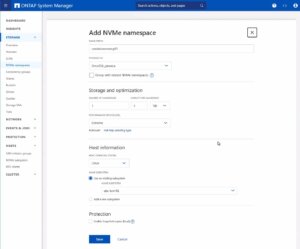 As a last step the NVMe namespace must be created. To add an NVMe namespace on a NetApp storage system, you would begin by logging into the web interface and navigating to the Storage section, followed by selecting NVMe Namespaces. In this area, you initiate the process of creating a new namespace. You will be prompted to provide specific details for the namespace, such as its name, size, and the associated SVM that will manage it.
Note: Also take an important note about the Performance Service Level which might be switched to a custom profile to avoid any limitations.
Once you have entered all the necessary information, you will typically proceed to choose the performance characteristics, like the service level or tiering policy, depending on your performance needs and the capabilities of your NetApp system.
After configuring these settings, you need to review your choices and save the new namespace configuration to make it available for use. It is important to ensure that the namespace is properly configured to match the requirements of your environment for optimal performance and compatibility. Always check for any additional steps or prerequisites by consulting the NetApp documentation relevant to your ONTAP version or storage model.
The configuration on the storage part is now complete. The next steps will be performed on the Proxmox VE node(s).
Configuring Proxmox Node
General
After configuring the NetApp storage appliance, all Proxmox VE nodes within the cluster must be configured to use and access the NVMe-oF storage. Unfortunately, Proxmox VE does not support this type of storage out of the box. Therefore, this cannot be easily configured by the Proxmox web interface. Luckily, Proxmox VE is based on Debian Linux from where all needed dependencies and configurations can be obtained but it requires us to do everything on the command line (CLI). Depending on the amount of nodes within the cluster, further config management tools like Ansible may boost up the initial setup process and make it repeatable for new potential nodes in the future. We may also assist you by setting up custom config management environments fitting your needs.
In general, this process consists of:
- Installing needed packages.
- Enabling the Kernel modules.
- Discovery of the storage.
- Connecting with the storage.
- Creating a LVM Volume Group.
- Assigning the storage in the Proxmox web interface.
The next steps in this blog post will cover the process in detail and guide you through the needed steps on the Proxmox VE nodes which must be done on the command line.
Installing Needed Packages
Using and accessing NVMe-oF requires the related user land tools (nvme-cli) to be present on the Proxmox VE node. Debian Linux already provides those tools within the Debian repository. As a result, the overall installation process is very easy. The package can simply be installed by the following command:
apt-get install nvme-cli
This package also already provides the required Kernel module which can simply be loaded by running:
modprobe nvme_tcp
Afterwards, the module should be added to be loaded at boot time:
echo "nvme_tcp" > /etc/modules-load.d/20-nvme_tcp.conf
After these steps, a connection with the storage can be initialized.
Connecting With the Storage
Interacting with the NetApp storage and its NVMe-oF functionality is a multi-step process and requires us to exchange the NVMe Qualified Name (NQN) address of each Proxmox VE node accessing the NVMe storage. The NQN address of a Proxmox VE node can be obtained by running the command:
cat /etc/nvme/hostnqn

Add the host NQN address on your NetApp export to allow the nodes accessing it. An example output is given in the screenshot.
Discovery & Connecting
In the next step, the NVMe’s will be discovered and connected to the Proxmox VE node. The discovery and connect process is simply done by running the following commands:
nvme discover -t tcp -a 192.168.164.100 -s 4420
 nvme connect -t tcp -n na01-nqn01 -a 192.168.164.100 -s 4420
To make this configuration persistent to system reboots, the commands will also be added to the nvme discovery file. The nvmf-autoconnect systemd unit file ensures to load this. Therefore, this systemd unit file must also be enabled.
echo "discover -t tcp -a 192.168.164.100 -s 4420" >> etc/nvme/discovery.conf
 systemctl enable nvmf-autoconnect.service
Volume Group
The last steps will partially be done on the command line and on the Proxmox web interface to add the new storage to the cluster.
Important:
This steps must only be done on a single Proxmox VE host node and not on all ones. The integration happens on cluster level and implies all Proxmox VE nodes once this has been done.
The last command on the command line results in creating a new LVM Volume Group (VG) on the new NVMe device which can simply be done by executing the command:
vgcreate shared_nvme01 /dev/nvme0n1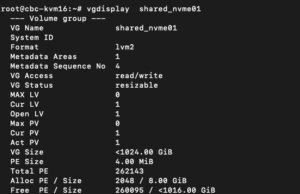
The newly created LVM Volume Group (VG) can be validated by running the command:
vgdisplay shared_nvme01
An output like in the given screenshot should be returned, including all further details of this VG. After validating the information, all tasks are completed on the command line.
To finally use this LVM Volume Group on all Proxmox VE nodes within the cluster, this Volume Group must be added and integrated on cluster level. Therefore, we need to login to the web frontend of the cluster and add this under:
- Datacenter
- Storage
- Add
- LVM
In the new window some more details for the new LVM storage have to be defined:
- ID: shared_nvme01 (this can be any text and is jut an identifier)
- Base storage: Existing volume groups
- Volume group: shared_nvme01
- Content: Disk image, Container (may vary)
- Nodes: <Select all nodes that should use it>
- Enables: Yes
- Shared: Yes
- Wipe Removed Volumes: No
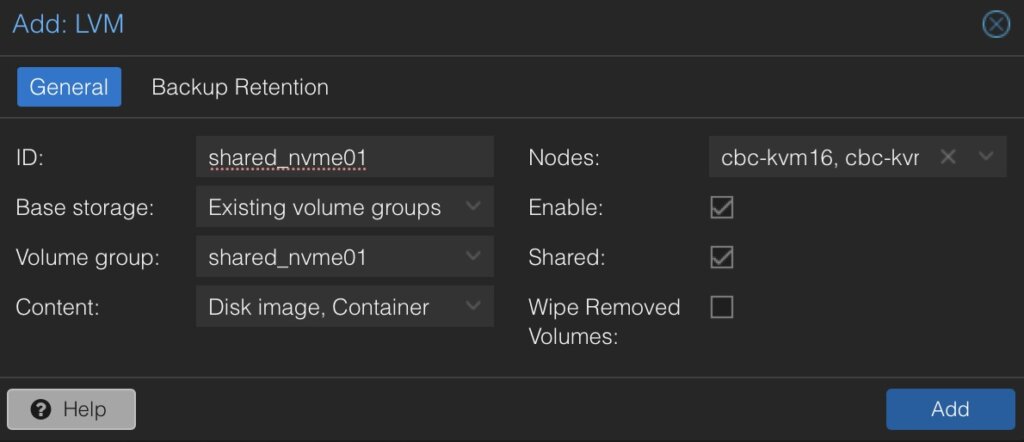
By pressing on Add this will be attached to the selected nodes as a new volume and can directly be used.
Conclusion
The utilization of NVMe over Fabrics (NVMe-oF) via TCP in addition with Proxmox VE in a virtualization environment presents a compelling solution for organizations looking at cost-effective yet high-performance storage architectures. This approach leverages the widespread availability and compatibility of Ethernet-based networks, avoiding the need for specialized hardware such as Fibre Channel or InfiniBand, which can be cost-prohibitive for many enterprises.
By integrating NVMe-oF with Proxmox, a popular open-source virtualization platform, users can benefit from significantly improved data transfer speeds and lower latency compared to traditional storage solutions. NVMe-oF may not only be used with Proxmox VE but also on other operating systems like FreeBSD and hypervisors like bhyve. This provides a great benefit for latency-sensitive workloads, such as virtualized database servers, where rapid access to data is critical for performance. The NVMe protocol is designed to exploit the full potential of solid-state storage technologies. When used over a network fabric using TCP, it can deliver near-local NVMe performance by being very cost-effective.
At your convenience, we’re available to provide more insights into NetApp storage systems, covering both hardware and software aspects. Our expertise also extends to open-source products, especially in establishing virtualization environments using technologies like Proxmox and OpenShift or in maintaining them with config management. We invite you to reach out for any assistance you require.
You might also be interested in learning how to migrate VMs from VMware ESXi to Proxmox VE or how to include the Proxmox Backup Server into your infrastructure.
Creating a Virtualization Environment
Everyone is nowadays talking about containerization but there are still many reasons to run virtual machines and it doesn’t always have to be Proxmox VE on Linux systems to create a virtualization environment with open-source tools!

Next to the well known Proxmox, there are also other open-source alternatives when it comes to virtualization. A promising solution is also given by bhyve (pronounced bee-hive) which runs on FreeBSD based systems. It was initially written for FreeBSD but now also runs on a number of illumos based distributions like OpenIndiana. bhyve offers a robust and high-performance virtualization solution where it directly operates on the bare metal, utilizing the hardware virtualization features for enhanced performance and isolation between virtual machines. Known for its performance, stability and security, bhyve is integrated into FreeBSD, benefiting from the reliability of the FreeBSD kernel. Of course it also provides the typical feature set such as snapshotting and cloning of VMs. Especially in such cases it benefits from additional features in FreeBSD like the ZFS filesystem. Unfortunately, bhyve does not offer any web-frontend for its administration. This is where bhyve-webadmin (BVCP) steps in to fill the gap. This blog post we will cover the initial setup and features of bhyve and bhyve-admin to provide a fully usable virtualization environment.
Features
bhyve-webadmin (also known as BVCP) provides an API, CLI and a secure web interface for administrating bhyve and virtual machines. bhyve-webadmin mainly features:
- Modularity
- Backend, Frontend, API and helpers are working independently including separate privileges.
- Multi Node
- Multiple server/instances can be orchestrated by a single interface.
- Security
- Native Application
- Roles
- Providing user management including multiple roles.
Requirements
Some general requirements must be fulfilled to run bhyve bundled with bhyve-webadmin:
- System with a minimal FreeBSD image installed.
- 64-bit CPU
- POPCNT (POPulation Count) processor feature
Additional configuration regarding the underlying storage and network configuration are needed but while these are individual for each setup this is not covered in detail within this guide.
Installation
This guide is based on FreeBSD 14 and bhyve-webadmin v1.9.8p9 to provide a virtualization infrastructure. bhyve-webadmin’s concept relies on working as close as possibly to the FreeBSD system and will not change its configuration. Instead, it will install and maintain everything in dedicated directories, configurations and services. As a result, the whole installation including all further dependencies and configuration can be done in minutes.
Overview
File-Structure
By default, bhyve-webadmin will use the following directories for the content:
- /var/lib/nPulse/BVCP: bhyve-webadmin content
- /var/lib/nPulse/BVCP/bvcp.conf: configuration file
- /vms
- /vms/instances
- /vms/iso-images
- /vms/db
- /vms/logs
- /vms/tmp
- /vms/bootrom
Additional helper tools can be found within these directories. For example, a forgotten password can be resetted by running:
- /var/lib/nPulse/BVCP/Backend/vmm reset_password
Services
As already mentioned before, it consists of multiple and independently working software components that can also be orchestrated.
Frontend:
service bvcp-frontend start / stop / restart
Backend:
service bvcp-backend start / stop / restart
Helper:
service bvcp-helper start / stop / restart
Software Installation
cd /tmp/
fetch https://github.com/DaVieS007/bhyve-webadmin/archive/refs/tags/v1.9.8p9.tar.gz
tar xfvz v1.9.8p9.tar.gz
sha256sum /tmp/bhyve-webadmin-1.9.8p9.tar.gz
$> 758f5900c75a1832c980ed23c74a893f05252aa130e7c803843dac1d2531516f  /tmp/bhyve-webadmin-1.9.8p9.tar.gz
cd bhyve-webadmin-1.9.8p9/
./install.sh
After finishing the installation, all needed directories, configuration and services have been created and the services are already running on the system. On the CLI, the login credentials for the web interface are provided and a login on the web frontend on https://<ip>:8086 is possible. By default, self-signed certificates are generated for the encryption of the web frontend and VNC sessions. The generated self-signed certificates can be later replaced by proper ones (e.g. by using Let’s Encrypt).
Adding ISO-Images
ISO-Images for virtual machines are located in /vms/iso_images. Adding images is simply done by dropping the images within that directory. This can be done on the uploading images via SCP, SFTP or on the system itself by downloading an image from a remote like in the given example:
cd /vms/iso_images/
fetch https://download.freebsd.org/releases/amd64/amd64/ISO-IMAGES/14.0/FreeBSD-14.0-RELEASE-amd64-bootonly.iso
Configuration
An initial first login on the web frontend can now be done. The web frontend can be reached on https://<ip>:8086 and uses self-signed certificates by default. The credentials for the root user login have been printed on the CLI during the setup runtime.
bhyve BVCP Login
After a successful login, the default overview page is being displayed.
After an initial installation it will guide you through the following three next steps which will be covered in detail:
- Configure Network
- Configure Storage
- Create VM
Configure Network
Networking is one of the most important and complex parts when it comes to virtualized environments. Even more complex setups including VLAN separations etc. are possible but not covered within this guide which primarily focuses on a simple bridged– & NAT– networking setup.
Bridged Network
A simple bridged network can be created by clicking on the first Option 1. Configure at least one virtual network where we can create a new network on our cluster. Creating a new network is simple where just the desired network interface on the cluster must be selected.
Within this guide we select the following options which may vary depending on your personal setup:
Network Gateway to bound: (+) [em0] (mtu: 1500) 10.10.10.77
Unique Network Name: uplink-dev
Descriptive Text: Uplink network for the dev environments
bhyve BVCP – Create Network
In the given drop-down menu all available network cards will be shown with their interface name and assigned ip address(es) which makes it easy to choose the right one. After saving the configuration, the newly created network is directly usable.
NAT Network
NAT is already considered as a more advanced networking setup but often needed when working with RFC 1918 addresses. NAT is not supported by default and needs to be configured manually. Within this guide a NAT networking will be created for the interface em1 by using PF (a FreeBSD integrated firewall).
Therefore, we enable the PF service in the rc.conf file by running the following command, enabling IP forwarding and directly edit the firewall configuration file:
echo 'pf_enable="YES"' >> /etc/rc.conf
echo "net.inet.ip.forwarding=1" >> /etc/sysctl.conf
sysctl -f /etc/sysctl.conf
vi /etc/pf.conf
The firewall configuration for NAT networking on the em1 interface will be extended by the following content:
nat on em1 from {10.10.10.1/24} to any -> (em1)
Optional: Also port forwarding can be defined in this file which would need to add:
# Forward SSH (tcp/22) to NAT destination host 192.168.1.99
rdr on em1 proto tcp from any to em1 port 22 -> 192.168.1.99 port 22
As a last step, a dummy interface must be created, that be selected in the web frontend service. As a result, this will be added to the /etc/rc.conf file by adding:
cloned_interfaces="nat0"
ifconfig_nat0="inet 192.168.1.1 netmask 255.255.255.0 up"
Finally, the required services can be restarted by running:
service netif restart && service routing restart
Configure Storage
In a next step the storage must be configured. Therefore, this can simply be initiated by clicking on 2. Configure at least one data store in the web UI. By default, no one is created and configured:

bhyve BVCP – Storage Overview
By clicking on Create Storage a new storage will be created. Newly created storages must be a mount point.
Create VM
Within the last step, the first virtual machine gets created. This can be finally done by clicking on 3. Create your first Virtual Machine where the options for the VM will be defined.
bhyve BVCP – Create VM
Within this menu, a unique name, a description, the hardware resources like number of cores and memory als the underlying hardware architecture must be defined. After saving, the VM object gets created and we can perform additional tasks like defining an ISO-Image that should be booted in the VM.
bhyve BVCP – Add ISO Image to VM
As already mentioned before in the File Structure chapter, all available ISO-Images must be located in /vms/iso-images. Placed images can be directly selected from the drop-down menu.
Within the last step, the VM can be started by clicking on the play button. Switching back to the Virtual Machine overview (List of Virtual Machines) the VM will be displayed with a green icon as an indication that this virtual machine is up and running.
The VM can now be accessed by the integrated VNC server by clicking on the monitor icon in the middle of the option menu.
Statistics
Performance metrics and statistics of the system usage are an important task. BVCP offers many options to validate the machine health status including performance metrics and statistics of the memory-, CPU-, storage-, networking, etc. usage to quickly detect any negative impacts on an overloaded host node. Beside this, it can also help to evaluate the source of any performance problems in the setup or of a single virtual machine instance.
Conclusion
It doesn’t always have to be Proxmox on Linux systems to create a fast and secure virtualization environment with open-source tools. FreeBSD, bhyve and bhyve-webadmin (BVCP) offer a great bundled solution to run a dedicated virtualization infrastructure which does not need any knowledge in FreeBSD, bhyve or any CLI commands for the end user. Given by the included IAM, users are able to login to a graphical web frontend and to manage their virtual machines on their own.
As a specialists for open-source and open-source infrastructure we are also happy to assist you and your business in BSD based systems including their features like ZFS, PF, Jails, bhyve etc.. Since 1999, credativ® has been recognized for providing 24/7 open source support that rivals manufacturer support. We do not just provide technical support, we also provide all other services across the entire lifecycle of open-source landscapes completed by high flexibility.
From April, 18th until Friday, 21st the KubeCon in combination with the CloudNativeCon took place in Amsterdam: COMMUNITY IN BLOOM. An exciting event for people with interest in Kubernetes and cloud native technologies.

At credativ, it is must to pre-train us in many relevant areas. This of course includes Kubernetes and Cloud Native technologies. The KubeCon/Cloud Native Con has been one of the conferences on our must-attend list for several years now.
A short diary
We started our journey to the KubeCon by Tuesday evening with the badge pickups. On Wednesday the Keynotes started with the usual welcome words and opening remarks.
The information that 10000 attendees have been registered with additional 2000 people on the wait list was really impressive and shows the importance of Cloud Native technologies. Nearly 58% of the attendees were new to the conference which proves that more and more people get in touch with Kubernetes and Co.
In addition to the common sponsored keynotes a short update of the CNCF graduated projects was presented. There was a wide variation of projects. From FluxCD to Prometheus, Linkerd, Harbor and many more.
The second day started once again with keynotes which included several project updates e.g. Kubernetes and incubating projects.
The last day as usual opened with keynotes. A highlight here was the presentation “Enabling Real-Time Media in Kubernetes” which gave some insights about a Media Streaming Mesh.
Supplemental to the talks and presentations some tutorials happened. Those tutorials usually take at least two time slots and therefore, provide a deeper insight into a specific topic and left room for questions. The tutorials we visited were well prepared and several people were cruising through the attendees to help and answer questions. One of those tutorials showed the usage and benefits of Pixie which provides deep insights into a system using eBPF and various open source projects.
Beyond the tracks a booth location was available, it has been divided (by halls) to the company related booths and an area with projects. NetApp was represented at several booths.
The main theme this year seemed to be all about eBPF and Cilium. Various presentations on different tracks highlighted this topic and showed areas of application for eBPF. Different Cilium talks presented various aspects of Cilium for e.g. observability or multi-cluster connections and application failover.
Not so good
One bad thing has to be mentioned. Some talks were full. Really full. To some of them we got no access due to the fact, that the room was filled 15-30 minutes before the talk started. Maybe it would be possible for the next time to ask all users to create a personal schedule in the corresponding app and reassign the rooms by the amount of interested (scheduled) people.
Keynotes, Talks and Presentations
A short overview about the (visited) highlights of the talks and presentations:
- “Improve Vulnerability Management with OCI Artifacts – It Is That Easy” a great talk about images and artifacts related to trivy
- “Anatomy of a Cloud Security Breach – 7 deadly sins” – a short recap of really occured security breaches. Nothing unknown but a good comprehension.
- “Creating a Culture of Documentation” – about integrating the documentation process and creating a culture.
- “Kubernetes Defense Monitoring with Prometheus” – an encouraging presentation about the usage of metrics
- “Breakpoints in Your Pod: Interactively Debugging Kubernetes Applications” – a great talk about requirements and how to achieve debugging in pods
- “Effortless Open Source Observability with Cilium, Prometheus and Grafana – LGTM!” Highlighting the observability features from Cilium and service dependency maps with Hubble.
Conclusion
As always, the conference was worthwhile for gaining new impressions, having exchange with interesting people and expanding one’s knowledge. We were certainly happy to participate are already looking forward to attending the next KubeCon.

What is it?
Yunohost enables users to manage a Linux server entirely via a web UI. This includes server administration, application deployment, and integration into existing infrastructure.
In general, Yunohost is available under the AGPL 3.0. However, since it is based on Debian, there may be deviations, as may also be the case with the applications used.It is developed primarily by a general group of developers rather than a dedicated company or association.
The goal is to give users a simple and convenient way to host their own applications without having to rely on potentially proprietary or paid services.
Further details can also be found in the project’s FAQ.
Structure
Yunohost is based on the free operating system Debian (version 10 “buster”), including various repositories. Administration is handled via a custom-developed web UI, which can be used for various system tasks such as updates as well as managing the applications installed on the server. The application catalog is provided via a dedicated Yunohost APT repository; otherwise, only the standard Debian repositories are configured.
Yunohost itself can also handle multiple domains as targets and provide applications multiple times in different areas. It also includes integrated Let’s Encrypt and an integrated mail server, making it easy to handle SSL certificates and emails. Overall, it comes with a solid base set of features, which still needs to be tailored.
If using the web UI is too cumbersome, there is also a CLI tool that covers the most common UI functions for domains, user/group management, and other areas.
Requirements
The basic hardware requirements are fairly minimal; however, the final requirements depend on the applications used later. For example, a small Raspberry Pi will likely be too limited to handle multiple databases, web apps, and collaborative office tools. An overview from the developers themselves can be found in the documentation.
Installation
Various images are available for different platforms (including Raspberry and ARM devices) and can be downloaded and used directly.
As with many Linux distributions, installation can be performed either via a graphical interface or in text mode. The installation is highly guided and automated, so even a less experienced user should be able to complete it without any issues. This does, of course, come at the expense of customization. For example, in the current version it is not possible to configure a custom disk layout.
After installation is complete, Yunohost can be initially configured via the web interface by accessing the IP/hostname. In the web UI, you are also prompted to set an initial admin password, which is then also set for the root SSH user. The initial SSH password without setup is `yunohost` and should be changed as soon as possible by completing the setup.
Yunohost is able to work with various external systems, e.g., for authentication and DynDNS. Depending on your infrastructure, it is helpful to review the documentation in advance to avoid effort later on.
Applications
Yunohost offers a large catalog of apps that can be installed and basically configured via the interface.
Please note that only a rough configuration is possible via the interface, such as setting a URL and the application’s hostname, as well as creating an administrative user from the Yunohost user base. For granular settings, you will need to use SSH on the host again. While the applications are provided with a general best-practice configuration rather than completely unconfigured, this is not necessarily sufficient, especially for more complex or more flexible applications such as the Matrix server Synapse.
However, after the initial (possibly manual) configuration, ongoing management for further updates and upgrades can at least be handled directly from the web UI.
When installing an application, you can also specify whether it should be publicly available or only available to users registered in Yunohost. However, these users are independent of any users that may need to be created within the application itself, but they do provide a way to separate applications into public and internal areas.
Conclusion
This is only intended as a brief initial overview of the project. Especially for private users who do not want to deal with deploying and maintaining services, but only want to make adjustments to the applications, it may well be worth a look. The large catalog of already supported applications is also regularly expanded, and integration is continuously improved.
The documentation is generally available in German, but localization is not yet fully complete, so if in doubt it makes sense to use the English documentation where possible. However, this primarily affects specific sub-areas; most general topics are also available in German. Thanks to the fairly intuitive operation of the web interface, you can, if necessary, also do without these parts of the documentation.
There is a dedicated link for contributing to the project.
If you would like to get an impression of the web UI and its capabilities before installing it yourself, you can also use the public demo instance.
We are Happy to Support You
Whether Yunohost, Debian, or Postgres: with more than 22+ years of development and service experience in the open source space, credativ GmbH can support you professionally with unparalleled, individually configurable support and fully assist you with all questions relating to your open source infrastructure.
Do you have questions about our article, or would you like credativ’s specialists to take a look at another software solution of your choice?
Then drop by and get in touch via our contact form or email us at info@credativ.de.
PostgreSQL® 9.3 ist da! Die neue Hauptversion bringt viele Verbesserungen und neue Funktionen. Dieser Artikel stellt einige der interssanten Neuerungen vor.
Verbessertes Locking mit Fremdschlüsseln
Fremdschlüssel sind unabdingbar für die referentielle Integrität der Daten. Allerdings brachten diese bis einschließlich PostgreSQL® 9.2 auch unter bestimmten Bedingungen Lockingprobleme bei UPDATE auf Spalten mit Fremdschlüsseln mit sich. Vor allem bei überlappenden Aktualisierungen mehrerer Transaktionen über einen Fremdschlüssel kann es sogar zu Deadlocks kommen. Das folgende Beispiel ist in PostgreSQL® 9.2 problematisch, exemplarisch an diesem einfachen Datenmodell demonstriert:
CREATE TABLE parent(id integer, value text);
ALTER TABLE parent ADD PRIMARY KEY(id);
CREATE TABLE child(id integer, parent_id integer REFERENCES parent(id), value text);
INSERT INTO parent VALUES(1, 'bob');
INSERT INTO parent VALUES(2, 'andrea');
Zwei Transaktionen, jeweils Session 1 und Session 2 genannt, werden zeitgleich in der Datenbank gestartet:
Session 1
BEGIN;
INSERT INTO child VALUES(1, 1, 'abcdef');
UPDATE parent SET value = 'thomas' WHERE id = 1;
Session 2
BEGIN;
INSERT INTO child VALUES(2, 1, 'ghijkl');
UPDATE parent SET value = 'thomas' WHERE id = 1;
Session 1 und Session 2 führen beide den INSERT erfolgreich aus, der UPDATE blockiert jedoch in Session 1, da der INSERT in Session 2 einen sogenannten SHARE LOCK auf das Tupel mit dem Fremdschlüssel hält. Dieser steht in Konflikt mit der Sperre, die der UPDATE auf den Fremdschlüssel haben möchte. Nun versucht Session 2 seinerseits seinen UPDATE abzusetzen, dies erzeugt jedoch wiederum einen Konflikt mit dem UPDATE aus Session 1; Ein Deadlock ist entstanden und wird automatisch in PostgreSQL® 9.2 aufgelöst. In diesem Fall wird jedoch die Transaktion in Session 2 abgebrochen:
ERROR:  deadlock detected
DETAIL:  Process 88059 waits for ExclusiveLock on tuple (0,1) of relation 1144033 of database 1029038; blocked by process 88031.
Process 88031 waits for ShareLock on transaction 791327; blocked by process 88059.
In PostgreSQL® 9.3 gibt es jetzt ein deutlich verfeinertes Locking bei Aktualisierungen auf Zeilen und Tabellen mit Fremdschlüsseln, die das angeführte Problem entschärfen. Hierbei werden Tupel, die kein gezieltes UPDATE auf einen Fremdschlüssel darstellen (d.h. der Wert eines Fremdschlüssels wird nicht verändert), mit einem schwächeren Lock (FOR NO KEY UPDATE) gesperrt. Für das einfache Prüfen eines Fremdschlüssels verwendet PostgreSQL® des weiteren den neuen FOR KEY SHARE Lock, der hiermit nicht in Konflikt steht. Dies verhindert im gezeigten Beispiel einen Deadlock, der UPDATE in Session 1 wird zunächst ausgeführt, der in Konflikt stehende UPDATE in Session 2 muss warten, bis Session 1 erfolgreich die Transaktion bestätigt oder zurückrollt.
Parallel pg_dump
pg_dump besitzt mit der neuen Kommandozeilenoption -j die Möglichkeit, parallel Tabellen und deren Daten zu sichern. Diese Funktion kann einen Dump sehr großer Datenbanken erheblich beschleunigen, da Tabellen gleichzeitig gesichert werden können. Dies funktioniert nur mit dem Directory Ausgabeformat (-Fd) von pg_dump. Mittels pg_restore können diese Dumps dann ebenfalls mit mehreren Restoreprozessen gleichzeitig wiederhergestellt werden.
Updatable Foreign Data Wrapper und postgres_fdw
Mit PostgreSQL® 9.3 wurde die API für Foreign Data Wrapper (FDW) für DML-Kommandos erweitert. Dies ermöglicht die Implementierung von aktualisierbaren FDW-Modulen. Gleichzeitig wurde der Foreign Data Wrapper für PostgreSQL® (postgres_fdw) als Extension integriert. Dies erlaubt nun den transparenten Zugriff auf entfernte PostgreSQL®-Instanzen. Tabellen erscheinen dabei in der Datenbank als lokale Tabellen und können ohne weiteres zum Beispiel in komplexen SQL-Konstrukten wie JOINs oder Views verwendet werden. FDW werden in einem späteren Artikel an dieser Stelle noch ausführlicher erläutert.
Event Trigger
Ein schon länger von Anwendern gewünschtes Feature sind Event Trigger für DDL (Data Definition Language) Operationen, wie beispielsweise ALTER TABLE oder CREATE TABLE. Dies ermöglicht das automatische Reagieren auf bestimmte Ereignisse per DDL, wie beispielsweise bestimmte Aktionen zu protokollieren. Unterstützt werden im Moment Aktionen für ddl_command_start, sql_drop und ddl_command_end. Triggerfunktionen können mit C oder PL/PgSQL erstellt werden. Folgendes Beispiel für sql_drop verhindert beispielsweise das Löschen von Tabellen:
CREATE OR REPLACE FUNCTION del_event_func() RETURNS event_trigger AS $$
DECLARE
        v_item record;
BEGIN
        FOR v_item IN SELECT * FROM pg_event_trigger_dropped_objects()
        LOOP
                RAISE EXCEPTION 'deletion of object %.% forbidden', v_item.schema_name, v_item.object_name;
        END LOOP;
END;
$$ LANGUAGE plpgsql;

CREATE EVENT TRIGGER delete_table_obj ON sql_drop WHEN tag IN ('drop table') EXECUTE PROCEDURE del_event_func();

DROP TABLE child ;
FEHLER:  deletion of object public.child forbidden
Prüfsummen in Tabellen
Mit PostgreSQL® 9.3 gibt es nun die Möglichkeit, in Umgebungen, in denen die Zuverlässigkeit der verwendeten Speicherlösungen nicht garantiert werden kann (beispielsweise bestimmte Cloudumgebungen), den Datenbankcluster mit Prüfsummen zu initialisieren. PostgreSQL® organisiert Tupel in standardmäßig 8KB großen Blöcken. Diese bilden die kleinste Einheit, mit der die Datenbank auf dem Speichersystem arbeitet. Prüfsummen versehen diese Blöcke nun mit zusätzlichen Informationen, um Speicherfehler wie korrupte Blockheader oder Tupelheader frühzeitig erkennen zu können. Prüfsummen lassen sich nicht nachträglich aktivieren, sondern erfordern das Initialisieren des physikalischen Datenbankverzeichnisses mit initdb und dem neuen Kommandozeilenparameter –data-checksums. Dies gilt dann für sämtliche Datenbankobjekte wie Tabellen oder Indexe und hat eine Auswirkung auf die Geschwindigkeit.
Materialized Views
Die neue PostgreSQL® Version 9.3 enthält nun auch eine grundlegende Implementierung für Materialized Views. Normale Views in PostgreSQL® sind keine materialisierten Objekte im Sinne einer Tabelle. Im übertragenen Sinne muss man sich Views als eine Art Makro vorstellen, die PostgreSQL®auf die zugrundeliegende View anwendet. So wird ein SELECT * FROM <view> dann zum eigentlichen, beliebig komplexen SELECT umgeschrieben. Dies hat jedoch zur Folge, dass bei großen Datenmengen immer wieder das Ergebnis von neuem geplant, ausgeführt und materialisiert werden muss. Mit Materialized Views lassen sich Views erstellen, die die materialisierte Ergebnismenge direkt vorhalten. Die Implementierung in PostgreSQL® 9.3 ist jedoch noch sehr generisch. Auch blockiert das REFRESH MATERIALIZED VIEW Kommando alle Zugriffe auf den Materialized View.
Dies sind nur einige Beispiele aus der langen Liste von Neuerungen, die in die neue PostgreSQL® Version Einzug gehalten haben. Mit JSON, Verbesserungen in Streaming Replication und einigen Verbesserungen in der Konfiguration wie Shared Memory Nutzung sind noch viele andere Neuigkeiten hinzugekommen. Allen, die an detaillierten Ausführungen aller neuen Features interessiert sind, seien die Release Notes ans Herz gelegt. Für RedHat, CentOS, Scientific Linux und Fedora liegen RPM Pakete unter http://yum.postgresql.org bereit. Für Debian steht das PGAPT Repository zur Verfügung. Genaue Instruktionen findet man unter http://wiki.postgresql.org/wiki/Apt
Dieser Artikel wurde ursprünglich von Bernd Helmle geschrieben.
Auch lesenswert: PostgreSQL Foreign Data Wrapper für Informix